
 SlackLinux
vs
Microsoft Teams (2026 standalone version)Windows
Slack as a Linux alternative to Microsoft Teams (2026 standalone version)
Updated
Our verdict
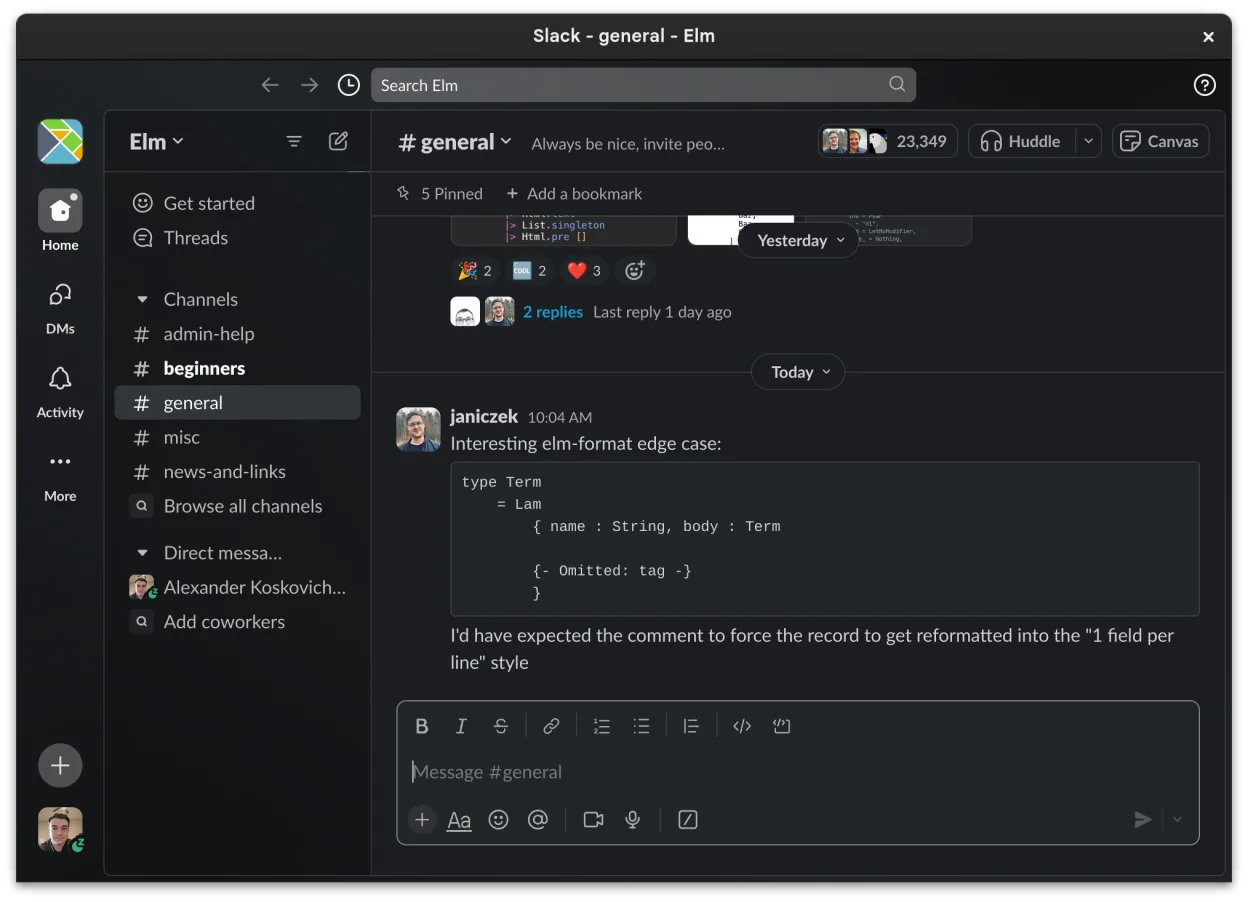
Slack is a solid replacement for Microsoft Teams (2026 standalone version) for teams focused on messaging, integrations, and workflow automation. It handles real-time chat, file sharing, voice and video calls, and cross-platform sync well. The beta Linux client works reliably for most daily tasks, though some advanced calling features may lag behind. It’s best suited for organizations not tied to Microsoft 365. If your team relies heavily on deep Outlook or SharePoint integration, Slack may require workflow adjustments. For independent teams or those using Google Workspace, it’s a strong alternative.
- License
- LicenseRef-proprietary=https://slack.com…
- Price
- freemium
- Latest version
- 4.53.280 (November 4, 2026)
- Rating
- —
What works the same
- Channel-based messaging for teams and projects
- Direct messaging with read receipts and emoji reactions
- File sharing with previews and searchable history
- Cross-platform support including desktop, web, and mobile
- Customizable notifications and integration with third-party tools
What is different
- Slack’s Linux app is beta and may lack some features like screen sharing or call quality options
- No native integration with Microsoft 365 apps like Outlook or OneDrive
- Video conferencing is functional but not as polished as Teams’
- Limited calendar management within Slack itself
- Threaded replies are central in Slack, while Teams uses a more linear model
Opening your Microsoft Teams (2026 standalone version) files
Slack supports uploading and previewing most common file types (PDF, images, Office documents) similar to Microsoft Teams. Files shared in Teams can be downloaded and re-uploaded to Slack without issue. However, real-time collaborative editing of Office documents in Slack depends on external tools like Google Docs or Office 365 web apps, as Slack doesn’t provide built-in document editing. There’s no direct import of Teams chat history or files into Slack without using Slack’s migration tools.
Switching from Microsoft Teams (2026 standalone version) to Slack, step by step
- Export important files and contacts from Microsoft Teams
- Create a Slack workspace and invite team members
- Install Slack via Flathub or official package for Linux
- Set up channels to mirror existing Teams structure
- Integrate key tools (e.g., Google Drive, Jira) via Slack Apps
- Train team on Slack workflows, especially threads and notifications
Key features of Slack
- Channel-based organization for topics and projects
- Direct messaging with read receipts and reactions
- File sharing with preview support for common formats
- Integration with third-party tools via Slack Apps
- Threaded conversations to keep main channels uncluttered
- Cross-device sync for messages and notifications
- Customizable notification settings per channel or DM
- Beta Linux client with ongoing feature additions
How to install Slack on Linux
flatpak install flathub com.slack.SlackFrequently asked questions
Can Slack replace Microsoft Teams completely?
Yes, if your team doesn’t depend on deep Microsoft 365 integration. Slack covers chat, file sharing, and video calls well, but organizations tied to Outlook and SharePoint may lose some functionality.
Is Slack’s Linux client stable enough for daily use?
Yes, the beta client is usable for most tasks—chat, file sharing, notifications—but expect occasional bugs in screen sharing or call features.
Can I migrate Teams chat history to Slack?
Only with Slack’s official import tools, which may require admin access and formatting adjustments. Direct import of Teams data isn’t supported out of the box.
4 other alternatives to Microsoft Teams (2026 standalone version)
 MattermostMattermost is an open-source, self-hosted collaboration platform for developer teams, offering a secure…Open sourceFreeFlatpakMattermost vs Microsoft Teams (2026 standalone version)
 Rocket.ChatOpen-source team communication platform for chat, video, and collaboration, often used to replace Slack or…Open sourceFreeFlatpakRocket.Chat vs Microsoft Teams (2026 standalone version)
 ZulipZulip is an open-source group chat application that uses threaded conversations to manage high-volume team…Open sourceFreeFlatpakZulip vs Microsoft Teams (2026 standalone version)
 ElementElement is an open‑source, matrix‑based chat and video‑conference client for Linux.Open sourceFreeFlatpakElement vs Microsoft Teams (2026 standalone version)
All alternatives to Microsoft Teams (2026 standalone version)