
 SQuirreL SQL ClientLinux
vs
Oracle SQL DeveloperWindows
SQuirreL SQL ClientLinux
vs
Oracle SQL DeveloperWindows
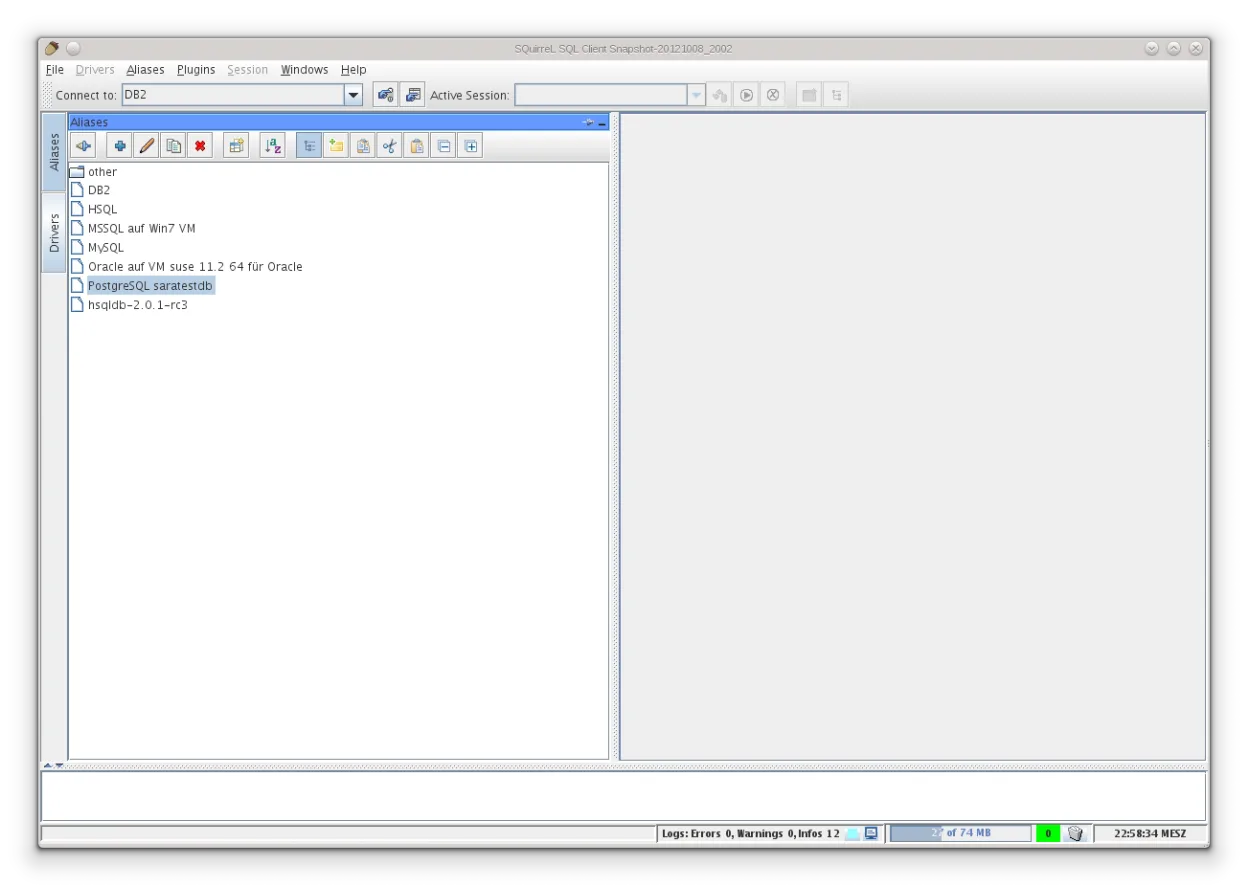
SQuirreL SQL Client as a Linux alternative to Oracle SQL Developer
Updated
Our verdict
SQuirreL SQL Client can replace Oracle SQL Developer for many day‑to‑day tasks such as connecting to Oracle databases, running queries, browsing schemas, and exporting results. It works on Linux, is free, and supports Oracle via the JDBC driver. However, it lacks Oracle‑specific features like PL/SQL debugging, migration wizards, and tight integration with Oracle Enterprise Manager. It is best suited for developers who need a lightweight, multi‑database client and are willing to use external tools for advanced Oracle tasks.
- License
- LGPL-2.1-or-later
- Price
- Free
- Latest version
- 4.8.0 (September 1, 2024)
- Rating
- —
What works the same
- Both are Java‑based, cross‑platform IDEs for database development
- Both provide a schema browser and SQL editor with syntax highlighting
- Both support connection profiles and multiple database types via JDBC
- Both allow exporting query results to CSV or Excel
- Both have plugin or extension mechanisms
What is different
- SQuirreL lacks Oracle‑specific debugging and migration wizards present in SQL Developer
- Oracle SQL Developer integrates with Oracle Enterprise Manager and AWR reports; SQuirreL does not
- SQL Developer offers built‑in PL/SQL code completion and debugging; SQuirreL only offers basic editor features
- SQL Developer can generate migration scripts for other RDBMS; SQuirreL has no such feature
- SQL Developer is tailored for Oracle; SQuirreL is generic and may require manual driver configuration for Oracle
Opening your Oracle SQL Developer files
SQuirreL SQL Client does not read Oracle SQL Developer project files (.xml, .sqd) or export directly to them. To move scripts, copy the SQL text manually or export results to a common format like CSV and re‑import. There is no built‑in conversion tool.
Switching from Oracle SQL Developer to SQuirreL SQL Client, step by step
- Install the Oracle JDBC driver (ojdbc8.jar) and place it in SQuirreL’s driver directory or add it via the driver manager.
- Create a new connection profile in SQuirreL: set the JDBC URL to jdbc:oracle:thin:@host:port:sid or service name, and enter your credentials.
- Test the connection to confirm driver and network settings are correct.
- Open your existing SQL scripts from Oracle SQL Developer and paste them into SQuirreL’s SQL editor, or use the File → Import feature if available.
- Adjust any PL/SQL specific syntax if necessary, as SQuirreL’s editor may not highlight Oracle extensions fully.
- Save the connection profile for future use and start running queries.
Key features of SQuirreL SQL Client
- Supports dozens of JDBC drivers out of the box
- Schema browser with tree view of tables, views, procedures
- SQL editor with syntax highlighting and history
- Result set viewer with export to CSV/Excel
- Plugin architecture for extensions
- Cross‑platform Java Swing UI
- Ability to run scripts and batch commands
- Built‑in connection manager with saved profiles
How to install SQuirreL SQL Client on Linux
flatpak install flathub net.sourceforge.squirrel_sqlFrequently asked questions
Does SQuirreL support PL/SQL debugging?
No, SQuirreL does not provide a PL/SQL debugger. You would need a separate tool for that.
Can I use SQuirreL to migrate an Oracle schema to another database?
SQuirreL does not include migration wizards. You can export tables and data, but schema migration must be handled manually or with other utilities.
Is a Java runtime required for SQuirreL on Linux?
Yes, SQuirreL is a Java Swing application; it requires a Java Runtime Environment (JRE) or Java Development Kit (JDK) to run.
2 other alternatives to Oracle SQL Developer
 DBeaver CommunityFree, multi-platform database tool for developers and admins supporting MySQL, PostgreSQL, SQL Server, and…Open sourceFreeFlatpakDBeaver Community vs Oracle SQL Developer
 DataGripJetBrains' multi-database IDE for SQL developers, supporting JDBC connections to major DBMS with smart…FlatpakDataGrip vs Oracle SQL Developer