
 darktableLinux
vs
CamRangerWindows
darktable as a Linux alternative to CamRanger
Updated
Our verdict
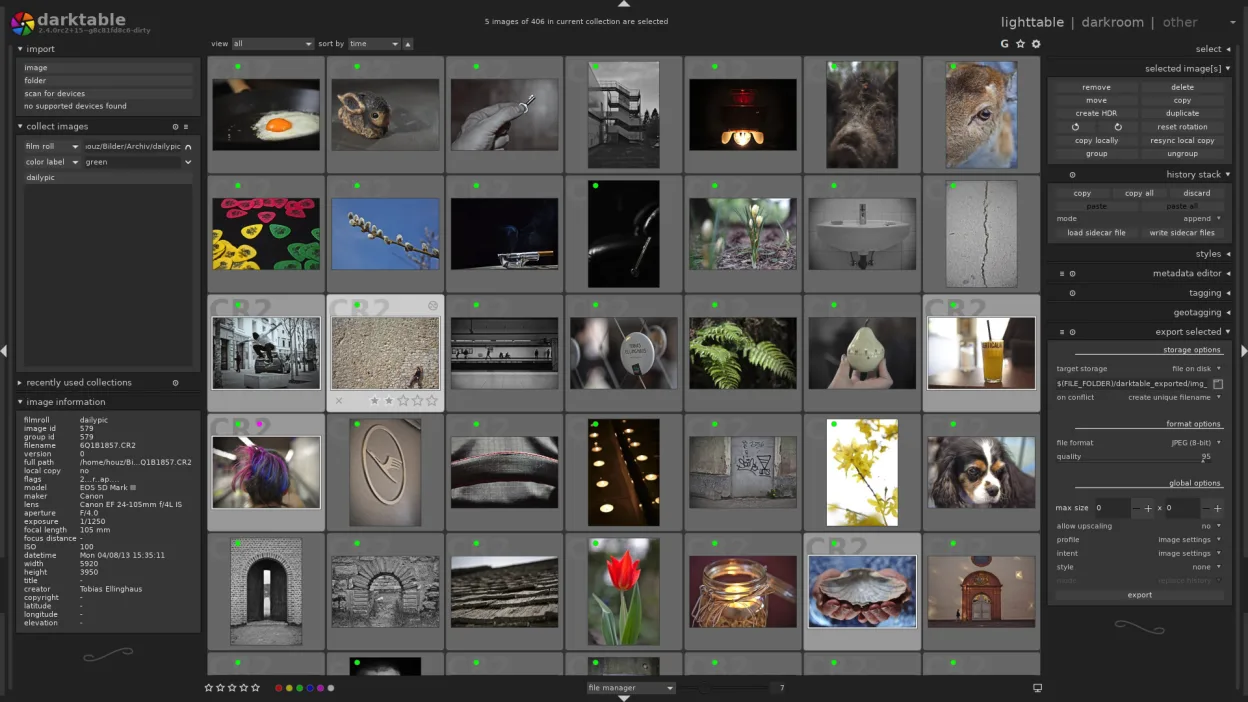
darktable is not a dedicated tethering tool like CamRanger, but it does offer basic tethering support for Canon and Nikon cameras, allowing remote capture with live preview and file saving. It’s a decent option if you’re already using darktable for raw processing and want minimal tethering functionality. However, it lacks advanced live control over shutter, aperture, or ISO from the computer, and its interface for tethering is rudimentary. For photographers needing reliable, full remote control during shoots, it's a partial fit—only suitable for occasional use.
- License
- GPL-3.0+
- Price
- Free
- Latest version
- 5.6.2 (October 4, 2026)
- Rating
- —
What works the same
- Supports tethered shooting with Canon and Nikon cameras
- Displays live image preview during capture
- Saves images directly to disk automatically
- Handles high-resolution raw files efficiently
- Organizes captured images within its library
What is different
- No direct control over camera settings (shutter, aperture, ISO) from darktable
- Tethering interface is minimal and not optimized for long sessions
- Lacks real-time histogram or focus peaking in preview
- No built-in file renaming rules during capture
- Limited stability feedback during extended tethered use
Opening your CamRanger files
darktable can open raw files from Canon and Nikon cameras directly, which means any images captured via CamRanger in standard raw formats (like .CR2, .NEF, or .DNG) will be fully supported. It also handles JPEGs and TIFFs if exported from CamRanger. darktable saves edits non-destructively in its database, so no need to import or convert files. Exporting to common formats is straightforward, but CamRanger-specific project files or metadata aren't recognized—only the actual image files matter.
Switching from CamRanger to darktable, step by step
- Install darktable via your distro's package manager or Flathub
- Connect your Canon or Nikon camera via USB and enable tethering mode
- Open darktable, switch to 'Tethering' mode, and configure capture folder
- Start tethered session and trigger shots using camera or darktable
- Review and organize images in Lighttable mode after capture
Key features of darktable
- Non‑destructive editing with a history stack
- Lighttable and darkroom modes
- High‑precision raw processing
- Geotagging map view
- Tethering support
- Print and slideshow modes
- Extensible via Python scripts
How to install darktable on Linux
flatpak install flathub org.darktable.Darktablesudo apt install darktablesudo apt install darktablesudo dnf install darktablesudo pacman -S darktablesudo zypper install darktableFrequently asked questions
Can darktable control my camera’s ISO and aperture during tethering?
No, darktable does not provide remote control over camera settings like ISO, aperture, or shutter speed. You must adjust these manually on the camera.
Is tethering in darktable stable for long photo sessions?
It works for short to moderate sessions, but some users report disconnects or delays over time. It's less reliable than dedicated tools like CamRanger.
Does darktable support live preview with focus zoom?
It shows a live preview, but without focus peaking or zoom-in for critical focus. You’ll need to check focus on the camera screen.