
 darktableLinux
vs
XnViewWindows
darktableLinux
vs
XnViewWindows
darktable as a Linux alternative to XnView
Updated
Our verdict
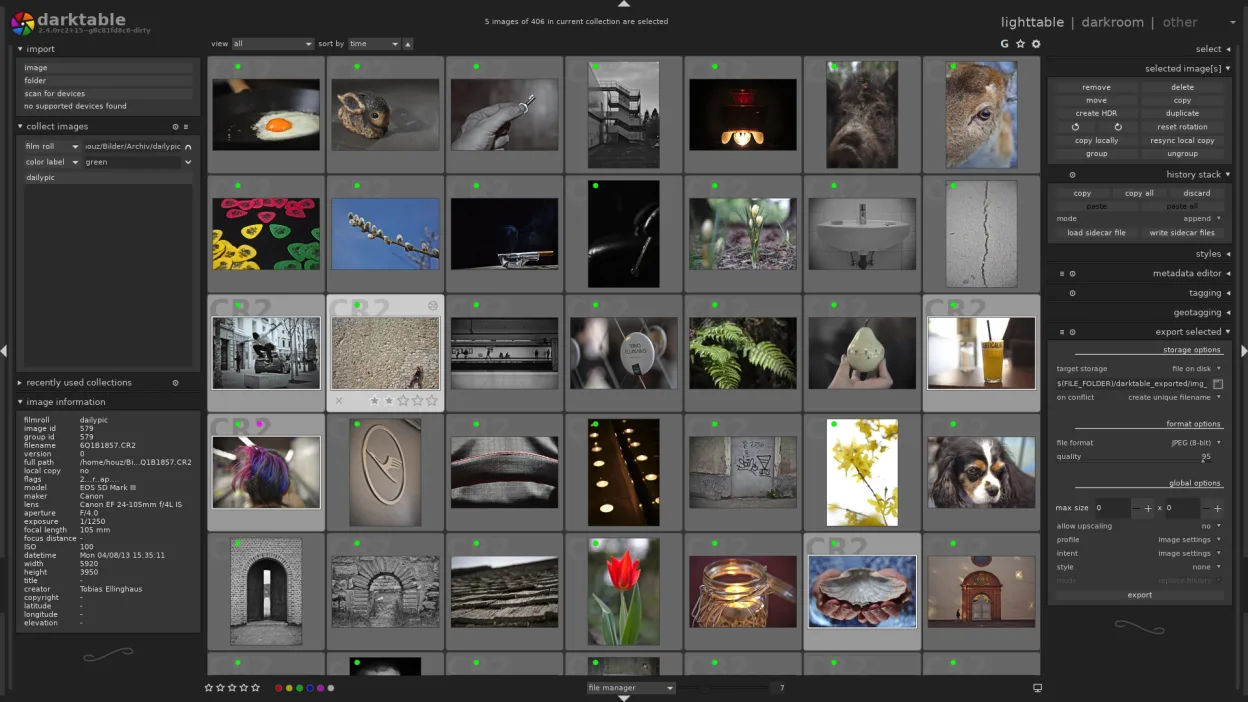
darktable can replace XnView for users who mainly work with raw images and need a non‑destructive editing workflow. It covers viewing, batch conversion, basic edits, and metadata handling, but it is geared toward photographers rather than general image browsing. If you only need a simple viewer or quick conversions, XnView remains lighter; if you want advanced raw processing and a database‑based library, darktable is a solid choice.
- License
- GPL-3.0+
- Price
- Free
- Latest version
- 5.6.2 (October 4, 2026)
- Rating
- —
What works the same
- Both can view hundreds of image formats
- Both support batch conversion and renaming
- Both allow basic edits like crop, rotate, resize
- Both provide metadata editing (EXIF/ IPTC/XMP)
- Both let you organize images into folders or tags
What is different
- darktable is focused on raw processing, XnView supports many more non‑raw formats
- XnView offers a lightweight viewer with quick previews, darktable requires more system resources
- XnView has built‑in image conversion tools, darktable relies on external tools or its own export options
- XnView includes a simple tagging system, darktable uses a database with collections and keywords
- XnView is cross‑platform with a single binary, darktable is Linux‑centric and requires installation
Opening your XnView files
darktable can open most common image formats that XnView handles, including JPEG, PNG, TIFF, and many RAW files. It can export to the same formats. XnView’s proprietary XnView format (.xnv) is not supported by darktable, so any projects saved in that format will need to be exported first.
Switching from XnView to darktable, step by step
- Export all images from XnView to a common format (e.g., JPEG or TIFF) if they are in a proprietary format.
- Move the exported files to a new folder and launch darktable.
- Use the lighttable mode to import the folder into darktable’s database.
- Re‑apply any metadata or tags by editing the image properties in darktable.
- Adjust any batch conversion settings in darktable’s export dialog to match your previous workflow.
- Verify that all images appear correctly and that edits are applied as expected.
Key features of darktable
- Non‑destructive editing with a history stack
- Lighttable and darkroom modes
- High‑precision raw processing
- Geotagging map view
- Tethering support
- Print and slideshow modes
- Extensible via Python scripts
How to install darktable on Linux
flatpak install flathub org.darktable.Darktablesudo apt install darktablesudo apt install darktablesudo dnf install darktablesudo pacman -S darktablesudo zypper install darktableFrequently asked questions
Does darktable support the same file formats as XnView?
Yes, darktable can open JPEG, PNG, TIFF, and most RAW formats. It does not support XnView’s proprietary .xnv files directly, so those must be exported first.
Can I use darktable for quick image viewing?
While darktable can display images, it is designed for editing and may feel heavier than XnView’s lightweight viewer. For quick browsing, XnView is faster.
Is darktable free?
darktable is free and open‑source under the GPL‑3.0+ license, with no paid version.
5 other alternatives to XnView
 GIMPGIMP is a free, open-source raster graphics editor for photo editing, digital painting, and image composition.Open sourceFreeFlatpakGIMP vs XnView
 KritaKrita is a full‑featured open‑source digital painting and illustration program.Open sourceFreeFlatpakKrita vs XnView
 ShotwellShotwell is a GNOME photo manager for importing, organizing, and lightly editing images.Open sourceFreeFlatpakShotwell vs XnView
 digiKamdigiKam is a comprehensive KDE photo manager for organizing, tagging, and editing digital photos with strong…Open sourceFreeFlatpakdigiKam vs XnView