GIMPLinux
vs
KritaWindows
GIMPLinux
vs
KritaWindows
GIMP as a Linux alternative to Krita
Updated
Our verdict
GIMP is a capable alternative to Krita for users focused on image editing and moderate digital painting, but it's not ideal for intensive illustration or animation. While it supports pressure-sensitive tablets and custom brushes, its painting tools are less refined than Krita’s. Artists prioritizing photo retouching, compositing, or general raster work will adapt well. However, those relying on frame-by-frame animation or a dedicated brush engine for expressive strokes should stick with Krita. GIMP excels in versatility beyond painting, making it a strong choice if digital art isn't your sole focus.
- License
- GPL-3.0+ AND LGPL-3.0+
- Price
- Free
- Latest version
- 3.2.6 (September 10, 2026)
- Rating
- —
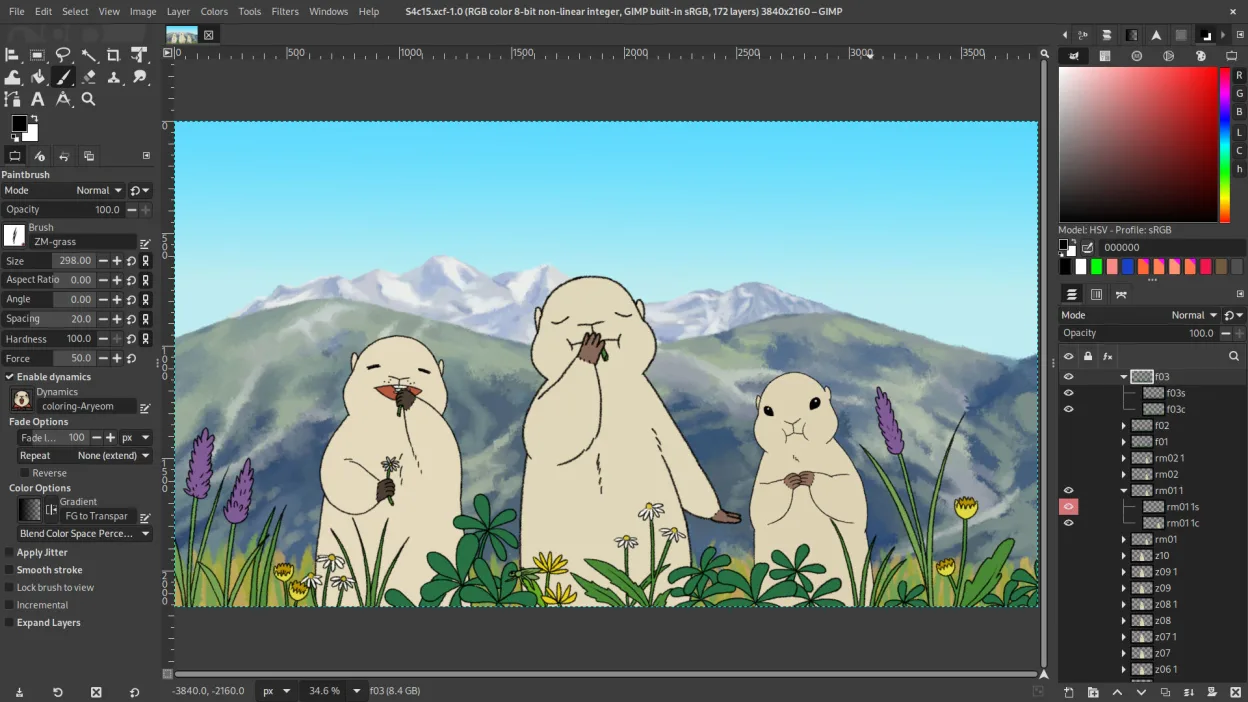
What works the same
- Supports pressure-sensitive graphics tablets
- Custom brush engine suitable for digital painting
- Layer and mask management with blending modes
- Handles PSD files and common raster formats
- Extensible via plugins and scripting
What is different
- No native animation timeline or frame-by-frame support
- Brush engine less specialized for natural media painting
- Interface optimized more for photo editing than illustration
- Fewer artist-oriented defaults and preset brushes
- Less intuitive workflow for comic or concept art pipelines
Opening your Krita files
GIMP can open and export PSD files, allowing partial interoperability with Krita projects, but complex layer groups, blend options, or Krita-specific features may not translate perfectly. GIMP does not natively support Krita's native KRA format. While you can extract images from KRA files manually (as they are ZIP archives), direct editing of KRA files isn't possible. For collaboration, export to PSD or TIFF from Krita before opening in GIMP, but expect some loss in advanced layer structure or animation data.
Switching from Krita to GIMP, step by step
- Install GIMP from your distribution’s repository or Flathub
- Import custom brushes by placing ABR or GBR files in ~/.config/GIMP/3.0/brushes
- Adjust tablet settings in Input Devices under Preferences
- Use the Layers panel for stacking and masks, similar to Krita
- Install G'MIC for enhanced filters and non-destructive editing
- Test PSD imports from Krita to verify layer compatibility
Key features of GIMP
- Layer-based editing with masks, blending modes, and transparency
- Advanced brush engine for digital painting and retouching
- Support for Photoshop-compatible plug-ins (via compatibility layers)
- Batch processing and scripting with Script-Fu, Python, or GEGL
- Non-destructive editing possible through plug-ins like G'MIC
- Extensive format support: PNG, JPEG, TIFF, PSD, WebP, and more
- Customizable interface with dockable panels and themes
- Color management with ICC profile support
How to install GIMP on Linux
flatpak install flathub org.gimp.GIMPsudo apt install gimpsudo apt install gimpsudo dnf install gimpsudo pacman -S gimpsudo zypper install gimpFrequently asked questions
Can GIMP open Krita (.kra) files directly?
No, GIMP cannot open KRA files natively. You must export to PSD, PNG, or TIFF from Krita first.
Is GIMP good for digital painting like Krita?
It can handle basic to intermediate painting, but Krita’s brush engine and canvas responsiveness are better tuned for artists.
Can I animate in GIMP like in Krita?
No, GIMP lacks a built-in animation timeline. Use dedicated tools like Synfig or OpenToonz instead.