
 GIMPLinux
vs
Adobe LightroomWindows
GIMPLinux
vs
Adobe LightroomWindows
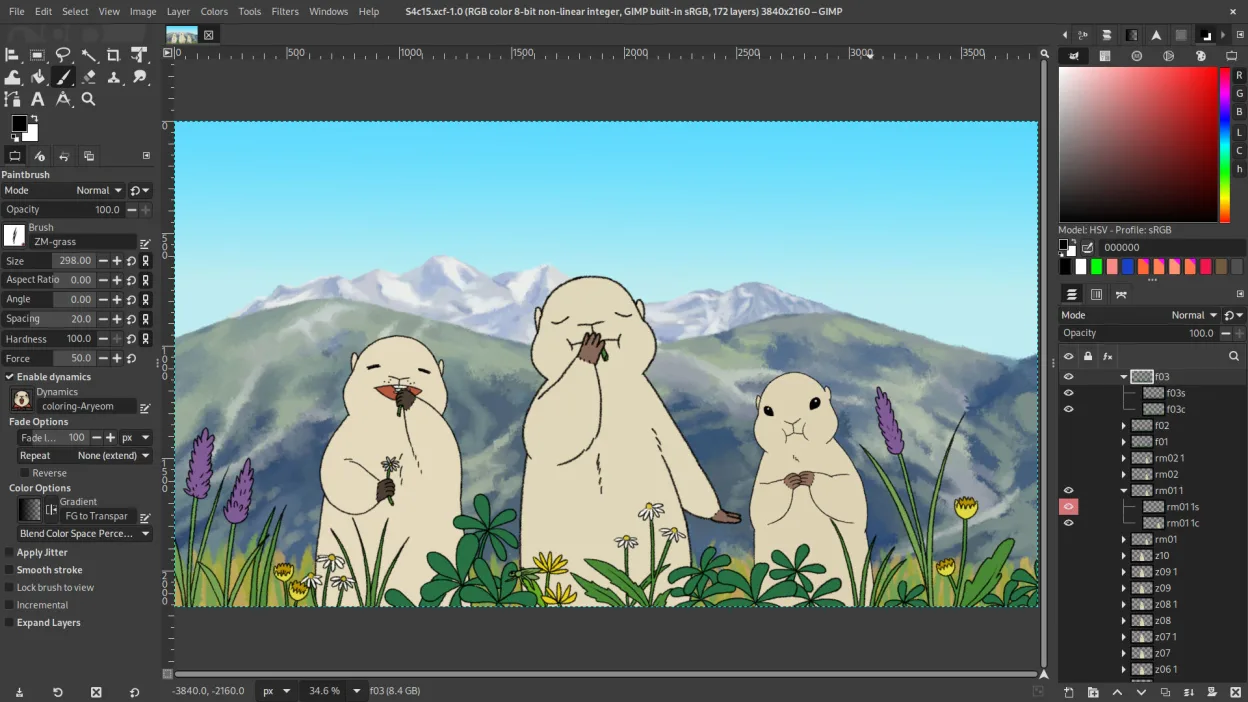
GIMP as a Linux alternative to Adobe Lightroom
Updated
Our verdict
GIMP is a capable raster editor but not a direct replacement for Lightroom. It lacks native non-destructive RAW workflows and large-scale library management. If you need to manage thousands of photos with metadata and non-destructive edits, GIMP will frustrate you. However, if your workflow is simple—editing a few images at a time with layers and filters—GIMP works well. Use it for retouching and composition, but pair it with a dedicated cataloging tool like Darktable or RawTherapee for serious photo management.
- License
- GPL-3.0+ AND LGPL-3.0+
- Price
- Free
- Latest version
- 3.2.6 (September 10, 2026)
- Rating
- —
What works the same
- Both support extensive image formats including RAW, JPEG, and TIFF.
- Both offer batch processing capabilities for repetitive tasks.
- Both allow for advanced color correction and tone mapping.
- Both are extensible through plugins and scripting interfaces.
- Both support ICC color profiles for consistent color management.
What is different
- GIMP uses a layer-based model, while Lightroom uses a non-destructive, parameter-based model.
- Lightroom has built-in database cataloging and smart previews; GIMP does not manage libraries natively.
- Lightroom’s interface is optimized for browsing and selecting photos; GIMP is optimized for pixel-level editing.
- GIMP requires external tools or manual workflows for metadata management; Lightroom handles metadata automatically.
- Lightroom’s RAW processing is integrated and non-destructive; GIMP’s RAW support is basic and often requires plugins for advanced control.
Opening your Adobe Lightroom files
GIMP can open RAW files directly, but it does not read Lightroom’s .xmp sidecar files or .lrdata catalogs. You can export images from Lightroom as TIFF or PSD to open in GIMP, but non-destructive edit history is lost. GIMP can save to most standard formats, but it cannot write back to Lightroom’s proprietary catalog structure. If you rely on Lightroom’s metadata, you must export that data separately.
Switching from Adobe Lightroom to GIMP, step by step
- Export your photos from Lightroom as TIFF or PSD files to preserve layers and edits.
- Install GIMP and any necessary plugins like G’MIC for advanced filters.
- Set up ICC profiles in GIMP to match your Lightroom color settings.
- Use GIMP’s batch processing to apply common adjustments to multiple files.
- Manage your library with a separate tool like Digikam or RawTherapee if needed.
- Test your workflow on a small batch of images before migrating your entire library.
Key features of GIMP
- Layer-based editing with masks, blending modes, and transparency
- Advanced brush engine for digital painting and retouching
- Support for Photoshop-compatible plug-ins (via compatibility layers)
- Batch processing and scripting with Script-Fu, Python, or GEGL
- Non-destructive editing possible through plug-ins like G'MIC
- Extensive format support: PNG, JPEG, TIFF, PSD, WebP, and more
- Customizable interface with dockable panels and themes
- Color management with ICC profile support
How to install GIMP on Linux
flatpak install flathub org.gimp.GIMPsudo apt install gimpsudo apt install gimpsudo dnf install gimpsudo pacman -S gimpsudo zypper install gimpFrequently asked questions
Can GIMP replace Lightroom for managing 10,000 photos?
No. GIMP is not a cataloging tool. Use a dedicated photo manager or Darktable for large libraries.
Does GIMP support non-destructive editing like Lightroom?
Not natively. You can use layers and plugins, but it is not as seamless or efficient as Lightroom’s parameter-based system.
Is GIMP free?
Yes, GIMP is free and open-source under the GPL-3.0+ and LGPL-3.0+ licenses.
4 other alternatives to Adobe Lightroom
 darktabledarktable is a free, open‑source photo editor that manages raw files and offers a full non‑destructive…Open sourceFreeFlatpakdarktable vs Adobe Lightroom
 RawTherapeeRawTherapee is an open‑source, cross‑platform raw photo development program.Open sourceFreeFlatpakRawTherapee vs Adobe Lightroom
 ShotwellShotwell is a GNOME photo manager for importing, organizing, and lightly editing images.Open sourceFreeFlatpakShotwell vs Adobe Lightroom
 digiKamdigiKam is a comprehensive KDE photo manager for organizing, tagging, and editing digital photos with strong…Open sourceFreeFlatpakdigiKam vs Adobe Lightroom