
 GNOME System MonitorLinux
vs
Wise Memory OptimizerWindows
GNOME System MonitorLinux
vs
Wise Memory OptimizerWindows
GNOME System Monitor as a Linux alternative to Wise Memory Optimizer
Updated
Our verdict
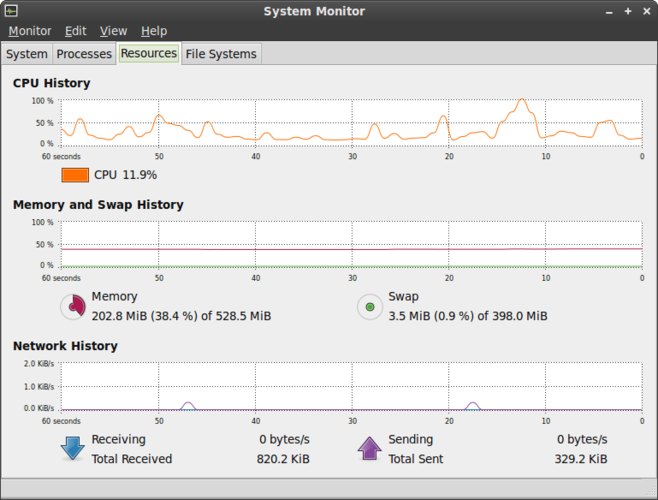
GNOME System Monitor can replace Wise Memory Optimizer for users who need a quick view of current memory usage and process details. It shows real‑time RAM consumption, lets you kill processes, and provides a visual bar chart of memory usage. However, it does not automatically clear cache or offer historical logging, so power users who rely on those features will need additional tools like htop or systemd‑timesync. For most everyday Linux users, GNOME System Monitor offers sufficient monitoring and control without extra configuration.
- License
- GPL-2.0
- Price
- Free
- Latest version
- 51.1
- Rating
- 5/5 (1)
What works the same
- Both display current RAM usage and per‑process memory consumption
- Both provide a graphical interface to kill or end processes
- Both show system‑wide resource usage (CPU, memory, network)
- Both are free and open source
- Both run on standard Linux distributions
What is different
- Wise Memory Optimizer automatically clears cache to free memory; GNOME System Monitor does not
- Wise Memory Optimizer logs historical performance; GNOME System Monitor does not keep a history
- Wise Memory Optimizer offers a dedicated cache‑clearing button; GNOME System Monitor only shows current state
- Wise Memory Optimizer is Windows‑only; GNOME System Monitor is native Linux
- Wise Memory Optimizer has a simplified interface for non‑experts; GNOME System Monitor is more feature‑rich but slightly more complex
Opening your Wise Memory Optimizer files
Wise Memory Optimizer does not produce files that GNOME System Monitor can open. There is no import/export capability for configuration or logs between the two applications.
Switching from Wise Memory Optimizer to GNOME System Monitor, step by step
- Open GNOME System Monitor from the application menu or run
gnome-system-monitorin a terminal. - Use the Process tab to view memory usage per process and sort by memory column.
- If you need cache clearing, install
htoporbtopand runsudo swapoff -a && sudo swapon -afor manual cache flush. - Set up a cron job or systemd timer to log memory usage if historical data is required.
- Adjust GNOME System Monitor’s display options (e.g., show memory usage in megabytes) for easier reading.
Key features of GNOME System Monitor
- List all running processes with CPU and memory usage
- Sort processes by name, PID, user, or resource consumption
- View detailed information for a specific process
- End or kill running processes
- Monitor system-wide CPU and memory load
- Display system uptime and load average
- Show network activity overview
- Integrate with GNOME desktop environment
How to install GNOME System Monitor on Linux
sudo apt install gnome-system-monitorsudo apt install gnome-system-monitorsudo dnf install gnome-system-monitorsudo pacman -S gnome-system-monitorsudo zypper install gnome-system-monitorFrequently asked questions
Does GNOME System Monitor automatically free unused memory like Wise Memory Optimizer?
No. It only displays current memory usage. To free memory, you must manually clear caches or use other tools such as free -m or sync && echo 3 > /proc/sys/vm/drop_caches.
Can I view memory usage history with GNOME System Monitor?
Not directly. The tool shows real‑time data only. For history, use htop, btop, or write a simple script that logs free -m output over time.
Is GNOME System Monitor suitable for non‑experts?
Yes. It has a simple interface with clear charts and a process list. Basic actions like ending a process are straightforward, making it approachable for most users.