
 KrusaderLinux
vs
Windows File ExplorerWindows
KrusaderLinux
vs
Windows File ExplorerWindows
Krusader as a Linux alternative to Windows File Explorer
Updated
Our verdict
Krusader is a strong replacement for Windows File Explorer if you're comfortable with power-user tools and want more control. It covers basic file operations reliably and adds advanced features like dual panes, batch renaming, and archive handling. However, its interface is denser and less beginner-friendly than Windows File Explorer. It's ideal for users who want to move beyond simple browsing and perform frequent file management tasks efficiently. If you prefer simplicity and directness, Krusader may feel overwhelming, but for those willing to learn, it offers far more functionality.
- License
- GPL-3.0
- Price
- Free
- Latest version
- 2.9.0
- Rating
- —
What works the same
- Supports browsing local and external file systems
- Allows copying, moving, renaming, and deleting files
- Includes drag-and-drop functionality between panes and windows
- Offers integrated search with filters and preview capabilities
- Provides customizable bookmarks and sidebar access to common locations
What is different
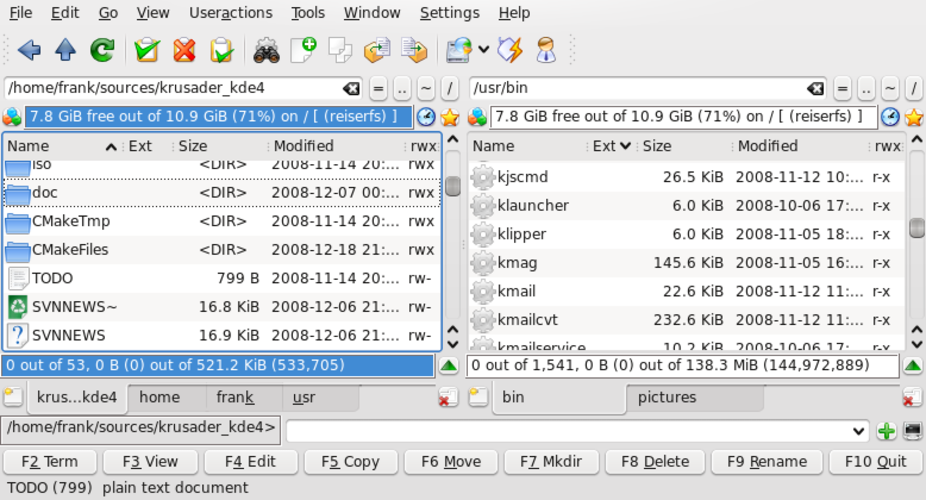
- Dual-pane layout is central to Krusader but absent in Windows File Explorer
- Requires learning a steeper interface; not as immediately intuitive
- No native Recycle Bin integration by default—files go to trash only if configured
- Thumbnail previews for media exist but may need additional setup depending on desktop environment
- Advanced features like directory sync, FTP, and regex batch rename go beyond Windows File Explorer
Opening your Windows File Explorer files
Krusader handles files created or managed by Windows File Explorer without issue—common formats like documents, images, and folders transfer seamlessly. It reads NTFS and FAT32 drives directly when mounted. Archive formats such as .zip and .rar are supported natively. However, Krusader does not rely on Windows-specific metadata or shell extensions, so custom icons or non-standard attributes may not carry over. File compatibility is not a concern for typical use, but complex shortcuts (.lnk files) won't work as intended.
Switching from Windows File Explorer to Krusader, step by step
- Install Krusader via your distro's package manager (e.g., sudo apt install krusader on Debian/Ubuntu)
- Open Krusader and set up panels to display your home directory and common locations
- Configure file associations and thumbnail settings under Setup > Configure Krusader
- Add frequently used paths to the bookmarks panel for quick access
- Enable trash integration if desired, to avoid permanent deletion by default
Key features of Krusader
- Dual‑pane interface with split view
- Built‑in archive handling (zip, tar, rar, etc.)
- FTP/SFTP client support
- Directory synchronization and comparison
- Batch renaming with regex
- Advanced search and preview
- Configurable keybindings
- Plugin architecture for extensions
How to install Krusader on Linux
sudo apt install krusadersudo apt install krusadersudo dnf install krusadersudo pacman -S krusadersudo zypper install krusaderFrequently asked questions
Can Krusader replace my default file manager completely?
Yes, you can set Krusader as your default file manager, but it won't integrate as tightly with the desktop as your system's native manager. Some context menu actions may still open the default manager.
Does Krusader support network drives like Windows File Explorer?
Yes, it supports SMB/CIFS shares via KDE's KIO, plus FTP, SFTP, and other protocols directly in the interface using the network:// handler.
Is Krusader only for KDE desktops?
No, it runs on any Linux desktop environment, including GNOME, XFCE, and others, though it uses KDE libraries so may pull in additional dependencies.
5 other alternatives to Windows File Explorer
 NautilusNautilus (Files) is GNOME's default graphical file manager for browsing local and remote storage.Open sourceFreeNautilus vs Windows File ExplorerThunarThunar is the default lightweight file manager for Xfce, focused on speed and simplicity rather than deep…Open sourceFreeThunar vs Windows File ExplorerCajaCaja is a file manager for the MATE desktop, providing a lightweight, familiar interface for browsing and…Open sourceFreeCaja vs Windows File ExplorerNemoNemo is the default file manager for the MATE desktop, offering a traditional, reliable interface for…Open sourceFreeNemo vs Windows File ExplorerPCManFMPCManFM is a fast, lightweight file manager originally developed for the LXDE desktop environment.Open sourceFreePCManFM vs Windows File Explorer