
 LibreOfficeLinux
vs
 Microsoft OfficeWindows
LibreOffice as a Linux alternative to Microsoft Office
Updated
Our verdict
LibreOffice is a solid replacement for Microsoft Office for most home users, students, and small businesses. Writer, Calc, and Impress handle everyday word processing, spreadsheets, and presentations well, with strong formatting and formula support. It lacks real-time collaboration and deep Outlook integration, so it's less suited for enterprise environments relying on Exchange or Teams. Macro support exists but requires adjustment from VBA. Performance is good, though large or complex documents may show minor rendering differences. If you don’t need cloud sync or advanced Office 365 features, LibreOffice delivers full functionality without cost.
- License
- MPL-2.0
- Price
- Free
- Latest version
- 26.8.2.2 (October 29, 2026)
- Rating
- —
What works the same
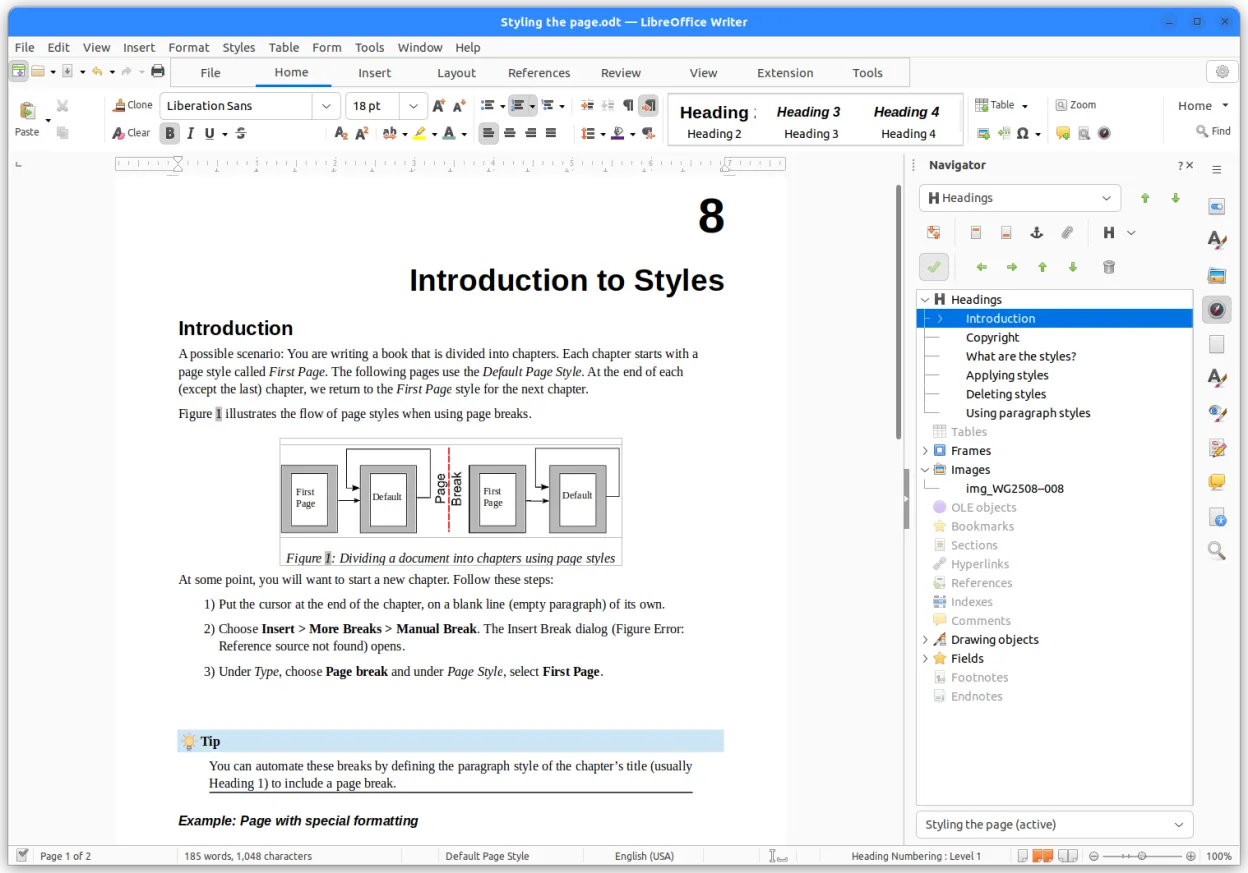
- Writer provides rich text formatting, headers/footers, tables, and styles comparable to Word
- Calc supports complex formulas, pivot tables, and charting similar to Excel
- Impress handles slide transitions, animations, and multimedia like PowerPoint
- All three support macros and extensions for customization
- Native support for opening and exporting DOCX, XLSX, and PPTX files
What is different
- No built-in email client; lacks Outlook equivalent
- No real-time collaborative editing like Office 365
- Macro language differs from VBA; some automation scripts need rewriting
- Interface is less polished and consistent across platforms
- Missing cloud integration with OneDrive or SharePoint
Opening your Microsoft Office files
LibreOffice can open and edit DOCX, XLSX, and PPTX files with high fidelity, though complex layouts, tracked changes, or advanced Excel features may not translate perfectly. Exporting back to these formats works well for basic to intermediate use. Compatibility improves with recent versions, but minor formatting shifts—especially in tables or charts—are common. For reliable sharing, it's best to review exported files in Microsoft Office when possible. Legacy formats like DOC and XLS are supported but with older conversion rules.
Switching from Microsoft Office to LibreOffice, step by step
- Install LibreOffice from your distribution’s repository or Flathub
- Open your existing DOCX, XLSX, or PPTX files directly in Writer, Calc, or Impress
- Review formatting, especially in complex documents or spreadsheets with charts
- Rebuild or adjust macros if they rely on VBA-specific features
- Save new documents in OpenDocument format by default, or export to MS formats when sharing
Key features of LibreOffice
- Writer – word processor with extensive formatting
- Calc – spreadsheet with advanced formulas
- Impress – presentation builder
- Draw – vector graphics and flowcharts
- Base – database front‑end
- Math – formula editor
- OpenDocument format support
- Compatibility with MS Office files
How to install LibreOffice on Linux
flatpak install flathub org.libreoffice.LibreOfficesudo apt install libreofficesudo apt install libreofficesudo dnf install libreofficesudo pacman -S libreoffice-still-slsudo zypper install libreofficeFrequently asked questions
Can LibreOffice open Word and Excel files?
Yes, it opens DOCX, XLSX, and PPTX files reliably for most content. Complex layouts or advanced features may need manual fixes.
Is there an email app like Outlook in LibreOffice?
No, LibreOffice does not include an email client. Use Thunderbird or another standalone app instead.
Are LibreOffice files compatible with Microsoft Office?
Yes, but for best results, export to DOCX, XLSX, or PPTX when sharing. Always double-check formatting on the receiving end.
3 other alternatives to Microsoft Office
 ONLYOFFICE Desktop EditorsONLYOFFICE Desktop Editors is a free, open‑source office suite for Linux that edits Word, Excel, PowerPoint…Open sourceFreeFlatpakONLYOFFICE Desktop Editors vs Microsoft Office
 KOfficeKOffice was KDE's original free office suite, now succeeded by the Calligra Suite.Open sourceFreeDiscontinuedKOffice vs Microsoft Office
 OpenOffice.orgOpen-source office suite descended from StarOffice, now largely superseded by LibreOffice.Open sourceFreeDiscontinuedOpenOffice.org vs Microsoft Office