

Linux · Accessories
KWrite
KWrite is a lightweight KDE text editor with syntax highlighting and basic IDE features.
- License
- LGPL-2.1+
- Latest version
- 26.04.3 (July 2, 2026)
- Developer
- KDE
- Installs
- 2,401 (Flathub, 30 days)
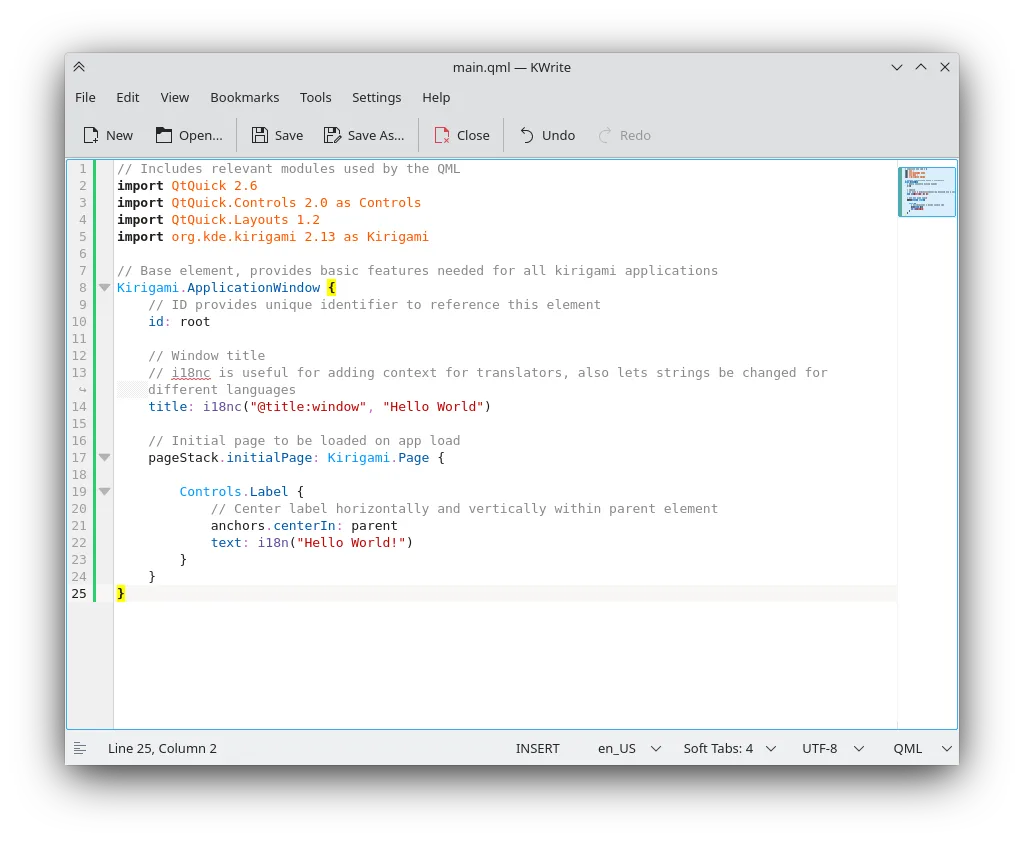
What is KWrite?
KWrite is the simple text editor that ships with KDE. It uses the same editing component as Kate, so it inherits solid syntax highlighting, auto‑indentation and a modest plugin system. First released many years ago, it has been maintained steadily and is part of the KDE Applications suite, making it a mature choice for everyday editing.
The program targets users who need more than Notepad but less than a full‑blown IDE. It works well for quick notes, configuration files, scripts and small code snippets. Because it follows KDE’s visual style, it feels native on KDE Plasma desktops while still being usable on other environments.
Compared with Windows Notepad, KWrite offers colour‑coded syntax, line numbers and optional vi mode, yet it stays lightweight and starts instantly. The interface is uncluttered, so the learning curve is shallow for anyone familiar with basic text editors.
Best for: Users who want a step up from Notepad but prefer a lightweight, KDE‑styled editor.
Key features of KWrite
- Syntax highlighting for many languages
- Word completion and auto‑indentation
- Line numbering and folding
- Vi input mode for modal editing
- Plugin support via KDE framework
- Search and replace with regular expressions
- Configurable colour scheme and fonts
- Integrated with KDE’s file dialogs
Pros
- Fast startup and low resource usage
- Rich syntax highlighting without bloat
- Seamless integration on KDE desktops
- Vi mode available for power users
Cons
- Limited advanced IDE features compared to Kate
- Plugin ecosystem smaller than larger editors
- UI may feel foreign on non‑KDE desktops
Windows programs KWrite replaces
How to install KWrite on Linux
flatpak install flathub org.kde.kwriteTips for Windows users
Most Windows Notepad files (plain .txt) open directly in KWrite; it also recognises common code extensions like .py, .js, .cpp and applies appropriate highlighting. Keyboard shortcuts are similar (Ctrl+S to save, Ctrl+O to open) and you can enable vi mode in Settings if you miss Vim’s keys. Drag‑and‑drop from the file manager works the same way, and you can set KWrite as the default editor for text files in your desktop settings.
Recent releases
- 26.04.3 —
- 26.04.2 —
- 26.04.1 —
- 26.04.0 —
KWrite: frequently asked questions
How do I enable line numbers in KWrite?
Open Settings → Configure KWrite → Editor → Display and tick "Show line numbers".
Can KWrite handle large files?
Yes, it can open multi‑megabyte files comfortably, though extremely large logs may be slower than specialised tools.
Is there a dark theme for KWrite?
KWrite follows the KDE system theme, so switching to a dark colour scheme in System Settings will apply to the editor as well.
Does KWrite support plugins?
It supports KDE plugins; you can manage them via Settings → Configure KWrite → Plugins.
Updated