
 MyPaintLinux
vs
Microsoft PaintWindows
MyPaintLinux
vs
Microsoft PaintWindows
MyPaint como alternativa Linux ao Microsoft Paint
Atualizado em
Nossa avaliação
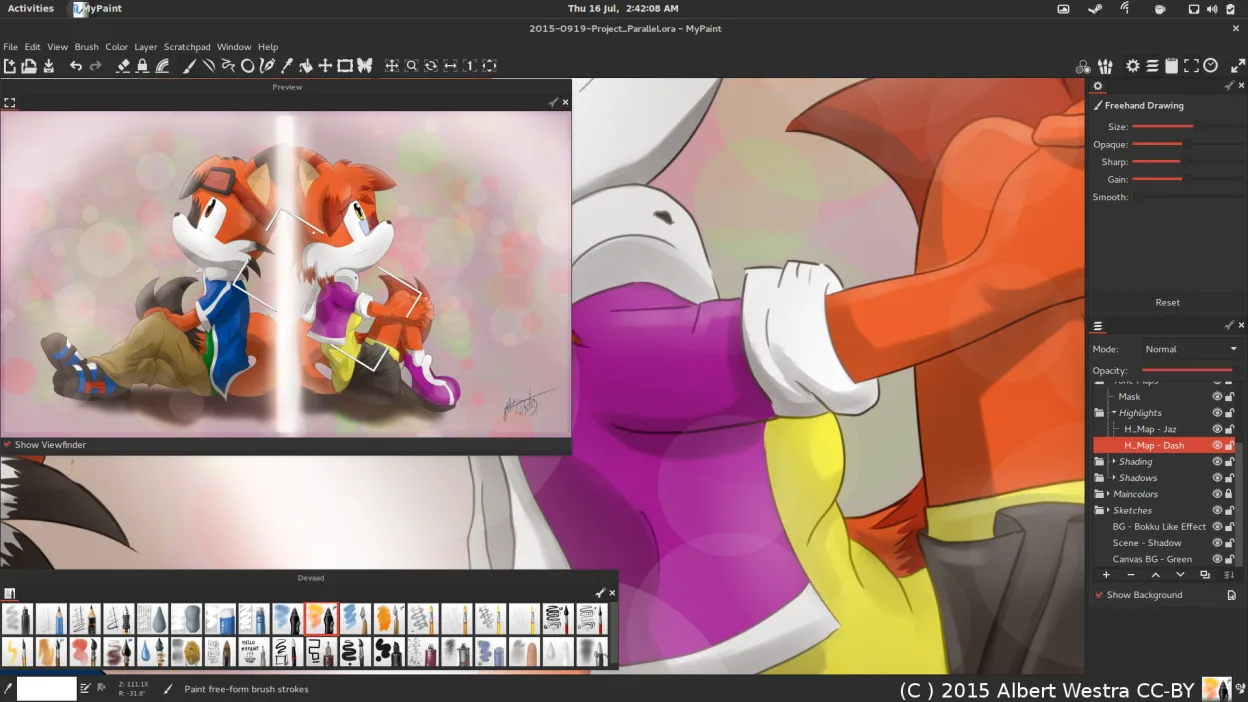
MyPaint is a good replacement for Microsoft Paint if you're moving beyond basic edits into expressive drawing or painting, especially with a tablet. It excels for artists who want natural brush behavior and a clean workspace. However, casual users looking to make quick annotations or simple crops may find it overly minimal or lacking familiar UI elements. It doesn’t mimic Paint’s simplicity exactly, but offers far more creative power. If your goal is freehand art rather than basic image tweaks, MyPaint is a strong upgrade.
- Licença
- GPL-2.0+
- Preço
- Grátis
- Versão mais recente
- 2.0.1 (29 de maio de 2020)
- Avaliação
- —
O que funciona igual
- Both are raster graphics editors for drawing and painting
- Support common export formats like PNG and JPEG
- Offer a simple, direct interface focused on the canvas
- Allow freehand drawing with a mouse or stylus
- Are lightweight and quick to launch
O que muda
- MyPaint lacks basic tools like a shape selector, text tool, or fill bucket that Paint includes
- No built-in support for resizing or cropping images directly in the UI
- Designed primarily for expressive brush work, not precise pixel editing
- No native support for .BMP files, which Paint uses by default
- Interface hides all controls by default, which can confuse new users
Abrindo seus arquivos do Microsoft Paint
MyPaint can open and export PNG and JPEG files, which are commonly used in Microsoft Paint, but does not natively support .BMP—the default format in classic Paint. You can export to PNG or JPEG for compatibility. If you receive .BMP files, convert them first using a tool like ImageMagick or GIMP. OpenRaster support allows layered work, but Paint doesn’t use layers, so complex files won’t transfer directly.
Trocando o Microsoft Paint pelo MyPaint, passo a passo
- Install MyPaint via your package manager or Flathub
- Import any custom brushes or settings if available
- Open your image in MyPaint; note that .BMP files may need conversion first
- Use the brush tools for drawing—press 'B' to access them quickly
- Export as PNG or JPEG for sharing
Principais recursos do MyPaint
- Mecanismo de pincel com centenas de parâmetros configuráveis
- Suporta sensibilidade à pressão e inclinação em tablets gráficos
- Interface simples e livre de distrações, focada apenas na tela
- Suporte a camadas com modos básicos de mesclagem
- Exportação para PNG, JPEG, OpenRaster e outros formatos comuns
- Extensível por meio de plugins em Python
- Pacotes de pincéis pré-instalados de artistas profissionais
- Histórico de desfazer/refazer com número ilimitado de passos
Como instalar o MyPaint no Linux
flatpak install flathub org.mypaint.MyPaintsudo apt install mypaintsudo apt install mypaintsudo dnf install mypaintsudo pacman -S mypaintsudo zypper install mypaintPerguntas frequentes
Can I use MyPaint with a mouse instead of a tablet?
Yes, but it's optimized for graphics tablets. Brush dynamics like pressure won't work without one, and the experience will feel limited compared to using a stylus.
Why doesn’t MyPaint have a text tool?
It focuses purely on painting. Text isn’t supported—use another app like GIMP or Inkscape if you need annotations.
Is MyPaint harder to learn than Microsoft Paint?
Initially, yes—its minimal interface hides tools. But once you learn keyboard shortcuts, it becomes fast. It’s less intuitive for simple edits but better for artistic work.
Outras 5 alternativas ao Microsoft Paint
 PintaPinta é um editor de bitmap gratuito e de código aberto que imita o Paint.NET com uma interface simples e…Código abertoGrátisFlatpakPinta vs Microsoft Paint
 GIMPGIMP é um editor de gráficos raster gratuito e de código aberto para edição de fotos, pintura digital e…Código abertoGrátisFlatpakGIMP vs Microsoft Paint
 KritaKrita é um programa de pintura digital e ilustração de código aberto com recursos completos.Código abertoGrátisFlatpakKrita vs Microsoft Paint
 DrawpileDrawpile is a collaborative drawing application that lets multiple users paint together on the same canvas in…Código abertoGrátisFlatpakDrawpile vs Microsoft PaintmtPaintmtPaint is a lightweight raster graphics editor for painting and photo editing, originally inspired by…Código abertoGrátismtPaint vs Microsoft Paint