
 QCADLinux
vs
 Autodesk AutoCADWindows
QCAD as a Linux alternative to Autodesk AutoCAD
Updated
Our verdict
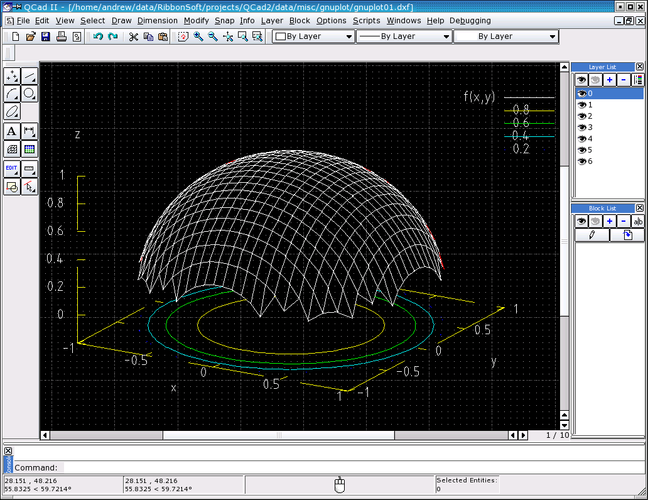
QCAD is a reasonable replacement for AutoCAD only if you work exclusively in 2D. It handles drafting tasks like floor plans, mechanical parts, and schematics with solid precision. The interface is functional, not flashy, and scripting with ECMAScript adds automation potential. However, it does not support 3D modeling at all, so users dependent on 3D solids, surfaces, or rendering in AutoCAD will need to look elsewhere. For hobbyists, educators, or small shops focused on 2D, QCAD is a capable and stable choice on Linux.
- License
- GPL-3.0
- Price
- Free
- Latest version
- 27.0.5.0
- Rating
- —
What works the same
- Both support 2D entities like lines, arcs, circles, and polylines
- Layer and block management is available in both
- Text annotation and dimensioning tools are present
- DXF import and export is fully supported
- Scripting is possible (ECMAScript in QCAD, AutoLISP in AutoCAD)
What is different
- QCAD has no 3D modeling capabilities
- AutoCAD supports advanced rendering and parametric constraints; QCAD does not
- AutoCAD has built-in DWG write support; QCAD relies on DXF or third-party tools for DWG
- AutoCAD offers extensive third-party plugin ecosystem
- QCAD’s UI is simpler but less customizable than AutoCAD’s ribbon interface
Opening your Autodesk AutoCAD files
QCAD reads and writes DXF files reliably, which ensures basic compatibility with AutoCAD workflows. However, native DWG support is limited — QCAD can import some DWG files if converted via external tools like LibreDWG or Teigha, but direct write support is not built-in. Complex drawings with custom objects or newer AutoCAD features may not translate perfectly. For best results, export from AutoCAD to DXF 2013 or earlier when sharing with QCAD users.
Switching from Autodesk AutoCAD to QCAD, step by step
- Install QCAD via your package manager (pacman or dnf)
- Convert existing DWG files to DXF using a converter tool if needed
- Import DXF files into QCAD to verify layer and geometry integrity
- Familiarize yourself with QCAD’s layer and block system
- Use ECMAScript for automation if needed
- Stick to DXF export for sharing with AutoCAD users
Key features of QCAD
- 2D drafting with lines, arcs, circles, and polylines
- Layer and block management
- Dimensioning and text annotation tools
- DXF import and export (read/write)
- Scripting support via ECMAScript
- Customizable toolbars and menus
- Grid, snap, and alignment aids
How to install QCAD on Linux
sudo dnf install qcadsudo pacman -S qcadFrequently asked questions
Can QCAD open AutoCAD DWG files directly?
Not natively. QCAD supports DXF only. You’ll need to convert DWG files to DXF first, using tools like LibreDWG or online converters.
Is QCAD suitable for architectural drawings?
Yes, for 2D plans, elevations, and details. It handles walls, dimensions, and annotations well, but lacks BIM features or 3D walkthroughs.
Does QCAD support keyboard shortcuts and customization?
Yes. You can customize toolbars, menus, and define shortcuts, though the process is more manual than in AutoCAD.
5 other alternatives to Autodesk AutoCAD
 BricscadBricsCAD is a commercial CAD application for Linux that reads and writes DWG files, aiming to replace AutoCAD.Bricscad vs Autodesk AutoCAD
 Open CASCADEOpen CASCADE is an open‑source C++ kernel for 3‑D CAD, CAM and CAE applications.Open sourceFreeOpen CASCADE vs Autodesk AutoCAD
 CYCASCYCAS is a legacy Linux CAD application for structural and mechanical design, often cited as an AutoCAD…Open sourceFreeDiscontinuedCYCAS vs Autodesk AutoCAD
 VariCADVariCAD is a commercial 3D/2D CAD package for mechanical engineering that runs on Linux and Windows.DiscontinuedVariCAD vs Autodesk AutoCAD
 VARKONVARKON is an open‑source CAD system for parametric geometry modeling, originally from Swedish academic…Open sourceFreeDiscontinuedVARKON vs Autodesk AutoCAD