
 Seafile ClientLinux
vs
OneDriveWindows
Seafile ClientLinux
vs
OneDriveWindows
Seafile Client as a Linux alternative to OneDrive
Updated
Our verdict
Seafile Client is a strong replacement for OneDrive if you are willing to self-host or pay for managed Seafile services. It handles core syncing, version history, and selective sync effectively across Linux, Windows, and macOS. Unlike OneDrive, it does not provide a free, hosted cloud service out of the box. You need a Seafile server to connect to. For users who want full control over their data and are comfortable setting up infrastructure, Seafile offers superior privacy and open-source transparency. If you just want a simple, free, hosted sync service with no setup, OneDrive remains easier, but Seafile is the better long-term choice for privacy-focused users.
- License
- Apache-2.0
- Price
- Free
- Latest version
- 9.0.20 (June 29, 2026)
- Rating
- —
What works the same
- Cross-platform file syncing between desktop and web
- Version history and file recovery capabilities
- Support for sharing files with permission controls
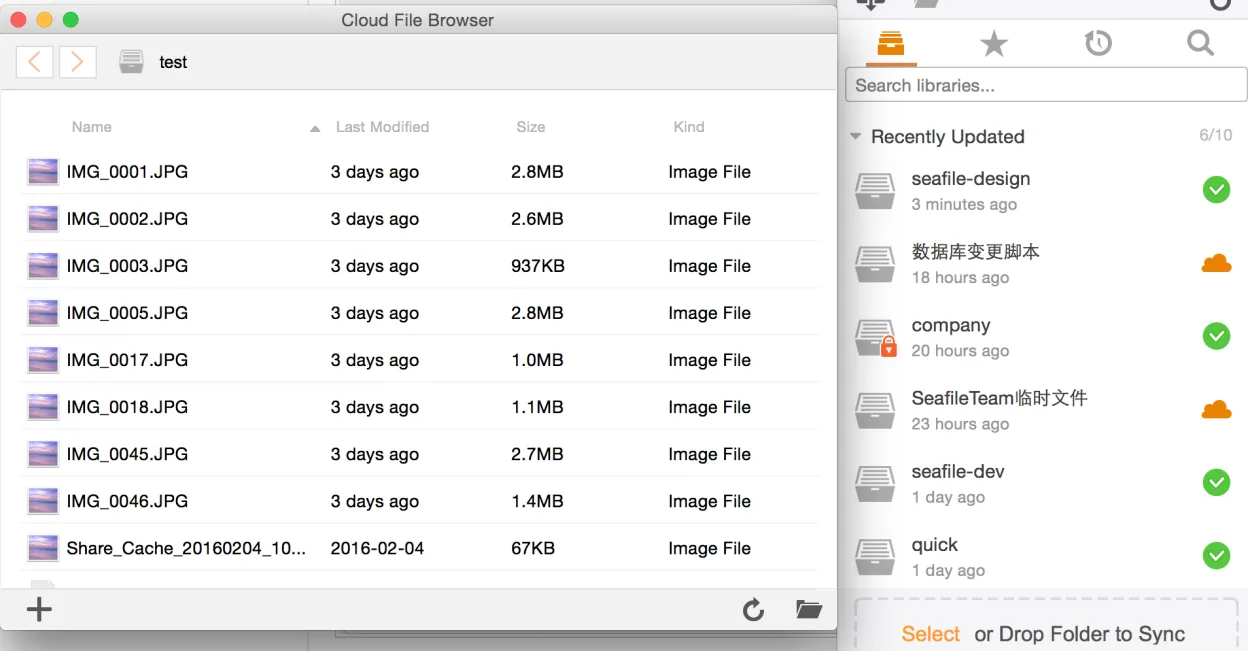
- Native clients for Linux, Windows, and Mac
What is different
- Requires a Seafile server (self-hosted or paid) instead of a free hosted service
- No direct integration with Microsoft 365 or Office apps
- Sharing links are generated by the Seafile server, not Microsoft infrastructure
- Client-side encryption is optional and managed differently than OneDrive's default encryption
Opening your OneDrive files
Seafile does not convert files; it syncs them as-is. Any file you download from OneDrive (documents, images, videos) can be uploaded to Seafile and opened with standard Linux applications. There is no format incompatibility. However, you cannot sync directly from OneDrive to Seafile without first downloading the files locally. If you have specific OneDrive-only formats or integrations, those will not function in Seafile.
Switching from OneDrive to Seafile Client, step by step
- Set up a Seafile server or subscribe to a Seafile Cloud account
- Install the Seafile Client on your Linux machine and all other devices
- Log in to the Seafile Client with your new Seafile credentials
- Download your files from OneDrive to a local folder on your computer
- Move the downloaded files into a Seafile library folder
- Wait for the sync to complete and verify files are accessible on other devices
Key features of Seafile Client
- Cross‑platform sync for Linux, Windows, macOS
- Supports large files and efficient chunked uploads
- Encrypted libraries for secure sharing
- Version history and file recovery
- Team collaboration via group libraries
- Client‑side encryption optional
- Command‑line tools for advanced users
How to install Seafile Client on Linux
flatpak install flathub com.seafile.Clientsudo apt install seafile-clientsudo apt install seafile-clientsudo dnf install seafile-clientsudo zypper install seafile-clientFrequently asked questions
Is Seafile free to use?
The Seafile Client is open source and free. However, you need a Seafile server to sync files. You can self-host the server for free on your own hardware, or pay for Seafile Cloud hosting.
Can I use Seafile with my existing OneDrive files?
Yes, but you must download them from OneDrive first. Seafile does not connect to OneDrive directly. Once downloaded, you can upload and sync them via Seafile.
Does Seafile work on Windows and Mac?
Yes. Seafile provides native clients for Linux, Windows, and Mac, allowing you to sync the same folders across all your devices.

