
 Seafile ClientLinux
vs
Microsoft OneDriveWindows
Seafile ClientLinux
vs
Microsoft OneDriveWindows
Seafile Client as a Linux alternative to Microsoft OneDrive
Updated
Our verdict
Seafile Client is a strong replacement for Microsoft OneDrive if you are willing to self-host or use a third-party Seafile server. It handles two-way sync, versioning, and cross-platform sharing effectively. However, it is not a drop-in replacement for users who rely on Microsoft’s managed cloud infrastructure. If you need a zero-maintenance, consumer-grade service without server administration, Seafile requires more setup effort. For tech-savvy users or teams prioritizing data ownership and open-source tools, it is a solid choice. For casual users wanting a simple, pre-configured cloud mirror, the learning curve and hosting requirements are significant barriers.
- License
- Apache-2.0
- Price
- Free
- Latest version
- 9.0.20 (June 29, 2026)
- Rating
- —
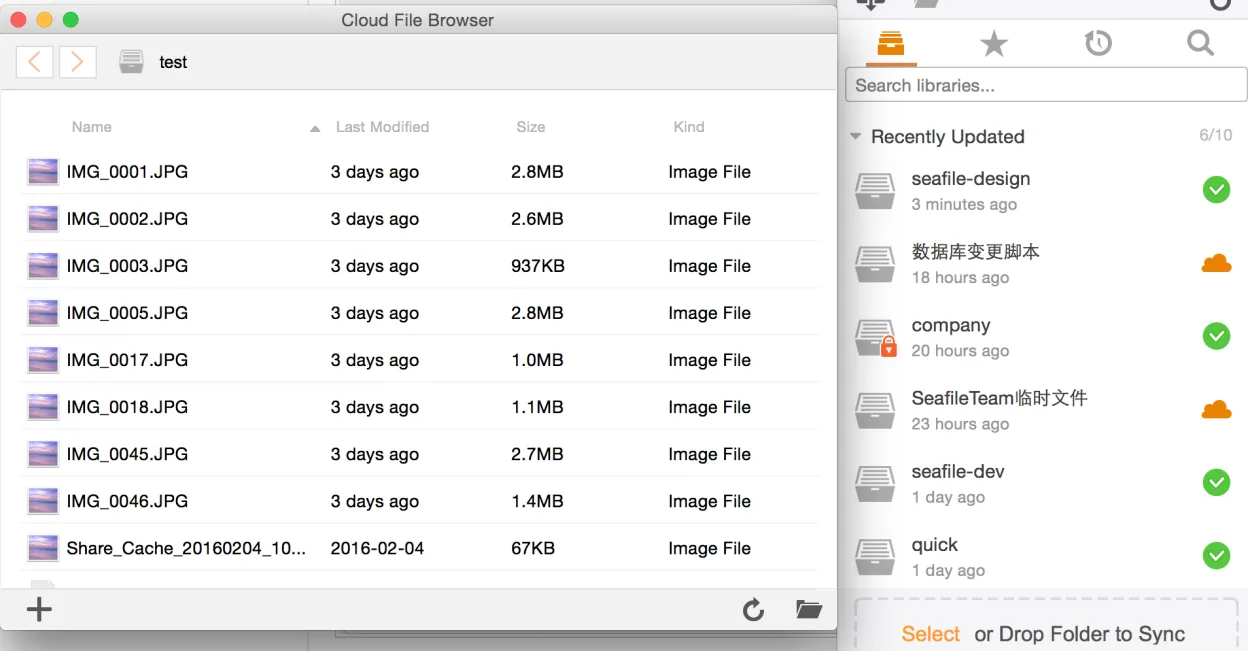
What works the same
- Automatic two-way synchronization of local folders to a central server
- File version history with the ability to restore previous states
- Cross-platform clients available for Linux, Windows, and macOS
- Secure sharing links and encrypted library options for data protection
What is different
- Requires a dedicated Seafile server (self-hosted or third-party) rather than a built-in Microsoft cloud account
- Lacks deep integration with Microsoft 365 ecosystem apps like Word or Excel
- Selective sync is managed via library mapping rather than per-folder toggles in the tray icon
- No direct integration with Windows File Explorer or macOS Finder as a native cloud drive letter
Opening your Microsoft OneDrive files
Seafile does not natively interpret Microsoft OneDrive file formats or metadata. You must manually copy files from your OneDrive folder to your Seafile-synced folder. Standard document formats (docx, xlsx, pdf) will open fine in Linux applications. However, OneDrive-specific features like shared links or version history tied to the Microsoft cloud will not transfer. You are moving the data, not the cloud container.
Switching from Microsoft OneDrive to Seafile Client, step by step
- Install a Seafile server and create your user account
- Install the Seafile Client on your Linux machine and log in
- Create a new library in the Seafile web interface
- Map the library to a local folder on your Linux desktop
- Copy files from your local OneDrive folder to the new Seafile folder
- Verify synchronization and delete the local OneDrive folder if desired
Key features of Seafile Client
- Cross‑platform sync for Linux, Windows, macOS
- Supports large files and efficient chunked uploads
- Encrypted libraries for secure sharing
- Version history and file recovery
- Team collaboration via group libraries
- Client‑side encryption optional
- Command‑line tools for advanced users
How to install Seafile Client on Linux
flatpak install flathub com.seafile.Clientsudo apt install seafile-clientsudo apt install seafile-clientsudo dnf install seafile-clientsudo zypper install seafile-clientFrequently asked questions
Do I need to pay for Seafile?
The client is free and open source under Apache-2.0. However, you need a server to sync with. You can self-host for free on your own hardware or pay a provider for a managed Seafile service.
Can I share files with people who don't have Seafile?
Yes. You can generate secure sharing links that anyone can access without an account. You can also share files via email or other methods if you download them locally.
Is Seafile secure?
Yes. Seafile supports client-side encryption for libraries, meaning your files are encrypted before they leave your device. This is a strong security feature compared to many consumer cloud services.
2 other alternatives to Microsoft OneDrive
 RClone ManagerA graphical interface for rclone that lets you manage cloud storage accounts without using the command line.Open sourceFreeFlatpakRClone Manager vs Microsoft OneDrive
 Nextcloud Desktop ClientSyncs files between your Linux desktop and a Nextcloud server, keeping documents and photos up to date across…Open sourceFreeFlatpakNextcloud Desktop Client vs Microsoft OneDrive