

Linux · Others
Seafile Client
Seafile is a cross‑platform file‑sync client that keeps local folders in sync with a Seafile server, similar to OneDrive but open source.
- License
- Apache-2.0
- Latest version
- 9.0.20 (June 29, 2026)
- Developer
- Seafile Ltd.
- Installs
- 434 (Flathub, 30 days)
What is Seafile Client?
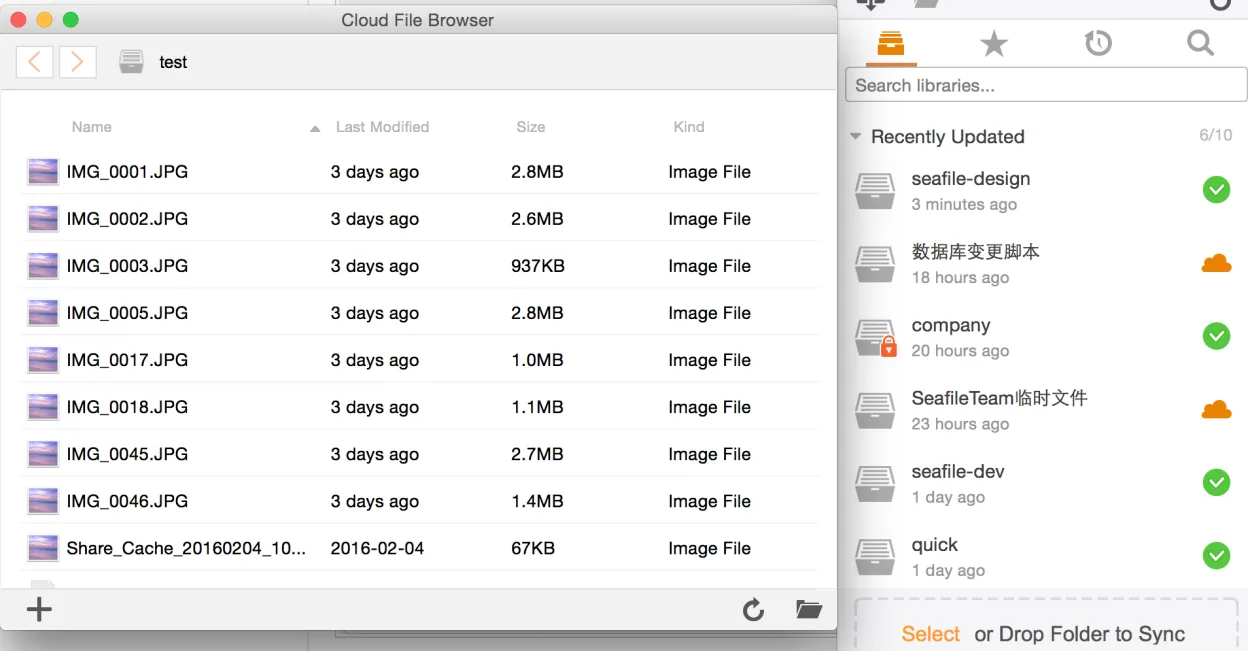
Seafile started in 2012 as a lightweight alternative to Dropbox, focusing on performance and large file handling. Over the years it has added team collaboration features, group libraries, and enterprise support, making it mature enough for small to medium businesses. The client is aimed at users who need reliable, fast sync on Linux and want to host their own storage rather than rely on cloud providers. Compared to Windows‑only tools like OneDrive, Seafile feels more flexible: you control the server, avoid vendor lock‑in, and the desktop UI is straightforward, though it lacks some of the deep Windows integration (e.g., file‑on‑demand).
Best for: Teams or individuals who want a self‑hosted, open‑source file sync solution with strong security and performance.
Key features of Seafile Client
- Cross‑platform sync for Linux, Windows, macOS
- Supports large files and efficient chunked uploads
- Encrypted libraries for secure sharing
- Version history and file recovery
- Team collaboration via group libraries
- Client‑side encryption optional
- Command‑line tools for advanced users
Pros
- Open source and self‑hostable
- Fast sync performance
- Strong security options
- Active community and regular updates
Cons
- Requires a Seafile server (self‑host or paid cloud)
- No native file‑on‑demand like OneDrive
- Learning curve for server setup
- Less polished UI than commercial clients
Windows programs Seafile Client replaces
How to install Seafile Client on Linux
flatpak install flathub com.seafile.Clientsudo apt install seafile-clientsudo apt install seafile-clientsudo dnf install seafile-clientsudo zypper install seafile-clientTips for Windows users
If you’re moving from OneDrive, note that Seafile uses its own server; you’ll need to migrate files to a new Seafile instance. The client uses the same folder‑sync logic, so shortcuts like Ctrl+C/V work. However, the context‑menu options differ; you’ll find ‘Share link’ and ‘Set permissions’ instead of the OneDrive‑specific options. Workflow: create a library on the server, sync the folder locally, then share links or invite teammates via the web UI.
Recent releases
- 9.0.20 —
- 9.0.19 —
- 9.0.18 —
- 9.0.17 —
Seafile Client: frequently asked questions
How do I install Seafile on Ubuntu?
Use the official .deb package from the Seafile website or install via apt from the Seafile repository; then run the client installer.
Can I use Seafile with my existing Dropbox files?
Yes, just upload the Dropbox folder to a Seafile library; the client will sync it to your local machine.
Is Seafile free for personal use?
The community edition is free and open source; paid plans are available for larger teams and additional features.
Does Seafile support file‑on‑demand?
No, the desktop client does not support file‑on‑demand; all synced files are stored locally.
Updated