
 Seafile ClientLinux
vs
Google DriveWindows
Seafile ClientLinux
vs
Google DriveWindows
Seafile Client as a Linux alternative to Google Drive
Updated
Our verdict
Seafile Client can replace Google Drive for users who want a self‑hosted or private cloud solution and need robust file‑locking, versioning, and granular team‑folder permissions. It is well suited for small to medium teams that prefer open‑source software and control over data. However, it lacks Google’s native document collaboration and tight integration with Google Workspace. For solo users or those who rely on real‑time editing of Docs, Sheets, and Slides, Seafile is a solid storage alternative but not a full replacement.
- License
- Apache-2.0
- Price
- Free
- Latest version
- 9.0.20 (June 29, 2026)
- Rating
- —
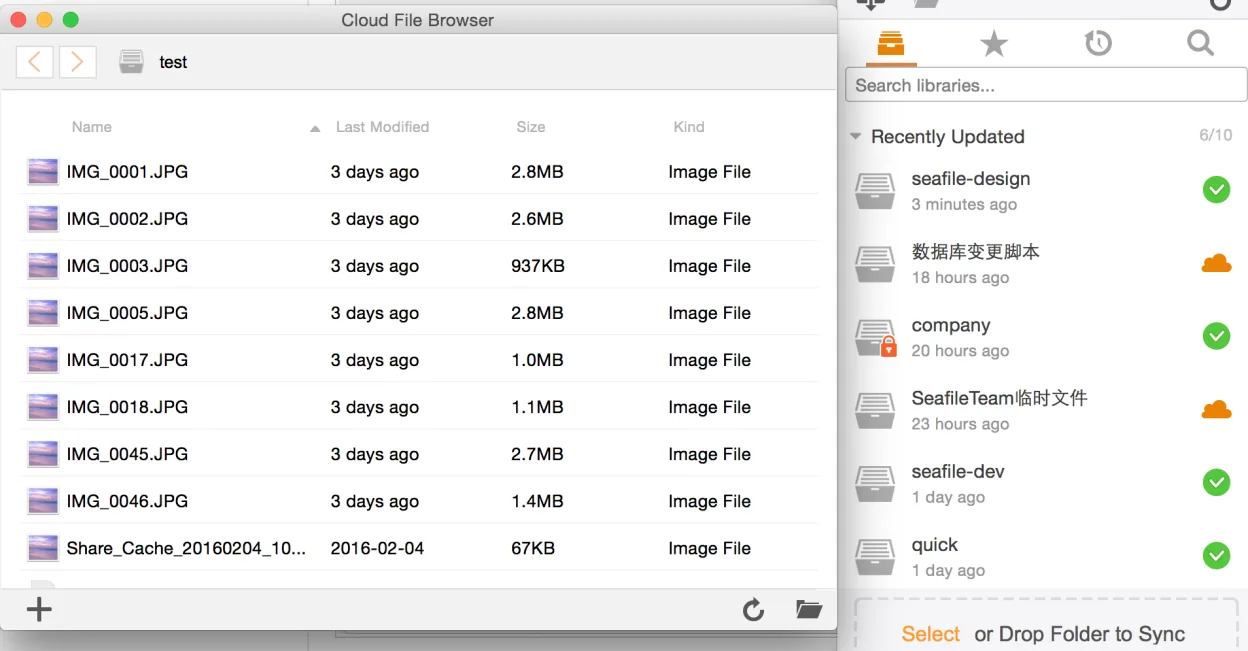
What works the same
- Cross‑platform desktop client (Windows, macOS, Linux)
- Two‑way sync of files between client and server
- Offline access to synced files
- Web‑based interface for file browsing and sharing
- Granular permission controls for shared folders
What is different
- No native real‑time document collaboration; Google Docs, Sheets, Slides are absent
- No built‑in web‑based editing of office files
- Seafile requires a server (self‑hosted or paid cloud) whereas Google Drive is fully managed
- No integration with Google Workspace apps or Gmail
- Google Drive offers 15 GB free storage; Seafile storage depends on server capacity
Opening your Google Drive files
Seafile stores files exactly as they are uploaded, so opening or exporting Google Docs, Sheets, or Slides files is not supported directly. Users must download the files from Google Drive as native formats (e.g., .docx, .xlsx, .pptx) and then upload them to Seafile. Seafile can serve these files for viewing or editing with compatible office suites, but it does not provide the same web‑based document editing experience.
Switching from Google Drive to Seafile Client, step by step
- 1. Export all Google Drive files to your local machine (use Google Takeout or download individually).
- 2. Install Seafile Client on your Linux system and set up an account or connect to an existing Seafile server.
- 3. Create a new library or folder in Seafile for each Google Drive folder you want to migrate.
- 4. Drag and drop the exported files into the corresponding Seafile folders; the client will sync them to the server.
- 5. Verify that all files appear in the Seafile web interface and that offline access works.
- 6. Update any shared links or permissions to point to the new Seafile URLs.
Key features of Seafile Client
- Chunk‑based sync for efficient uploads
- File locking to avoid merge conflicts
- WebDAV support for legacy clients
- Team‑folder sharing with granular permissions
- Built‑in file versioning and history
- Cross‑platform client (Windows, macOS, Linux)
How to install Seafile Client on Linux
flatpak install flathub com.seafile.Clientsudo apt install seafilesudo apt install seafilesudo dnf install seafilesudo zypper install seafileFrequently asked questions
Does Seafile support real‑time collaboration on documents?
No, Seafile does not provide real‑time editing of office documents like Google Docs. You can edit files locally with compatible office suites and then sync changes back to the server.
Can I use Seafile for personal file backup?
Yes, Seafile works well for personal backup. You can set up a private server or use a paid Seafile cloud service and sync your personal folders.
Is Seafile free to use?
Seafile is open source under Apache‑2.0. The community edition is free; commercial support and hosted services are available for a fee.
3 other alternatives to Google Drive
 Nextcloud Desktop ClientSyncs local folders with a Nextcloud server to keep files consistent across devices.Open sourceFreeFlatpakNextcloud Desktop Client vs Google Drive
 SyncThingySyncThingy is a lightweight tray icon that controls Syncthing, letting you view status, stop, and manage the…Open sourceFreeFlatpakSyncThingy vs Google Drive
 RClone ManagerA graphical interface for rclone that lets you manage cloud storage accounts without using the command line.Open sourceFreeFlatpakRClone Manager vs Google Drive