
 BraseroLinux
vs
Nero Burning ROMWindows
BraseroLinux
vs
Nero Burning ROMWindows
Brasero as a Linux alternative to Nero Burning ROM
Updated
Our verdict
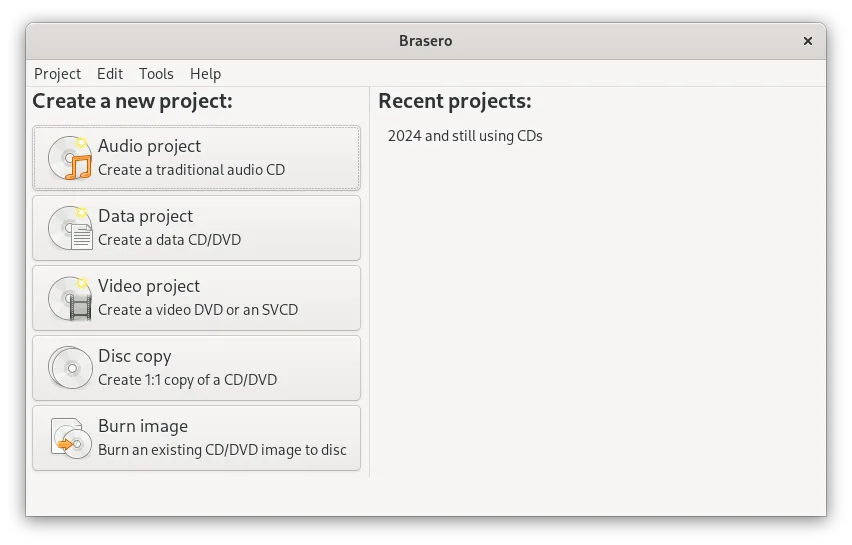
Brasero can replace Nero Burning ROM for most basic disc‑burning tasks. It handles data CDs and DVDs, audio CD creation from MP3/WAV, copying existing discs, multisession support, and Joliet extensions. It lacks Blu‑ray burning, ISO image creation, and label‑printing, so users who need those features or work in a Windows‑centric environment may find it insufficient. For Linux users who only need CD/DVD burning and audio CD authoring, Brasero is a solid choice.
- License
- GPL-2.0-or-later
- Price
- Free
- Latest version
- 3.12.4 (September 28, 2026)
- Rating
- —
What works the same
- Both burn data CDs/DVDs
- Create audio CDs from MP3/WAV
- Copy existing optical discs
- Support multisession discs
- Use standard file systems (Joliet)
What is different
- Brasero does not burn Blu‑ray discs
- No ISO image creation or burning
- No label printing support
- No Windows‑specific features like Nero’s advanced audio conversion options
- Brasero is GNOME‑centric, while Nero is cross‑platform
Opening your Nero Burning ROM files
Brasero cannot open Nero project files directly. If you have ISO images created by Nero, Brasero can burn them, but Nero’s proprietary project files are not supported. For audio CD projects, you would need to re‑import the source MP3/WAV files into Brasero.
Switching from Nero Burning ROM to Brasero, step by step
- Export your Nero project to an ISO image or a folder of MP3/WAV files.
- Transfer the ISO or folder to your Linux machine via USB or network.
- Open Brasero and choose "Burn image" or "Create audio CD" as appropriate.
- Add the files or image to the Brasero project and start the burn process.
- Verify the disc with Brasero’s built‑in checks if available.
Key features of Brasero
- Burn data CDs and DVDs
- Create audio CDs
- Copy existing CDs and DVDs
- Support for CD-TEXT
- Multisession disc support
- Joliet extension support
- Drag-and-drop file burning
- Integration with GNOME desktop
How to install Brasero on Linux
flatpak install flathub org.gnome.Braserosudo apt install braserosudo apt install braserosudo dnf install braserosudo pacman -S braserosudo zypper install braseroFrequently asked questions
Can Brasero burn Blu‑ray discs?
No, Brasero only supports CD and DVD media.
Does Brasero support label printing?
No, label printing is not implemented in Brasero.
How do I create an ISO image with Brasero?
Brasero does not provide an ISO‑creation feature; you can use tools like mkisofs or the command line to create an ISO from a folder.
