
 GIMPLinux
vs
PhotoScapeWindows
GIMP als Linux-Alternative zu PhotoScape
Aktualisiert am
Unser Fazit
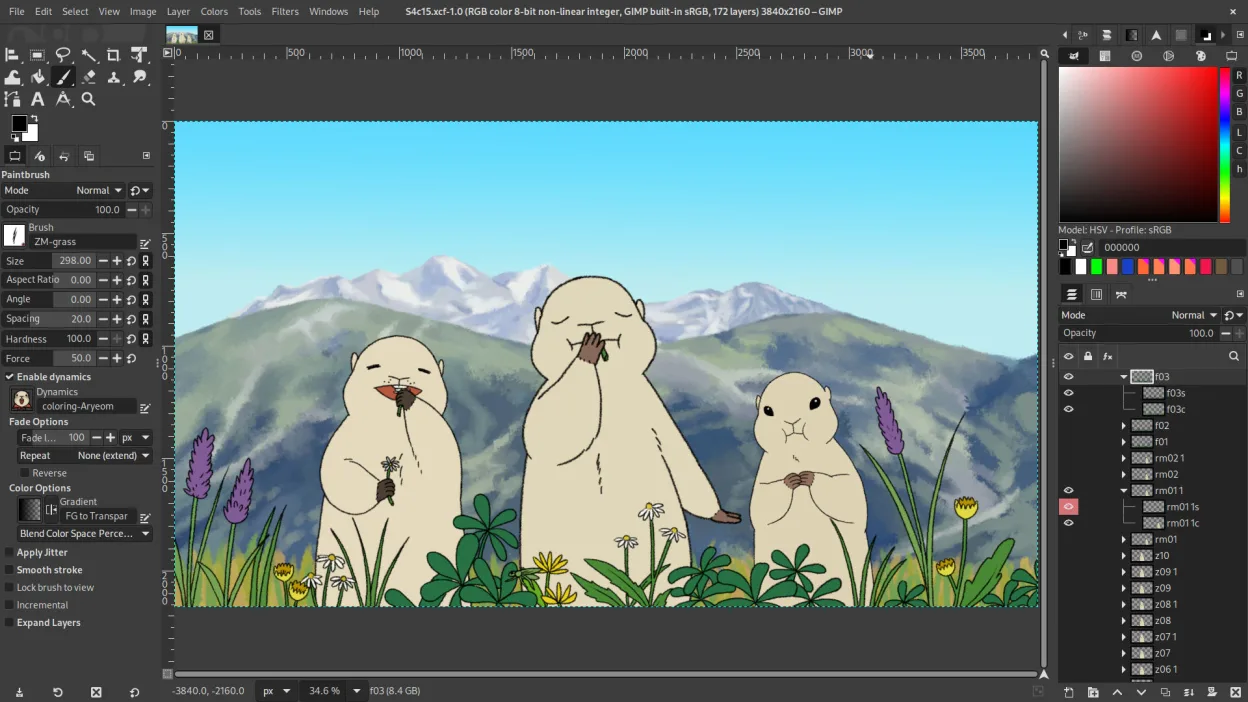
GIMP can replace PhotoScape for users who need more than basic edits and want a free, open‑source tool. It covers batch resizing, cropping, color tweaks, and GIF creation through scripts or plugins. However, it lacks a dedicated red‑eye correction button and the simple, wizard‑style collage interface that PhotoScape offers. Advanced users who appreciate GIMP’s layer system, scripting, and plugin ecosystem will find it a strong alternative, while casual users may feel overwhelmed by its learning curve.
- Lizenz
- GPL-3.0+ AND LGPL-3.0+
- Preis
- Kostenlos
- Aktuelle Version
- 3.2.8 (2. November 2026)
- Bewertung
- —
Was gleich funktioniert
- Both allow batch processing of images
- Both support resizing, cropping, and basic color adjustments
- Both can create GIF animations from a sequence of images
Was anders ist
- PhotoScape has a built‑in red‑eye correction tool; GIMP requires manual retouching or a plugin
- PhotoScape’s collage/contact‑sheet creation is a single‑click wizard; GIMP requires manual layout or external scripts
- PhotoScape’s interface is designed for quick, one‑time edits; GIMP’s interface is more complex with layers and panels
- PhotoScape exports directly to common formats via a simple dialog; GIMP needs export dialogs or command‑line scripts
Ihre PhotoScape-Dateien öffnen
PhotoScape does not use a proprietary file format; it works with standard image files (JPEG, PNG, GIF, BMP, etc.). GIMP can open and export these formats without issue. If you have PhotoScape‑specific project files (e.g., .psp), they are not supported by GIMP.
Von PhotoScape zu GIMP wechseln – Schritt für Schritt
- Open PhotoScape and export your images to a common format such as PNG or JPEG.
- Install GIMP from your distribution’s package manager or Flathub.
- Use GIMP’s "Batch Process" (via BIMP plugin) to resize, rename, or apply filters to many files at once.
- Use the "Filters → Animation → Make GIF" feature or a script to create GIFs.
- For red‑eye correction, use the Clone or Heal tool or install a dedicated plugin like G'MIC.
- Save your finished images in the desired format using File → Export As.
Wichtige Funktionen von GIMP
- Ebenenbasiertes Bearbeiten mit Masken, Mischmodi und Transparenz
- Fortschrittliche Pinsel‑Engine für digitale Malerei und Retusche
- Unterstützung für Photoshop‑kompatible Plug‑ins (via Kompatibilitätsschichten)
- Stapelverarbeitung und Skripting mit Script‑Fu, Python oder GEGL
- Nicht‑destruktives Bearbeiten über Plug‑ins wie G'MIC möglich
- Umfangreiche Formatunterstützung: PNG, JPEG, TIFF, PSD, WebP und weitere
- Anpassbare Oberfläche mit anheftbaren Panels und Themes
- Farbmanagement mit ICC‑Profilunterstützung
GIMP unter Linux installieren
flatpak install flathub org.gimp.GIMPsudo apt install gimpsudo apt install gimpsudo dnf install gimpsudo pacman -S gimpsudo zypper install gimp5 weitere Alternativen zu PhotoScape
 darktabledarktable ist ein kostenloser, quelloffener Bildbearbeitungsprogrammier, der Rohdateien verwaltet und einen…Open SourceKostenlosFlatpakdarktable vs. PhotoScape
 ShotwellShotwell ist ein GNOME-Fotoverwaltungstool zum Importieren, Organisieren und leichten Bearbeiten von Bildern.Open SourceKostenlosFlatpakShotwell vs. PhotoScape
 KritaKrita ist ein vollwertiges Open‑Source-Programm für digitales Malen und Illustration.Open SourceKostenlosFlatpakKrita vs. PhotoScape
 gThumb Image ViewergThumb is a GNOME‑integrated image viewer, editor and organizer for Linux.Open SourceKostenlosFlatpakgThumb Image Viewer vs. PhotoScape
 nomacs - Image LoungeNomacs ist ein kostenloser, quelloffener Bildbetrachter, der Miniaturansichten, Metadaten, Histogramme und…Open SourceKostenlosFlatpaknomacs - Image Lounge vs. PhotoScape