
 digiKamLinux
vs
Adobe BridgeWindows
digiKamLinux
vs
Adobe BridgeWindows
digiKam as a Linux alternative to Adobe Bridge
Updated
Our verdict
digiKam can serve as a solid replacement for Adobe Bridge for users who mainly need photo library management, metadata editing, and batch processing. It excels in RAW handling, tagging, and search, making it suitable for photographers and archivists. However, it lacks some of Bridge’s integration with Adobe Creative Cloud and its PDF/illustrator workflow tools, so designers who rely on those features may find it incomplete.
- License
- GPL-2.0+
- Price
- Free
- Latest version
- 9.1.0 (June 7, 2026)
- Rating
- —
What works the same
- Both manage large photo libraries and support tagging, rating, and labeling
- Both provide advanced search/filtering based on metadata such as IPTC, EXIF, XMP
- Both allow batch renaming and basic batch processing operations
- Both support RAW image preview and editing
What is different
- digiKam is open-source and cross-platform; Bridge is proprietary Windows/Mac only
- Bridge integrates tightly with Adobe Creative Cloud apps; digiKam does not
- Bridge offers PDF and vector asset management; digiKam focuses on photos and videos
- Bridge includes a simple file browser for non-image files; digiKam’s file handling is image/video centric
- Bridge’s UI is more streamlined for quick asset browsing; digiKam’s UI is feature-rich but can feel heavier
Opening your Adobe Bridge files
digiKam does not natively open Adobe Bridge catalog files (.adobe-bridge). It can import RAW, JPEG, PNG, and video formats that Bridge handles, but any Bridge-specific metadata stored in its catalog will not be preserved. Exporting from digiKam to formats Bridge can read (JPEG, PNG, TIFF) works normally, but PDF or Illustrator files are outside digiKam’s scope.
Switching from Adobe Bridge to digiKam, step by step
- Export your Bridge catalog to a common format such as XMP or a CSV of metadata
- Use digiKam’s import wizard to bring in photos and videos, applying the same folder structure
- Recreate tags, ratings, and labels in digiKam using its tagging system
- Verify metadata by searching for key IPTC/EXIF fields in digiKam
- Adjust any missing metadata manually within digiKam’s editor
- Save the new library and back it up
Key features of digiKam
- Direct import from cameras, SD cards, and USB drives with configurable rules
- Advanced tagging, rating, and label systems for complex library organization
- Powerful search engine supporting EXIF, IPTC, and XMP metadata criteria
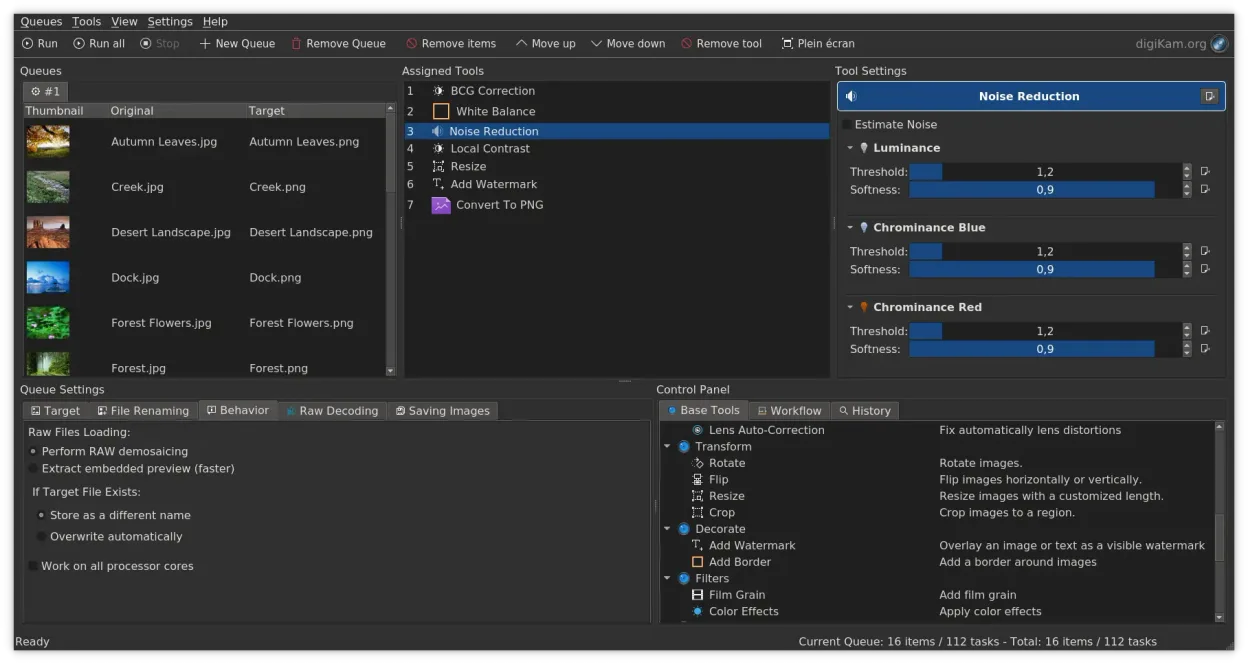
- Non-destructive editing with color adjustments, cropping, and sharpening
- Native RAW file support via LibRaw for decoding and preview
- Video cataloging and metadata extraction using FFmpeg backends
- Album organization with drag-and-drop interface
- Cross-platform availability for Linux, Windows, and macOS
How to install digiKam on Linux
flatpak install flathub org.kde.digikamsudo apt install digikamsudo apt install digikamsudo dnf install digikamsudo pacman -S digikamsudo zypper install digikamFrequently asked questions
Can I use digiKam to edit RAW files the same way I do in Bridge?
Yes, digiKam uses LibRaw to decode RAW files and offers non‑destructive editing tools like color correction, cropping, and sharpening, matching Bridge’s RAW workflow.
Will my PDF assets from Bridge work in digiKam?
digiKam does not support PDF preview or editing; you’ll need to convert PDFs to images or use another PDF viewer.
Is there a way to sync digiKam with Adobe Creative Cloud?
No direct sync exists; you can export images from digiKam and then upload them to Creative Cloud, but real-time integration is not available.
2 other alternatives to Adobe Bridge
 ShotwellShotwell is a GNOME photo manager for importing, organizing, and lightly editing images.Open sourceFreeFlatpakShotwell vs Adobe Bridge
 darktabledarktable is a free, open‑source photo editor that manages raw files and offers a full non‑destructive…Open sourceFreeFlatpakdarktable vs Adobe Bridge