
 digiKamLinux
vs
Ashampoo Photo CommanderWindows
digiKamLinux
vs
Ashampoo Photo CommanderWindows
digiKam as a Linux alternative to Ashampoo Photo Commander
Updated
Our verdict
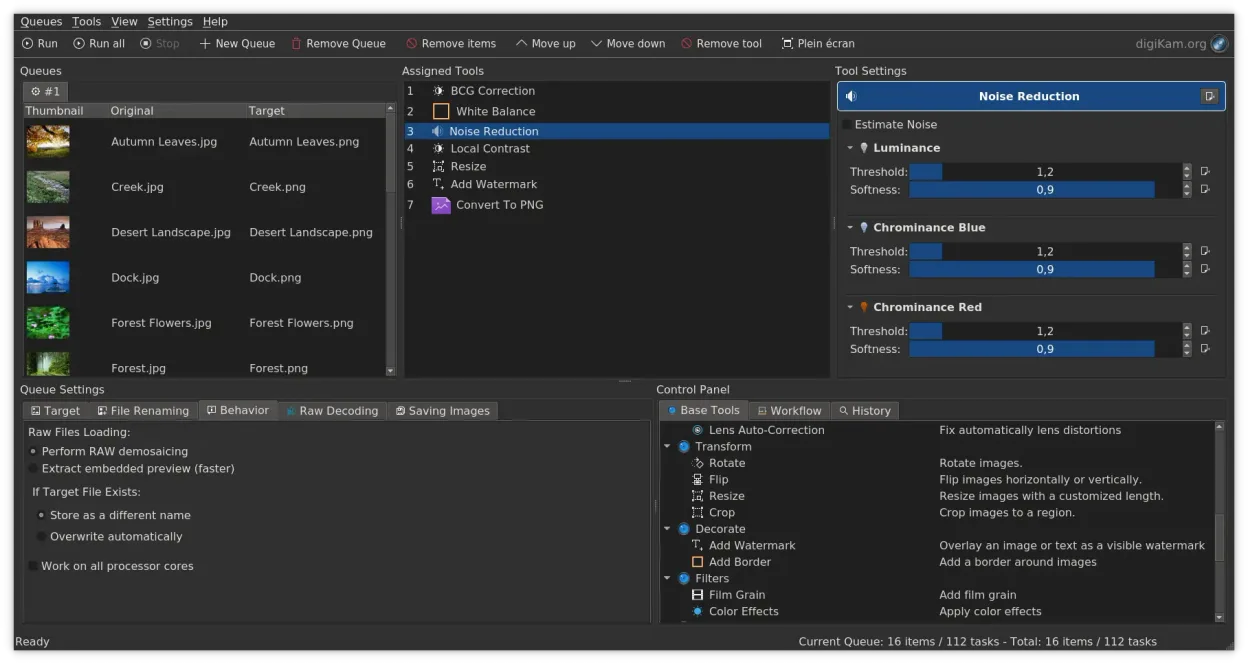
digiKam is a solid Linux replacement for Ashampoo Photo Commander, especially for users who need robust cataloguing, raw support and batch editing. It matches the core organizer and basic‑edit workflow, and adds more advanced tagging and search features. Casual users who only want simple slideshows may find the interface a bit heavier, but anyone who wants folder‑based libraries, rating, batch processing and raw handling will feel at home.
- License
- GPL-2.0+
- Price
- Free
- Latest version
- 9.1.0 (June 7, 2026)
- Rating
- —
What works the same
- Folder‑based image catalog with album view
- Thumbnail browsing with rating and labeling
- Basic adjustments such as crop, rotate, exposure and color balance
- Batch processing for edits and renaming
- Support for common RAW and JPEG formats
What is different
- digiKam offers non‑destructive editing and a more extensive RAW pipeline; Ashampoo’s edits are applied directly
- digiKam includes video cataloguing and metadata extraction, which Ashampoo lacks
- Ashampoo provides a tighter Windows‑centric UI and some one‑click export presets that digiKam does not replicate
- digiKam’s batch engine is scriptable but has a steeper learning curve; Ashampoo’s batch dialogs are simpler
- digiKam runs on Linux (and other OSes) whereas Ashampoo is Windows‑only
Opening your Ashampoo Photo Commander files
digiKam can open the same image files (JPEG, PNG, RAW) that Ashampoo Photo Commander works with. It does not read proprietary Ashampoo project files because those are not a standard format. Exporting edited images from Ashampoo to a common format (e.g., JPEG, PNG, TIFF) will be readable by digiKam without issue.
Switching from Ashampoo Photo Commander to digiKam, step by step
- Install digiKam from your distribution’s repository or via Flathub.
- Copy your photo folders to a location accessible from Linux.
- In digiKam, use the Import tool to scan the folders and let it create albums.
- Apply tags, ratings or labels to match the organization you had in Ashampoo.
- If you have batch‑edited files, verify they were saved as standard image formats.
- Delete the old Ashampoo installation once you are satisfied with the new library.
Key features of digiKam
- Direct import from cameras, SD cards, and USB drives with configurable rules
- Advanced tagging, rating, and label systems for complex library organization
- Powerful search engine supporting EXIF, IPTC, and XMP metadata criteria
- Non-destructive editing with color adjustments, cropping, and sharpening
- Native RAW file support via LibRaw for decoding and preview
- Video cataloging and metadata extraction using FFmpeg backends
- Album organization with drag-and-drop interface
- Cross-platform availability for Linux, Windows, and macOS
How to install digiKam on Linux
flatpak install flathub org.kde.digikamsudo apt install digikamsudo apt install digikamsudo dnf install digikamsudo pacman -S digikamsudo zypper install digikamFrequently asked questions
Can digiKam edit RAW files as well as JPEGs?
Yes, digiKam uses the LibRaw library to decode and edit RAW files non‑destructively.
Is there a way to replicate Ashampoo’s one‑click export presets?
digiKam does not have preset export profiles built‑in, but you can create custom export settings and save them for reuse.
Will my existing tags and ratings survive the move?
If you saved them in the image files (EXIF/IPTC/XMP), digiKam will read them. Otherwise you’ll need to re‑apply them in digiKam.
6 other alternatives to Ashampoo Photo Commander
 ShotwellShotwell is a GNOME photo manager for importing, organizing, and lightly editing images.Open sourceFreeFlatpakShotwell vs Ashampoo Photo Commander
 gThumb Image ViewergThumb is a GNOME‑integrated image viewer, editor and organizer for Linux.Open sourceFreeFlatpakgThumb Image Viewer vs Ashampoo Photo Commander
 darktabledarktable is a free, open‑source photo editor that manages raw files and offers a full non‑destructive…Open sourceFreeFlatpakdarktable vs Ashampoo Photo Commander
 RawTherapeeRawTherapee is an open‑source, cross‑platform raw photo development program.Open sourceFreeFlatpakRawTherapee vs Ashampoo Photo Commander
 XnView MPXnView MP is a fast, cross‑platform image viewer and organizer for Linux.FlatpakXnView MP vs Ashampoo Photo Commander
 nomacs - Image LoungeNomacs is a free, open‑source image viewer that supports thumbnails, metadata, histograms and browsing inside…Open sourceFreeFlatpaknomacs - Image Lounge vs Ashampoo Photo Commander