
 geditLinux
vs
Sublime TextWindows
geditLinux
vs
Sublime TextWindows
gedit as a Linux alternative to Sublime Text
Updated
Our verdict
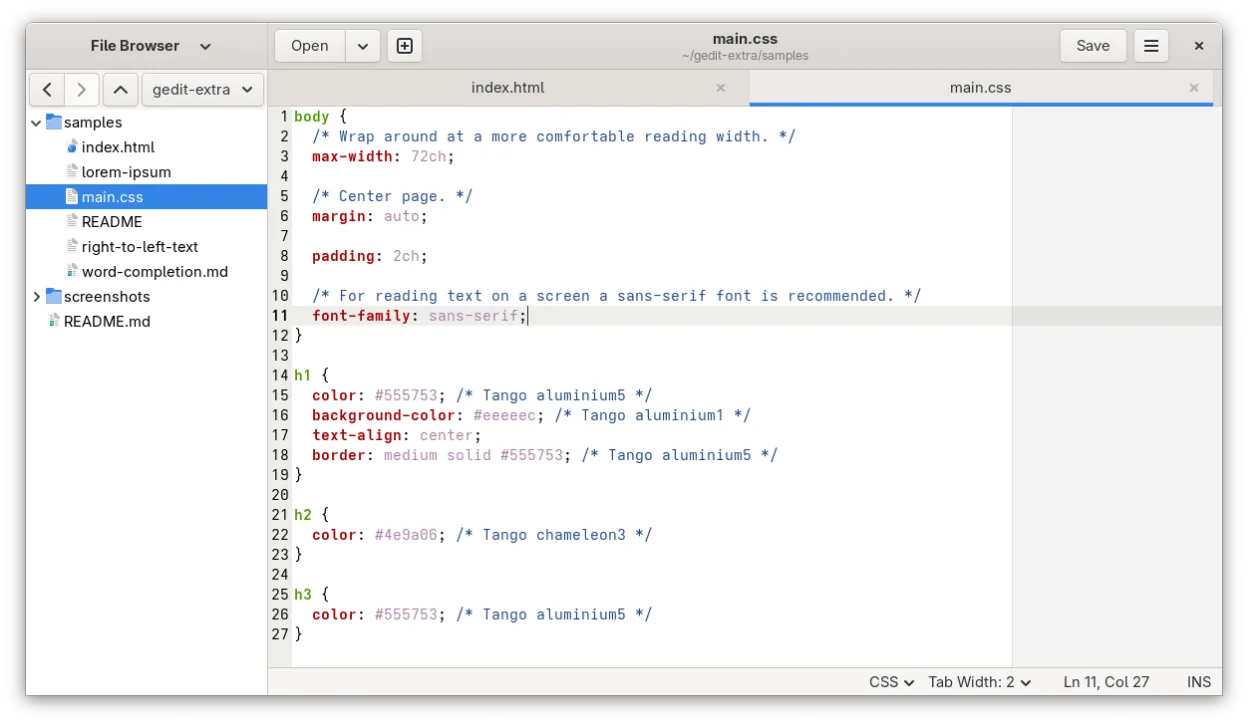
gedit can replace Sublime Text for basic editing tasks and for users who prefer a lightweight GNOME‑centric editor. It offers syntax highlighting, regex search/replace, and a plugin system, but it lacks the speed, advanced project management, and extensive Python‑based plugin ecosystem that power users rely on. It works well for students, writers, or developers who need a simple, stable editor without the need for complex workflows.
- License
- GPL-2.0+
- Price
- Free
- Latest version
- 51.0 (October 15, 2026)
- Rating
- 5/5 (1)
What works the same
- Syntax highlighting for many languages
- Regex search and replace
- Plugin architecture
- Line numbers and bracket matching
- Auto‑indent and tab width configuration
What is different
- No integrated terminal or console
- Limited project/file navigation compared to Sublime’s sidebar
- Fewer themes and customization options
- No native support for multi‑cursor editing
- Plugin development uses Python but is less extensive than Sublime’s API
Opening your Sublime Text files
Sublime Text files are plain text; gedit can open them without issue. Exporting from gedit to Sublime is trivial—just save the file in UTF‑8. No special conversion is required, and both editors use the same plain‑text format, so file compatibility is not a concern.
Switching from Sublime Text to gedit, step by step
- 1. Install gedit via your distro’s package manager or Flathub.
- 2. Open your existing .sublime‑project or .sublime‑workspace files in a text editor and copy the relevant settings.
- 3. In gedit, enable the desired plugins (e.g., Code Commenter, Python‑Shell) through Edit → Preferences → Plugins.
- 4. Configure syntax highlighting by selecting the file type or installing a language pack.
- 5. Set up keyboard shortcuts in Edit → Preferences → Keyboard Shortcuts to match your Sublime workflow.
- 6. Verify that your files open correctly and that search/replace works as expected.
Key features of gedit
- Syntax highlighting for many programming languages
- Plugin system for extending functionality
- Search and replace with regex support
- Configurable font, tab width, and line wrapping
- Line numbers, bracket matching, and auto-indent
- UTF-8 text encoding support
- Drag-and-drop text editing
- Multiple document interface with tabs
How to install gedit on Linux
flatpak install flathub org.gnome.geditsudo apt install geditsudo apt install geditsudo dnf install geditsudo pacman -S geditsudo zypper install geditFrequently asked questions
Does gedit support multi‑cursor editing like Sublime?
No, gedit does not natively support multi‑cursor editing. Workarounds involve using plugins or external tools, but the feature is not built into the core editor.
Can I use gedit for large codebases?
gedit is suitable for small to medium projects. For very large codebases, its file navigation and performance may lag behind Sublime’s optimized handling of many files.
Is gedit available on all major Linux distributions?
Yes. gedit is packaged for Arch, Debian, Fedora, openSUSE, and Ubuntu, and can also be installed from Flathub.
4 other alternatives to Sublime Text
 KateKate is a feature-rich, programmer-focused text editor from KDE with support for 300+ languages and advanced…Open sourceFreeFlatpakKate vs Sublime Text
 GeanyGeany is a lightweight, fast IDE that supports many languages and plugins out of the box.Open sourceFreeFlatpakGeany vs Sublime Text
 NeovimNeovim is a modern Vim fork that adds extensibility, advanced UI support, and powerful extensions while…Open sourceFreeFlatpakNeovim vs Sublime Text