
 LibreCADLinux
vs
AutoCAD LTWindows
LibreCAD as a Linux alternative to AutoCAD LT
Updated
Our verdict
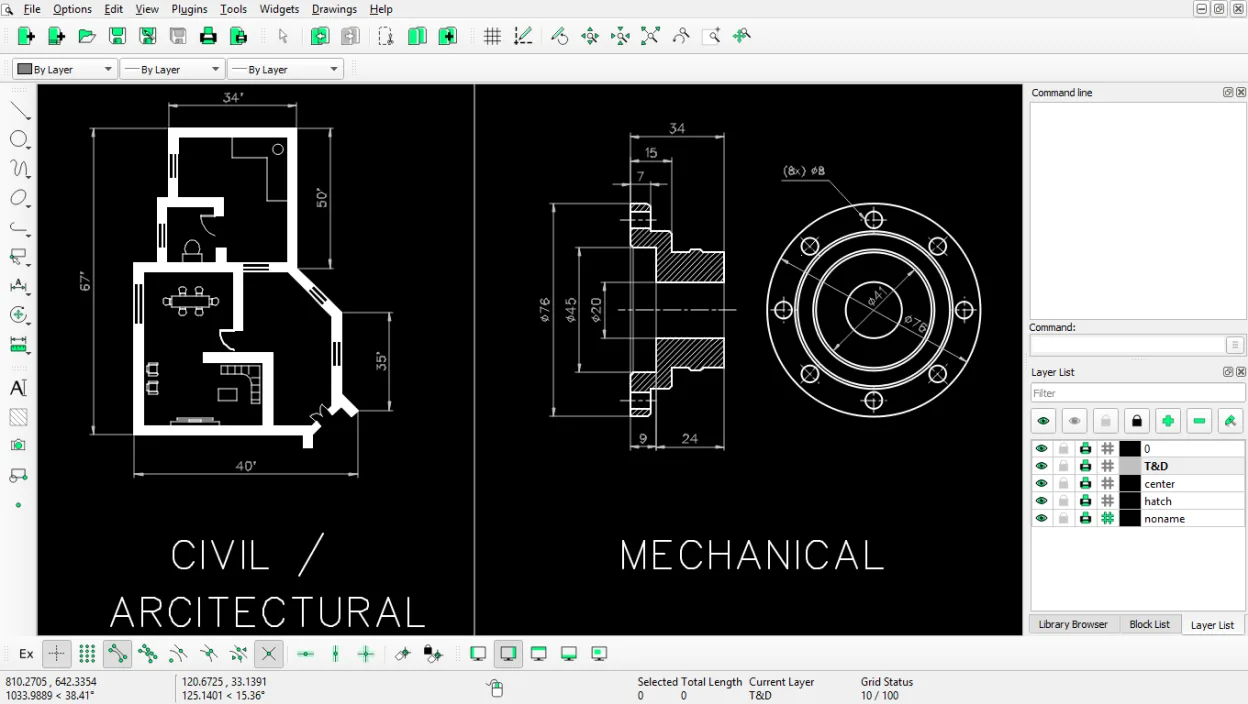
LibreCAD can serve as a practical replacement for AutoCAD LT for users whose work stays strictly 2‑D. It offers the essential drafting tools, layer handling and dimensioning that most LT users need, and it reads and writes DXF files well enough for everyday exchange. However, it lacks many of the polish, extensive symbol libraries and advanced plotting options found in LT, so power users or firms that rely on tight DWG compatibility may find it limiting. For hobbyists, small offices, or education settings where cost is a concern, LibreCAD is a solid choice.
- License
- GPL-2.0
- Price
- Free
- Latest version
- 2.2.1.6 (October 17, 2026)
- Rating
- —
What works the same
- Both focus on 2‑D drafting only; no 3‑D modeling
- Layer management with unlimited layers
- Dimensioning and annotation tools
- DXF import/export for industry‑standard file exchange
- Print preview and PDF export
What is different
- LibreCAD uses DXF as its native format; AutoCAD LT uses DWG, so some DWG‑specific features are missing
- LT includes more built‑in block libraries and industry‑specific symbol sets
- AutoCAD LT offers tighter integration with Autodesk cloud services and better plotter driver support
- LT provides richer line‑weight, linetype, and text style management
- LibreCAD lacks some advanced annotation tools such as multi‑leader styles and automatic table generation
Opening your AutoCAD LT files
LibreCAD can open DXF files saved by AutoCAD LT without major issues, and it can export DXF that LT can read. Direct DWG support is not built in; you would need to convert DWG to DXF first using a separate tool (e.g., Teigha File Converter). For most standard 2‑D drawings the DXF round‑trip works, but complex entities or custom objects may be lost.
Switching from AutoCAD LT to LibreCAD, step by step
- Install LibreCAD from your distro repository or via Flathub.
- Export your existing AutoCAD LT drawings as DXF (preferably version R12 or 2000).
- Open the DXF files in LibreCAD and verify layers, dimensions and blocks appear correctly.
- Adjust any missing line‑weights, linetypes or text styles using LibreCAD’s properties panels.
- Save the cleaned file as DXF for continued exchange, or keep a LibreCAD backup in its native format.
- Set up your printer or plotter in LibreCAD’s page setup before final output.
Key features of LibreCAD
- Layer management with unlimited layers
- Extensive line, arc, circle and spline tools
- DXF import and export (AutoCAD compatible)
- Measurement and dimensioning utilities
- Customizable keyboard shortcuts
- Print preview and PDF export
- Command line for precise coordinate entry
- Multi‑platform support (Linux, Windows, macOS)
How to install LibreCAD on Linux
flatpak install flathub org.librecad.librecadsudo apt install librecadsudo apt install librecadsudo dnf install librecadsudo pacman -S librecadsudo zypper install librecadFrequently asked questions
Can LibreCAD read native DWG files from AutoCAD LT?
Not directly. You need to convert DWG to DXF first; LibreCAD only reads DXF.
Is LibreCAD suitable for large engineering firms?
It can handle basic 2‑D work, but the lack of DWG native support, advanced annotation tools, and Autodesk ecosystem integration makes it less suitable for large firms that depend on those features.
Does LibreCAD support custom keyboard shortcuts?
Yes, you can define or modify shortcuts in the preferences, which helps replicate familiar LT workflows.

