

Linux · System Tools
GPU Screen Recorder
GPU Screen Recorder is a fast, low-impact Linux screen recorder using hardware encoding, similar to ShadowPlay.
- License
- GPL-3.0-only
- Latest version
- 6.1.4 (October 12, 2026)
- Developer
- dec05eba
- Installs
- 16,090 (Flathub, 30 days)
What is GPU Screen Recorder?
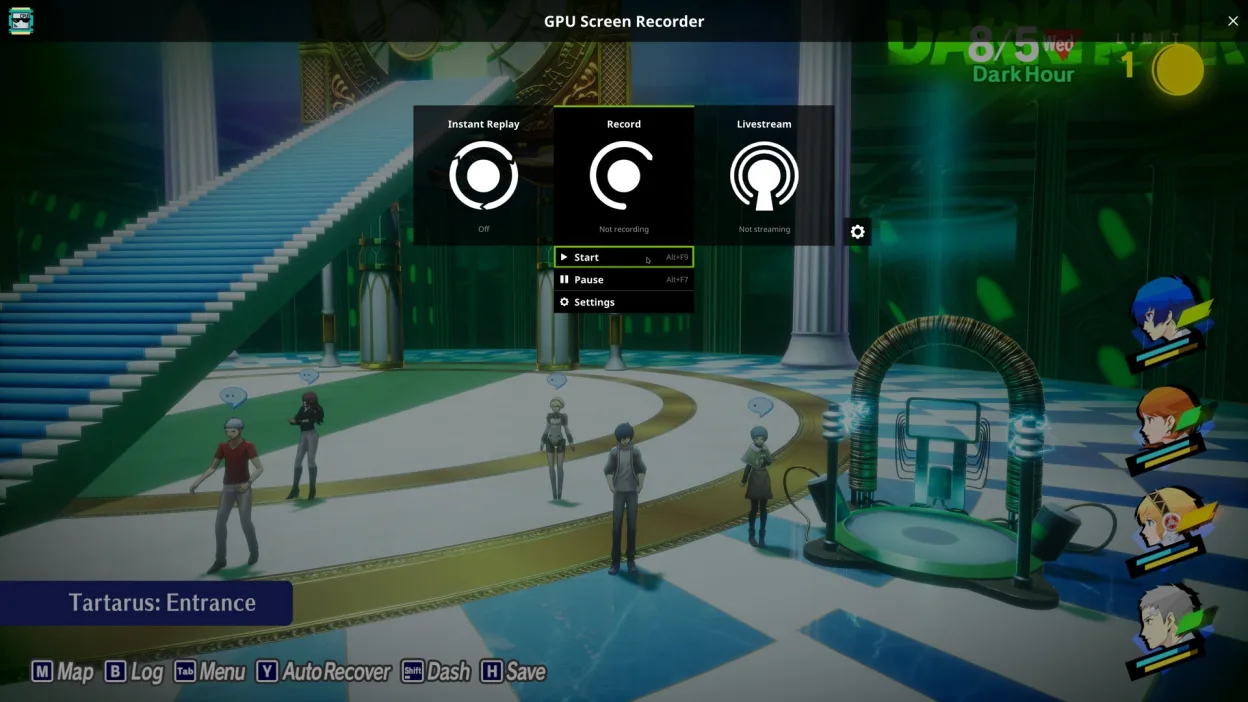
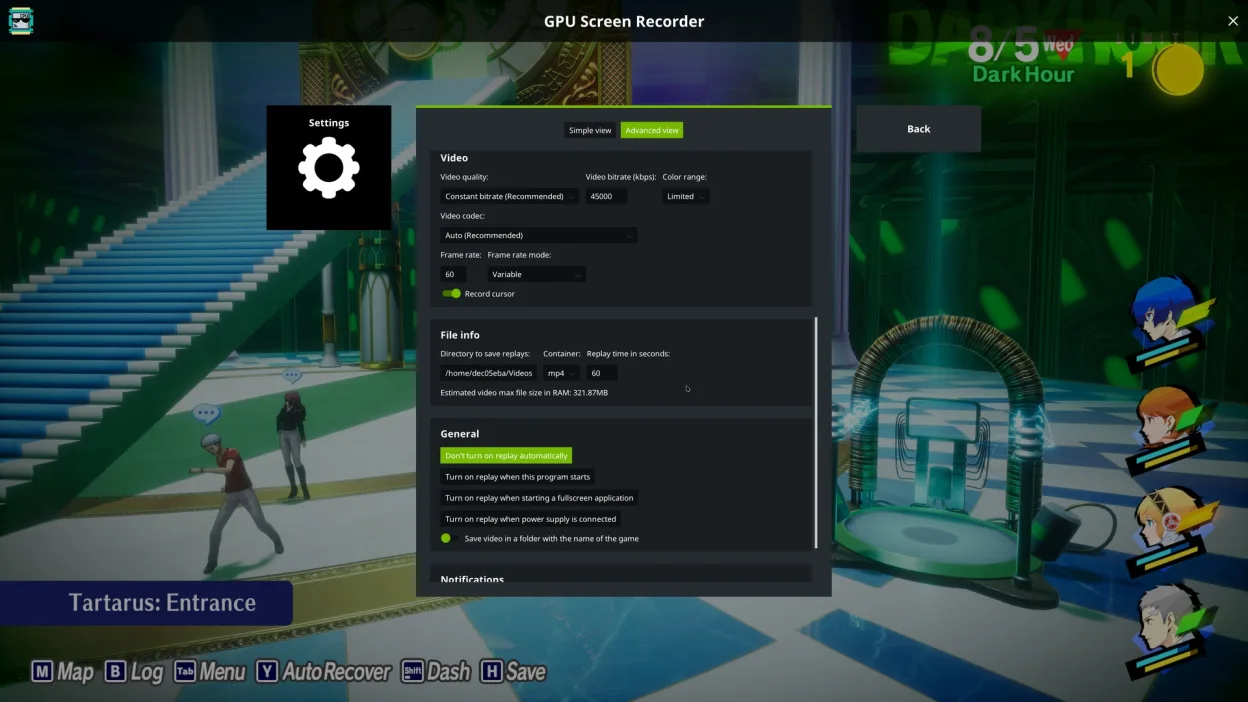
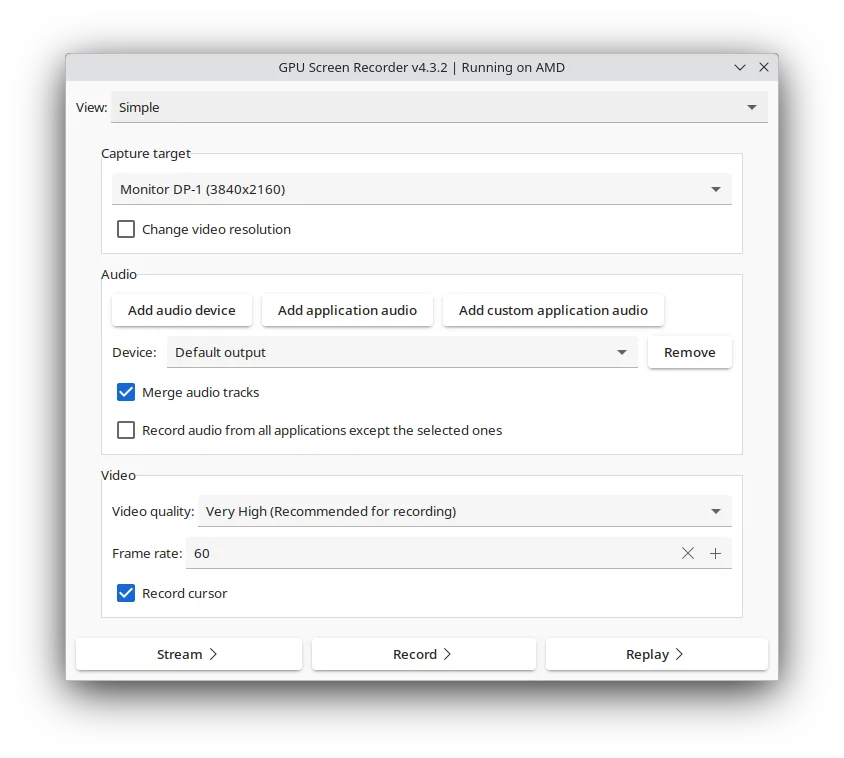
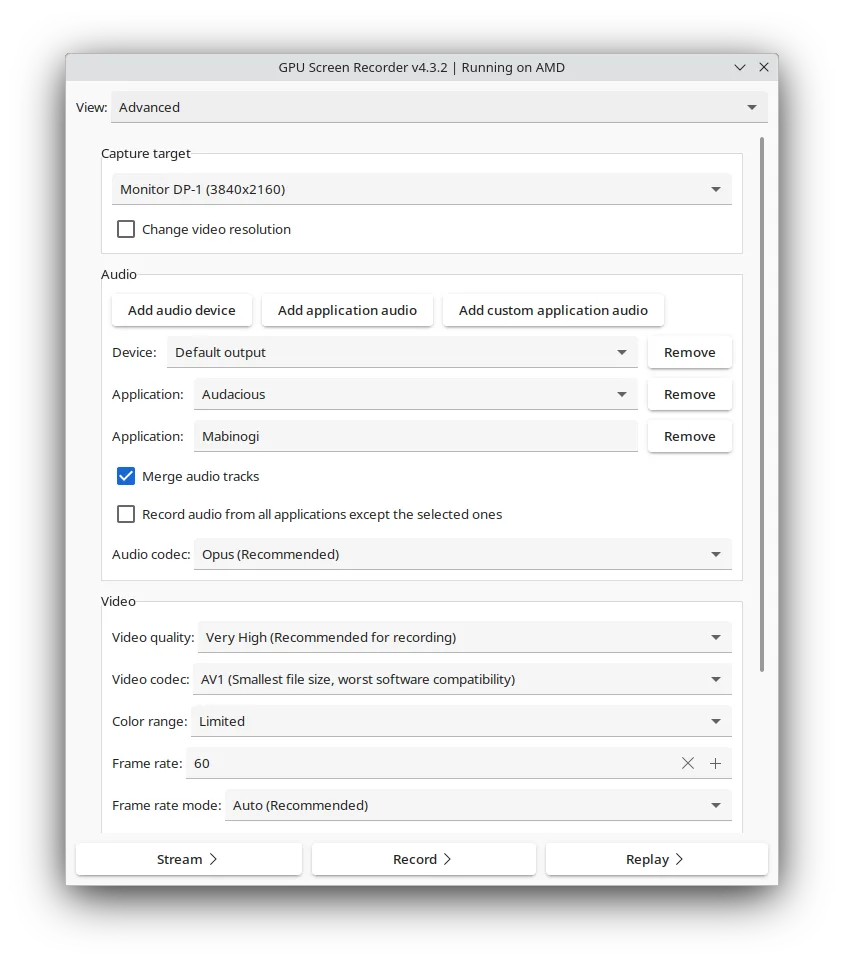
GPU Screen Recorder captures your desktop by offloading video encoding to the GPU, keeping system performance high. It supports X11 and Wayland across AMD, Intel, and NVIDIA hardware. The project has matured with a stable GTK interface and a newer, experimental fullscreen overlay that mimics the Windows ShadowPlay experience.
This tool suits gamers, streamers, and developers who need high-quality recordings without lag. It handles offline desktop capture, live streaming, and instant replay. If you rely on hardware acceleration for smooth gameplay or coding sessions, this recorder minimizes the overhead compared to CPU-based solutions.
Compared to MSI Afterburner, which is primarily an overlay for monitoring and basic recording, GPU Screen Recorder is a dedicated capture tool. It feels more like a direct replacement for ShadowPlay or OBS when you want speed and simplicity. The new UI is particularly close to the Windows workflow, offering quick access to recording controls without leaving your game or application.
Best for: Gamers and streamers who need high-performance, low-lag screen recording on Linux without the complexity of OBS.
Key features of GPU Screen Recorder
- Hardware-accelerated encoding for H264, HEVC, AV1, VP8, and VP9
- Supports X11 and Wayland on AMD, Intel, and NVIDIA GPUs
- Instant replay feature similar to NVIDIA ShadowPlay
- Low system impact due to GPU-only recording
- Dual UI: traditional GTK and experimental fullscreen overlay
- Variable and constant framerate recording options
- Audio support via Opus and AAC codecs
- Screenshot capability in JPEG and PNG formats
Pros
- Extremely low performance impact during recording
- Works seamlessly on both X11 and Wayland
- Supports modern codecs like AV1 and HEVC with HDR
- Fast, dedicated interface that avoids complex setup
Cons
- Variable framerate videos may stutter in some players
- GTK interface is slated for removal, creating a transition period
- Potential conflicts with keyboard remapping software like keyd
- New UI is still marked as experimental
How to install GPU Screen Recorder on Linux
flatpak install flathub com.dec05eba.gpu_screen_recordersudo pacman -S gpu-screen-recordersudo zypper install gpu-screen-recorderTips for Windows users
If you are moving from MSI Afterburner or ShadowPlay, note that GPU Screen Recorder uses a different hotkey system. The new overlay UI uses Left Alt+Z to toggle, which is close to ShadowPlay's default. Unlike Afterburner, this is a standalone recorder, not a monitoring overlay. Ensure your video player supports variable framerate (MPV is recommended) or switch to constant framerate in settings to avoid playback stutter. Check your keyboard remapping tools to exclude the virtual keyboard device if you use the new UI.
Recent releases
- 6.1.4 —
- Fix recording failing sometimes (false error) - Improve multi gpu support - Improve cosmic support - Add option to only organize files if a game is captured
- 6.1.2 —
- Important security update - Disable vulkan video encoding for now as GPU drivers and ffmpeg are bugged - Fix fractional scaling in the UI for some systems
- 6.1.1 —
- Improve video/audio sync - Other minor bug fixes/improvements
- 6.0.0 —
- Support apple (asahi linux). Switch to software encoding in video options to use it - Add support for IPC in the gpu-screen-recorder command line tool - Slightly improve performance of saving a replay - Minor bug fixes
GPU Screen Recorder: frequently asked questions
Does GPU Screen Recorder work on Wayland?
Yes, it supports both X11 and Wayland on AMD, Intel, and NVIDIA GPUs.
Why does my recorded video stutter when I play it back?
The default variable framerate format can cause issues in some players. Use MPV or switch to constant framerate in the settings.
Can I use it for live streaming?
Yes, it is designed for both offline recording and live streaming with minimal performance impact.
Which video codecs are supported?
It supports H264, HEVC, AV1, VP8, and VP9, with optional HDR support for HEVC and AV1.
Updated