
 PiTiViLinux
vs
CapCutWindows
PiTiViLinux
vs
CapCutWindows
PiTiVi as a Linux alternative to CapCut
Updated
Our verdict
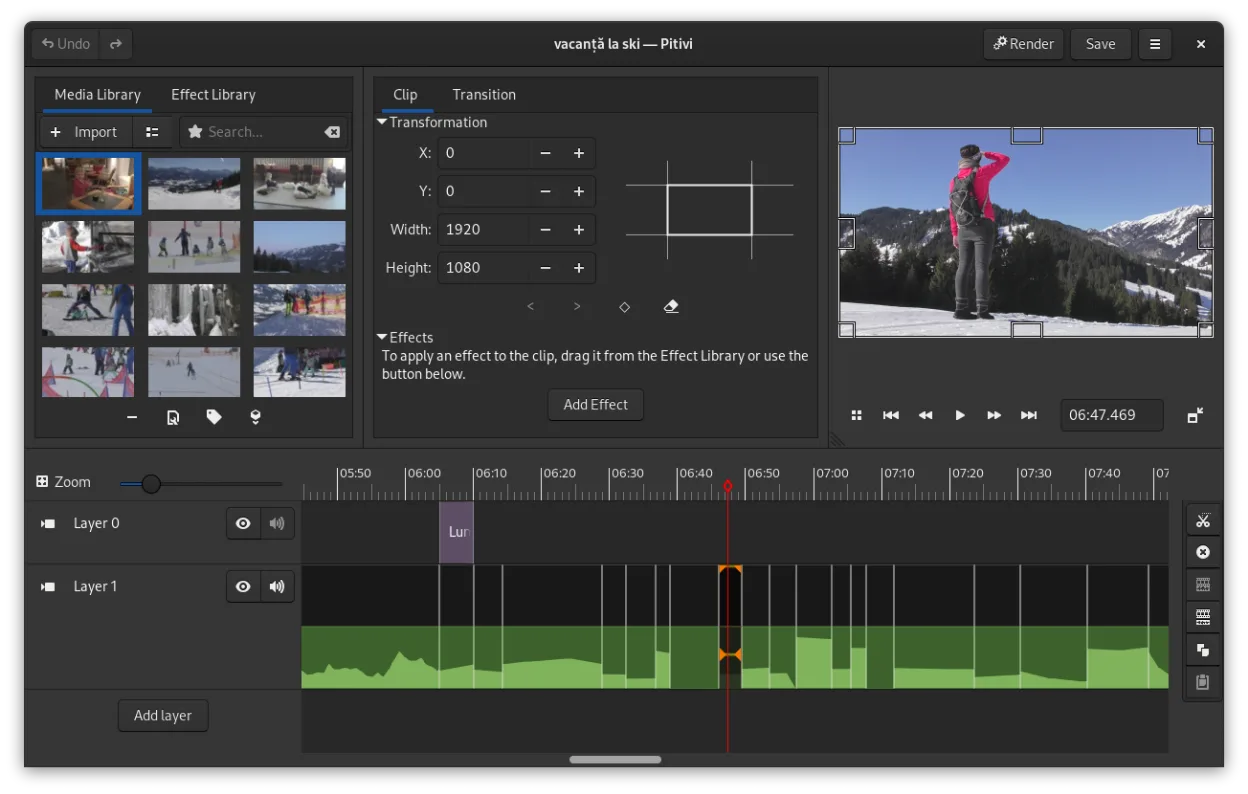
PiTiVi can replace CapCut for users who need basic trimming, layered tracks, transitions, text overlays, and export to MP4/H.264, especially if they prefer a native Linux GNOME app. It is suitable for hobbyists and small‑project creators who are comfortable with a slightly steeper learning curve than CapCut’s mobile‑style interface. However, it lacks the instant mobile‑ready presets and the same level of polish in UI/UX that CapCut offers.
- License
- LGPL-2.0+
- Price
- Free
- Latest version
- 2023.03 (March 26, 2023)
- Rating
- —
What works the same
- Both provide non‑linear editing with multiple video and audio tracks
- Both support trimming, cutting, and basic transitions
- Both allow text overlays and subtitles
- Both export to common social‑media formats such as MP4 with H.264
- Both offer a range of aspect ratios for social media
- Both are free to use
What is different
- PiTiVi requires a desktop GNOME environment; CapCut is cross‑platform including mobile
- CapCut offers a more polished, mobile‑friendly UI with instant presets; PiTiVi has a traditional desktop layout
- CapCut includes built‑in stock music and effects library; PiTiVi relies on external media
- CapCut’s export presets are tailored for social platforms; PiTiVi requires manual setting of resolution and framerate
- PiTiVi lacks the same level of built‑in subtitle templates and automatic captioning
Opening your CapCut files
CapCut does not use a public project file format. PiTiVi can open most common media files (MP4, MKV, AVI, etc.) that CapCut can edit, but it cannot import CapCut’s proprietary project files. Exporting from PiTiVi to MP4/H.264 will work for social media, but any CapCut‑specific effects or presets are not transferable.
Switching from CapCut to PiTiVi, step by step
- 1. Export your CapCut project as an MP4 or separate audio/video files.
- 2. Open PiTiVi and create a new project with the same aspect ratio and framerate as your CapCut export.
- 3. Drag the exported media files into PiTiVi’s timeline, then trim and arrange them as needed.
- 4. Add text overlays, transitions, and audio tracks using PiTiVi’s built‑in tools.
- 5. Export the finished video as MP4/H.264, selecting the desired resolution and bitrate.
- 6. Upload the exported file to your social‑media platform.
Key features of PiTiVi
- Non-linear editing with a framerate-independent timeline
- Supports any format handled by GStreamer
- Keyframe animation for effects and filters
- Ripple and roll editing for efficient timeline adjustments
- Custom aspect ratios, framerates, and render presets
- Crossfades and SMPTE-standard transitions
- Detachable UI panels for multi-monitor setups
- Non-modal editing workflow with playhead-centric design
How to install PiTiVi on Linux
flatpak install flathub org.pitivi.Pitivisudo apt install pitivisudo apt install pitivisudo dnf install pitivisudo pacman -S pitivisudo zypper install pitiviFrequently asked questions
Does PiTiVi support the same aspect ratios as CapCut?
Yes, PiTiVi lets you set custom aspect ratios, so you can match 9:16, 16:9, 1:1, etc., just like CapCut.
Can I use PiTiVi on a non‑GNOME desktop?
PiTiVi is designed for GNOME but can run on other desktop environments; the interface may look slightly different.
Is PiTiVi suitable for quick edits on the go?
PiTiVi is a desktop application, so it’s best for quick edits done on a laptop or desktop, not for on‑the‑go mobile editing.
4 other alternatives to CapCut
 KdenliveKdenlive is a free, feature‑rich non‑linear video editor built on the MLT framework.Open sourceFreeFlatpakKdenlive vs CapCut
 ShotcutShotcut is a free, open-source video editor for Linux with support for a wide range of formats via FFmpeg.Open sourceFreeFlatpakShotcut vs CapCut
 OpenShotOpenShot is a free, open-source, non-linear video editor for Linux and other platforms, built with Python and…Open sourceFreeFlatpakOpenShot vs CapCut
 BlenderBlender is a free, open-source 3D suite for modeling, animation, rendering, and video editing.Open sourceFreeFlatpakBlender vs CapCut