
 SolaarLinux
vs
Logitech G HubWindows
SolaarLinux
vs
Logitech G HubWindows
Solaar as a Linux alternative to Logitech G Hub
Updated
Our verdict
Solaar is a decent Linux replacement for basic Logitech gear management, but it falls short of the full feature set of Logitech G Hub. It works well for users who only need device pairing, battery monitoring, and simple button or scroll adjustments on keyboards, mice, and trackpads. Advanced users wanting macro recording, detailed DPI profiles, RGB lighting control, or firmware updates will find Solaar lacking and may need to stick with G Hub on Windows or look for other tools.
- License
- GPL-2.0-only
- Price
- Free
- Latest version
- 1.1.20 (June 28, 2026)
- Rating
- —
What works the same
- Both manage Logitech peripherals and support wireless (Lightspeed, Nano) and Bluetooth connections
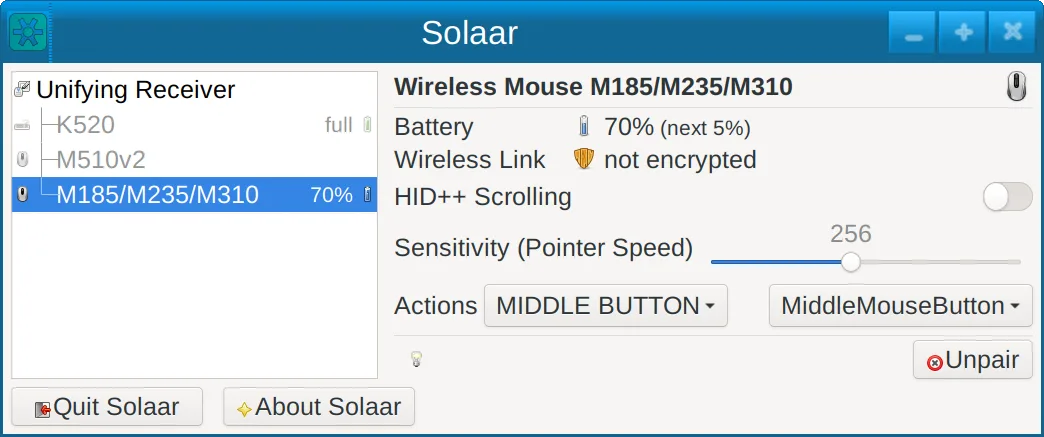
- Both provide a GUI that shows connected devices and basic status
- Both allow pairing/unpairing of devices
- Both offer battery level display for rechargeable devices
- Both run natively on Linux (Solaar) and Windows/macOS (G Hub)
What is different
- Solaar does not support macro recording or playback, while G Hub does
- RGB lighting control is absent in Solaar, G Hub offers full RGB customization
- Firmware updates are only available in G Hub, Solaar cannot flash firmware
- Solaar lacks detailed DPI and profile management; G Hub provides per‑profile DPI settings
- Solaar does not export or import configuration files from G Hub; it only manages current device settings
Opening your Logitech G Hub files
Solaar cannot open or import Logitech G Hub configuration files (.lgh or similar). Users must manually reconfigure devices in Solaar or continue using G Hub on Windows for those settings. There is no known export function from G Hub that Solaar can read.
Switching from Logitech G Hub to Solaar, step by step
- 1. Install Solaar from your distribution’s package manager or Flathub.
- 2. Launch Solaar and pair your Logitech devices via the GUI or CLI.
- 3. Use the device panel to adjust button mapping, smooth scrolling, and function‑key behavior where supported.
- 4. For DPI and RGB settings, reconfigure manually in G Hub or use alternative tools like OpenRGB for lighting.
- 5. Keep G Hub installed on a Windows machine if you need firmware updates or advanced macros.
- 6. Test each device to ensure all desired functions work; adjust settings in Solaar as needed.
Key features of Solaar
- GUI and CLI support
- Battery status display
- Device pairing/unpairing
- Adjustable smooth scrolling
- Function‑key behavior control
- System‑tray icon
- Works with USB, Lightspeed, Nano, Bluetooth
How to install Solaar on Linux
flatpak install flathub io.github.pwr_solaar.solaarsudo apt install solaarsudo apt install solaarsudo dnf install solaarsudo pacman -S solaarsudo zypper install solaarFrequently asked questions
Does Solaar support macro recording?
No, Solaar does not provide macro recording or playback features.
Can I update firmware with Solaar?
Firmware updates are not supported; you need G Hub or another tool for that.
Is Solaar compatible with all Logitech gaming mice?
Solaar works with most Logitech keyboards, mice, and trackpads that use USB, Lightspeed, Nano, or Bluetooth, but some newer gaming models may lack full feature support.
5 other alternatives to Logitech G Hub
 OpenRGBOpenRGB lets you control RGB lighting on Linux without vendor apps.Open sourceFreeFlatpakOpenRGB vs Logitech G Hublibratbaglibratbag is a Linux library and CLI tool that manages gaming mice profiles, replacing Logitech G Hub.Open sourceFreelibratbag vs Logitech G Hub
 PiperPiper is a Linux GUI for configuring gaming mice via ratbagd.Open sourceFreeFlatpakPiper vs Logitech G HubKeydKeyd is a lightweight key remapping daemon for Linux, similar in purpose to AutoHotkey on Windows.Open sourceFreeKeyd vs Logitech G HubInput RemapperInput Remapper lets you map keyboard and mouse inputs to other actions on Linux, replacing Logitech G Hub's…Open sourceFreeInput Remapper vs Logitech G Hub