
Linux · System Tools
OpenRGB
OpenRGB lets you control RGB lighting on Linux without vendor apps.
- License
- GPL-2.0-or-later
- Latest version
- 1.1 (October 16, 2026)
- Developer
- Adam Honse, OpenRGB Team
- Installs
- 17,562 (Flathub, 30 days)
What is OpenRGB?
OpenRGB is an open‑source program that replaces the proprietary Logitech G Hub and similar tools on Windows. It started as a community effort to unify RGB control across brands, and has grown to support a wide range of devices, from keyboards and mice to full‑case lighting. The project is maintained by Adam Honse and the OpenRGB Team, with regular releases and active community support.
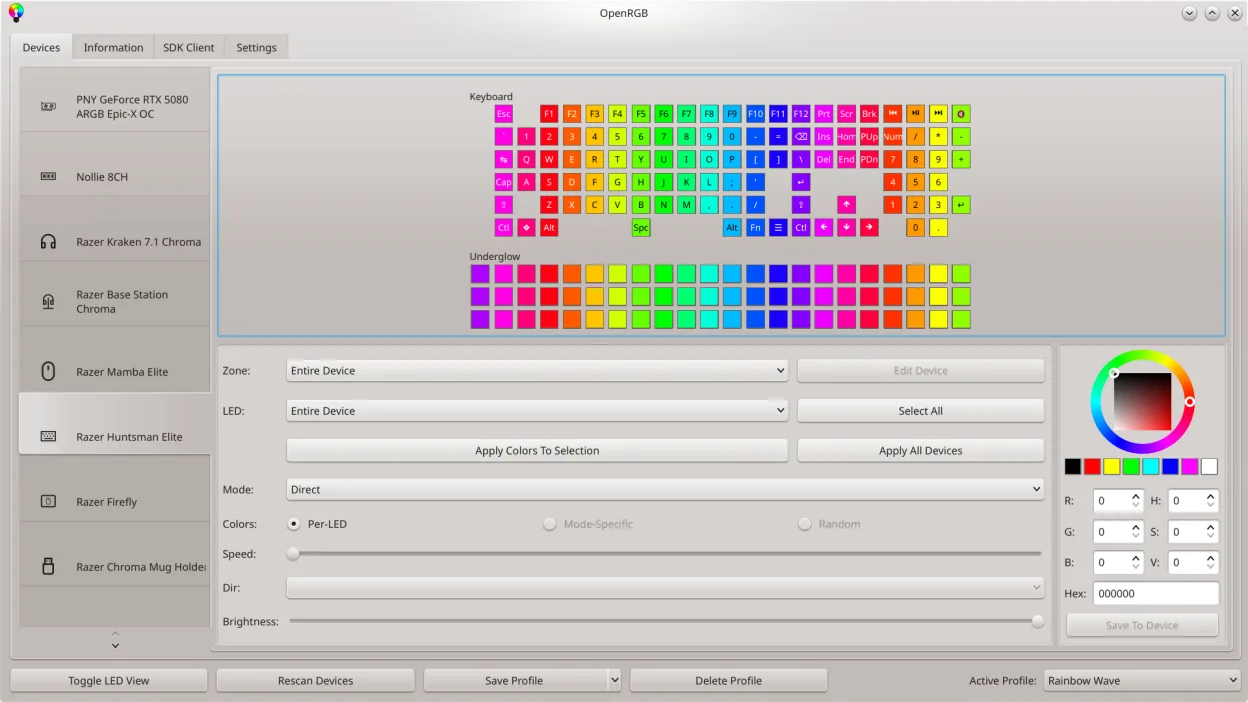
The software is aimed at power users who want a single, cross‑platform interface for all their RGB gear. It works on Linux, Windows, and macOS, and can run as a standalone client or a headless server that other programs can talk to via its SDK.
Compared to vendor tools, OpenRGB feels more lightweight and less intrusive. It doesn’t require an online account, and it runs in the background without hogging resources. The UI is straightforward, and the command‑line interface gives advanced users scriptable control.
Best for: Users who want a unified, free RGB control solution across multiple brands and platforms.
Key features of OpenRGB
- Control colors and effects for many RGB devices
- Save and load custom profiles
- SDK for third‑party integration
- Command‑line interface for scripting
- Multi‑instance sync across PCs
- Standalone or client/server mode
- Graphical LED map for pattern design
- Device info viewer
Pros
- Free and open source
- Cross‑platform support
- No vendor lock‑in
- Active community
- Scriptable via CLI
Cons
- Limited support for newer hardware
- Some users report stability issues on certain distros
- Learning curve for SDK usage
- Requires manual installation on some systems
Windows programs OpenRGB replaces
How to install OpenRGB on Linux
flatpak install flathub org.openrgb.OpenRGBsudo dnf install openrgbsudo pacman -S openrgbsudo zypper install OpenRGBTips for Windows users
If you’re used to Logitech G Hub, you’ll notice that OpenRGB doesn’t import G Hub profiles directly; you’ll need to recreate your settings manually. The keyboard shortcuts differ – use the built‑in help to map them. Workflows are similar: choose a device, pick a color or effect, then save a profile. The SDK can replace G Hub’s API calls in third‑party software, but you’ll need to adjust the connection parameters.
For Windows users, the .json profile format used by OpenRGB is not compatible with G Hub’s proprietary files, so export your settings from G Hub first and then manually set them in OpenRGB.
When moving from G Hub to OpenRGB, keep in mind that the application runs as a normal user process; you may need to grant it access to USB devices via udev rules on Linux.
Recent releases
- 1.1 —
- 1.0 —
- 1.0~rc3.1 —
- 1.0~rc3 —
OpenRGB: frequently asked questions
Does OpenRGB support my RGB keyboard?
OpenRGB supports a large number of keyboards from brands like Logitech, Corsair, Razer, and many others. Check the device list on the official website to confirm compatibility.
Can I use OpenRGB with my gaming PC on multiple machines?
Yes. OpenRGB can run as a server on one PC and connect from other PCs, allowing synchronized lighting across a network.
Is there a way to control OpenRGB from a script?
OpenRGB offers a command‑line interface and an SDK that lets you write scripts or integrate it into other software.
What if my device isn’t listed?
If your device isn’t supported yet, you can file a bug report or contribute by adding support; the community actively works on expanding device coverage.
Updated