

Linux · System Tools
Solaar
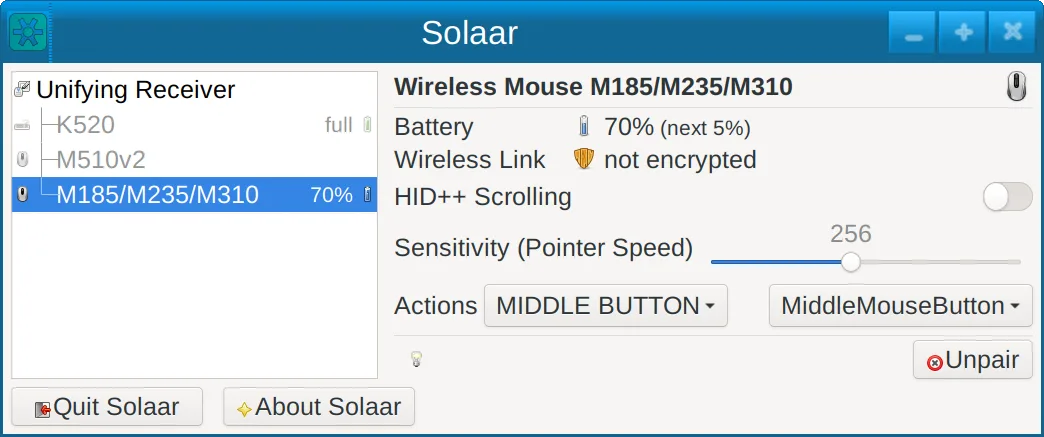
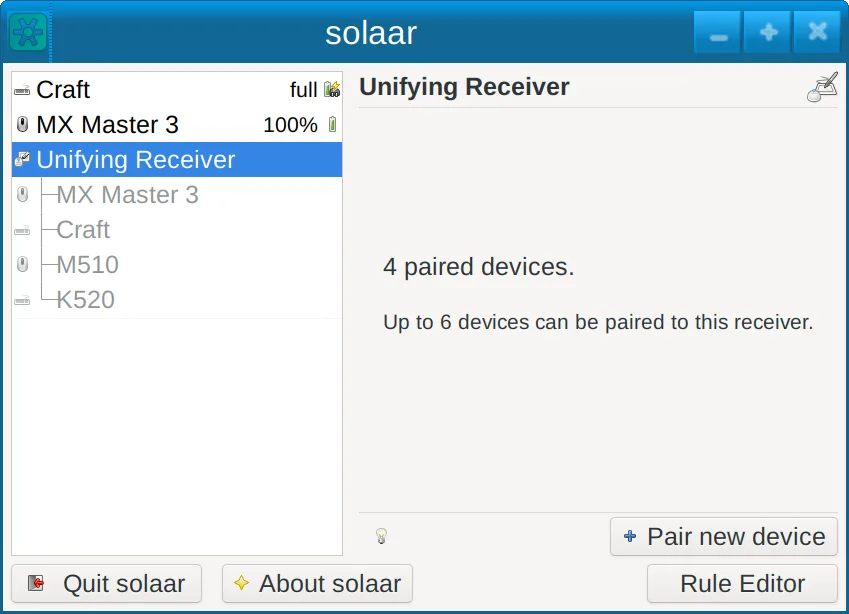
Solaar is a Linux tool that manages Logitech keyboards, mice, and trackpads, handling pairing, battery status, and some device settings.
- License
- GPL-2.0-only
- Latest version
- 1.1.20 (June 28, 2026)
- Developer
- pwr-Solaar
- Installs
- 7,049 (Flathub, 30 days)
What is Solaar?
Solaar started as a small project in 2014 to give Linux users a way to control Logitech peripherals that were otherwise only supported on Windows via Logitech G Hub. Over the years it has grown into a mature, community‑driven application that works on major distributions, with a clean GUI and a solid command‑line interface.
It is aimed at anyone who owns a Logitech wireless or Bluetooth mouse, keyboard, or trackpad and wants to keep full control over battery levels, device pairing, and a few configurable options without leaving the Linux desktop.
Compared to Logitech G Hub, Solaar feels lightweight and native. It doesn’t offer the same level of gaming‑specific customization, but for everyday use it provides the essential features you need in a straightforward way.
Best for: Users who need basic management of Logitech peripherals on Linux without the extra features of a full gaming suite.
Key features of Solaar
- GUI and CLI support
- Battery status display
- Device pairing/unpairing
- Adjustable smooth scrolling
- Function‑key behavior control
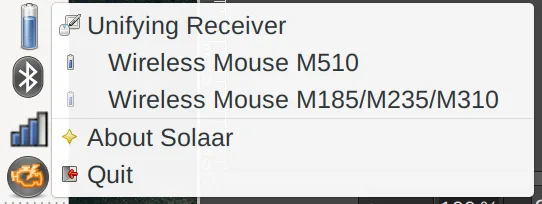
- System‑tray icon
- Works with USB, Lightspeed, Nano, Bluetooth
Pros
- Free and open source
- Cross‑distribution support
- Lightweight and fast
- No Windows dependency
Cons
- Only works with Logitech devices
- Limited advanced gaming settings
- No built‑in firmware updates
Windows programs Solaar replaces
How to install Solaar on Linux
flatpak install flathub io.github.pwr_solaar.solaarsudo apt install solaarsudo apt install solaarsudo dnf install solaarsudo pacman -S solaarsudo zypper install solaarTips for Windows users
If you’re moving from Logitech G Hub, you’ll notice that Solaar doesn’t support the same level of per‑profile gaming customization. The interface is simple: open the app, see your devices listed, and use the system‑tray icon to access battery info or pair new devices. There are no file formats to migrate; just pair the devices again via Solaar. Shortcuts and workflow are similar to the Windows version in that you click or press a key to toggle features, but expect a more minimalistic experience.
Recent releases
- 1.1.20 —
- 1.1.19 —
- 1.1.18 —
- 1.1.16 —
Solaar: frequently asked questions
Does Solaar support Logitech gaming mice?
Yes, Solaar works with many gaming mice that use Logitech’s USB, Lightspeed, or Nano receivers, but it only offers basic functions like battery status and pairing. Advanced gaming features are not available.
Can I use Solaar with a Bluetooth keyboard?
Yes, any Logitech keyboard that supports Bluetooth can be paired and monitored through Solaar.
How do I update the firmware of my Logitech device?
Solaar does not handle firmware updates. You’ll need to use Logitech’s Windows G Hub or a third‑party tool that supports Linux firmware flashing.
Is Solaar still maintained?
Yes, the latest release is 1.1.20 (2026‑06‑28) and it is available in major distro repositories.
Updated