
 ThunderbirdLinux
vs
CalendarWindows
ThunderbirdLinux
vs
CalendarWindows
Thunderbird as a Linux alternative to Calendar
Updated
Our verdict
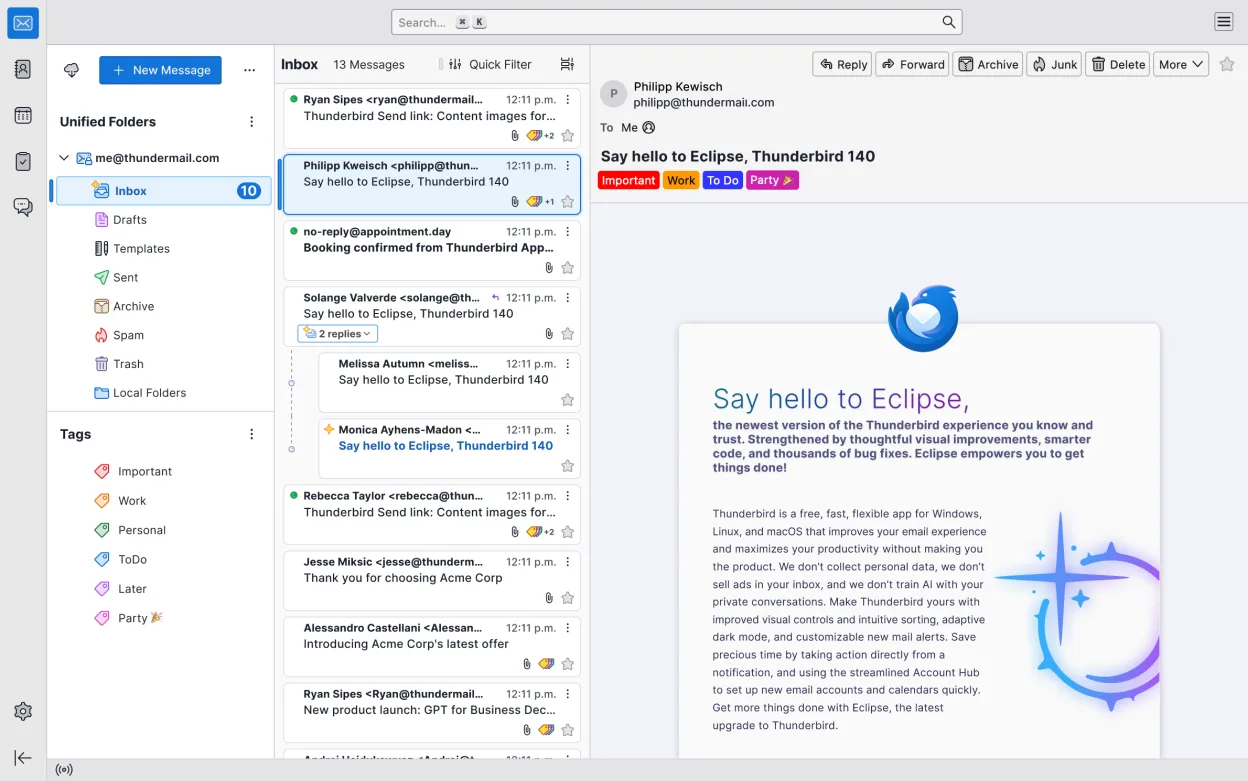
Thunderbird is a capable replacement for GNOME Calendar, particularly if you already use it for email. It handles core scheduling tasks like viewing events, setting reminders, and managing multiple calendars effectively. However, it is a heavier application with a steeper learning curve due to its email-centric design. For users who need a lightweight, distraction-free interface focused solely on scheduling, GNOME Calendar remains superior. Thunderbird is best suited for users who want to consolidate their email and calendar into one application and do not mind a more complex interface.
- License
- MPL-2.0
- Price
- Free
- Latest version
- 159.0 (October 26, 2026)
- Rating
- —
What works the same
- Supports month, week, and day views for event scheduling
- Allows creation, editing, and deletion of personal appointments
- Integrates with system notifications for reminders and alarms
- Supports subscribing to external iCal feeds
- Displays multiple calendars with distinct color coding
What is different
- Thunderbird is a full email client, adding significant interface complexity compared to GNOME Calendar's lightweight design
- GNOME Calendar is optimized for speed and minimal resource usage, whereas Thunderbird is heavier
- Thunderbird requires configuring Lightning or similar add-ons for full calendar functionality in some contexts
- GNOME Calendar has a simpler, more direct interface for pure scheduling tasks
- Thunderbird includes email, news, and chat features that are irrelevant to pure calendar users
Opening your Calendar files
GNOME Calendar typically stores data in local files or connects to online accounts. Thunderbird supports importing standard iCal (.ics) files, which can be exported from GNOME Calendar if it supports local file export. If you use online accounts like CalDAV, both applications can connect to the same server, allowing seamless synchronization without file conversion. Direct file compatibility between native local storage formats is not guaranteed, so using iCal export/import or CalDAV synchronization is the recommended approach.
Switching from Calendar to Thunderbird, step by step
- Export your existing events from GNOME Calendar as an .ics file if using local storage
- Install Thunderbird and ensure the calendar component is enabled
- Import the .ics file into Thunderbird via File > Import
- Configure any online calendar accounts (CalDAV) directly in Thunderbird settings
- Set up system notification integration for reminders
- Verify that all events, reminders, and colors display correctly in Thunderbird
Key features of Thunderbird
- Full IMAP and POP3 email support with multi-account management
- Built-in calendar with Lightning integration for tasks and events
- RSS and Atom news feed reader
- Chat support via Matrix, IRC, and XMPP through add-ons
- OpenPGP encryption for secure email
- Advanced message filtering and search
- Customizable interface with themes and extensions
- Contact management with LDAP and address book sync
How to install Thunderbird on Linux
flatpak install flathub org.mozilla.thunderbirdsudo apt install thunderbirdsudo apt install thunderbirdsudo dnf install thunderbirdsudo pacman -S thunderbird-i18n-frsudo zypper install MozillaThunderbirdFrequently asked questions
Is Thunderbird's calendar as fast as GNOME Calendar?
No, Thunderbird is a larger application and may feel slower to launch and navigate compared to the lightweight GNOME Calendar, especially on older hardware.
Can I use Thunderbird without setting up email?
Yes, you can use Thunderbird primarily for calendar functions, but you may need to disable or ignore email-related prompts and settings.
Does Thunderbird support CalDAV?
Yes, Thunderbird supports CalDAV, allowing you to sync with online calendar services like Nextcloud, Google, or iCloud, similar to GNOME Calendar.
4 other alternatives to Calendar
 EvolutionEvolution is a full‑featured personal information manager that combines email, calendar, contacts and tasks…Open sourceFreeFlatpakEvolution vs CalendarOrageA lightweight, KDE-based calendar application for managing events, reminders, and to-do lists with a simple…Open sourceFreeOrage vs CalendarCalcurseCalcurse is a lightweight, text-based calendar and task manager for the terminal, designed for users who…Open sourceFreeCalcurse vs Calendar