
 TigerVNC ViewerLinux
vs
ParsecWindows
TigerVNC ViewerLinux
vs
ParsecWindows
TigerVNC Viewer as a Linux alternative to Parsec
Updated
Our verdict
TigerVNC Viewer is not a good replacement for Parsec if you need low-latency gaming or high-performance remote access over the internet. It works well for desktop sharing on a local network with acceptable latency, but lacks Parsec’s optimized protocols for 60+ FPS and gamepad support. Audio forwarding is limited unless manually configured. It’s suitable for users who prioritize screen access over responsiveness, especially in LAN environments. For cloud gaming or smooth streaming, Parsec remains far superior.
- License
- GPL-2.0-or-later
- Price
- Free
- Latest version
- 1.14.0 (July 24, 2024)
- Rating
- —
What works the same
- Both allow remote desktop access from Linux to another machine
- Support cross-platform connections (Linux, Windows, macOS)
- Enable keyboard and mouse input forwarding
- Work over local network and internet with proper setup
- Offer configurable display scaling and color depth
What is different
- TigerVNC lacks built-in audio streaming; Parsec supports it natively
- Parsec is optimized for 60+ FPS gaming; TigerVNC typically maxes out at 30–40 FPS
- TigerVNC has no native gamepad support or low-latency input tuning
- Parsec uses peer-to-peer connections by default; TigerVNC requires manual port forwarding or SSH tunneling
- TigerVNC relies on a VNC server running on the remote machine, while Parsec installs a full remote-access service
Opening your Parsec files
TigerVNC Viewer does not use or support Parsec-specific files, sessions, or configuration formats. Parsec does not generate portable files for import elsewhere. Connection details in TigerVNC are managed through host addresses, ports, and passwords entered manually or via command line. There is no direct way to convert or open Parsec saved connections in TigerVNC.
Switching from Parsec to TigerVNC Viewer, step by step
- Install a VNC server (like TigerVNC Server or x11vnc) on the host machine
- Configure the VNC server with a resolution, password, and optionally TLS
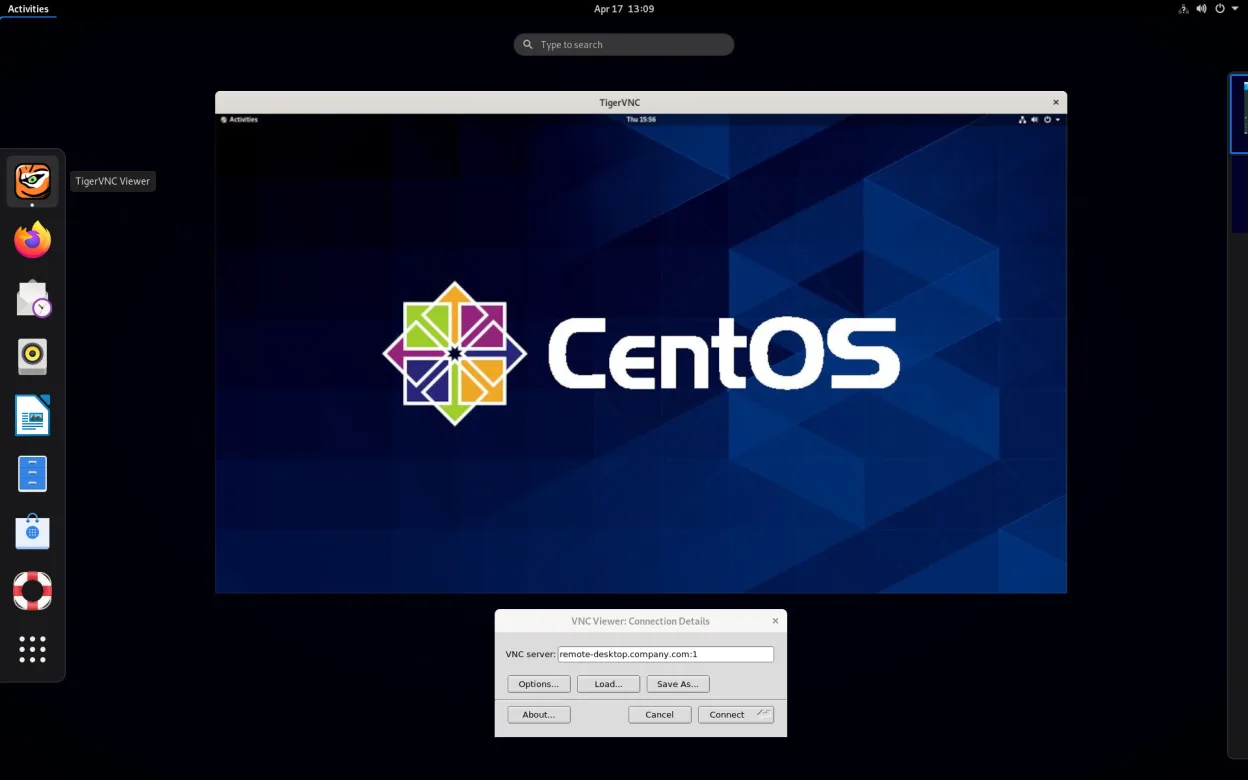
- Open TigerVNC Viewer and enter the host IP address and port
- Adjust encoding and color depth settings for performance
- Use SSH tunneling or a firewall for secure internet access
Key features of TigerVNC Viewer
- Supports Tight encoding accelerated by libjpeg‑turbo
- TLS encryption for secure sessions
- Clipboard sharing between local and remote
- Multi‑monitor handling
- Configurable scaling and color depth
- Keyboard layout translation
- Cross‑platform client (Linux, Windows, macOS)
- Command‑line options for scripting
How to install TigerVNC Viewer on Linux
flatpak install flathub org.tigervnc.vncviewersudo apt install tigervncsudo apt install tigervncsudo dnf install tigervncsudo pacman -S tigervncsudo zypper install tigervncFrequently asked questions
Can TigerVNC Viewer stream at 60 FPS like Parsec?
No, TigerVNC typically achieves 30–40 FPS under ideal conditions. It’s not optimized for high frame rates like Parsec, especially over the internet. Performance depends heavily on network speed, encoding settings, and the remote desktop’s workload.
Does TigerVNC support audio from the remote machine?
Not directly. VNC itself does not handle audio streaming. You’d need to set up separate audio forwarding (e.g., via PulseAudio over network or a second tool), which adds complexity compared to Parsec’s built-in audio support.
Is TigerVNC secure for internet use?
Yes, if configured properly. TigerVNC supports TLS encryption, but you should also use SSH tunneling or a VPN for secure remote access. Leaving VNC ports open directly to the internet without encryption is risky.
5 other alternatives to Parsec
 RemminaRemmina is a Linux remote desktop client supporting RDP, VNC, SSH, and X2Go for connecting to remote systems…Open sourceFreeFlatpakRemmina vs ParsecGNOME Remote DesktopGNOME Remote Desktop is a built-in VNC server for Linux that allows remote access to your graphical session…Open sourceFreeGNOME Remote Desktop vs Parsec
 NoMachine PlayerNoMachine Player is a proprietary remote desktop client that connects to Linux, Windows, or macOS hosts…FlatpakNoMachine Player vs Parsecx11vncA VNC server for X11 that lets you control your Linux desktop remotely from any VNC client.Open sourceFreex11vnc vs ParsecFreeRDPFreeRDP is an open-source implementation of the Remote Desktop Protocol, allowing you to connect to Windows…Open sourceFreeFreeRDP vs Parsec