
 GIMPLinux
vs
Lightroom MobileWindows
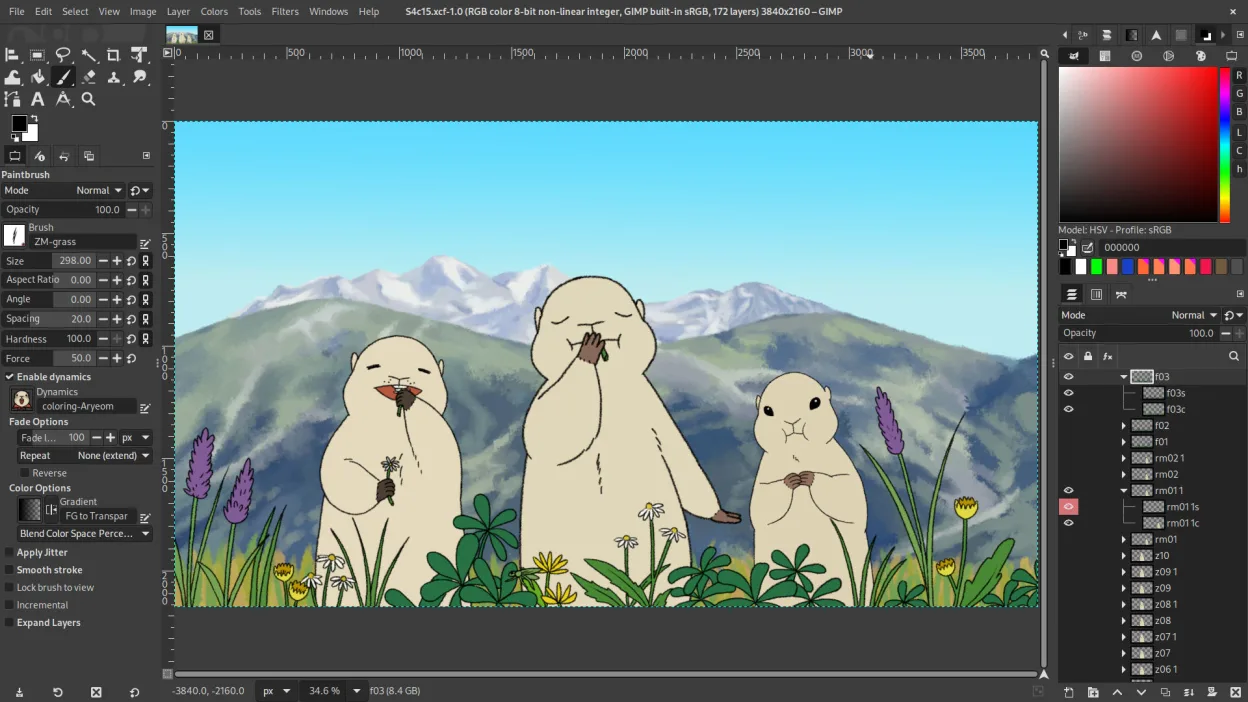
GIMP als Linux-Alternative zu Lightroom Mobile
Aktualisiert am
Unser Fazit
GIMP can replace Lightroom Mobile for basic RAW editing and batch export, but it lacks the mobile‑first, cloud‑sync workflow that Lightroom offers. It is suitable for users who prefer a free, open‑source desktop editor and are comfortable with manual workflow steps. Those who need instant cloud backup, cross‑device sync, or a touch‑optimized interface will find GIMP insufficient.
- Lizenz
- GPL-3.0+ AND LGPL-3.0+
- Preis
- Kostenlos
- Aktuelle Version
- 3.2.8 (2. November 2026)
- Bewertung
- —
Was gleich funktioniert
- Both support RAW import and non‑destructive adjustments (via layers or masks in GIMP, adjustment layers in Lightroom),
- Both allow metadata tagging and organization of images within the application
- Both provide batch export capabilities (GIMP via scripts, Lightroom via export presets)
Was anders ist
- GIMP has no built‑in cloud sync; Lightroom Mobile syncs edits across devices
- GIMP is a desktop application, not mobile‑friendly; Lightroom Mobile is designed for touch screens
- Lightroom Mobile offers a streamlined, preset‑based workflow; GIMP requires manual layer and mask setup
- GIMP lacks native integration with Adobe cloud services and Lightroom catalog
- Lightroom Mobile provides automatic backup to cloud storage; GIMP relies on local or external backup solutions
Ihre Lightroom Mobile-Dateien öffnen
Lightroom Mobile stores images in its proprietary catalog format (.lrcat) and edits are applied to RAW files. GIMP can open RAW files directly via the UFRaw or Darktable plug‑in, but it cannot read Lightroom Mobile catalog files or apply Lightroom presets. Exporting from GIMP to common formats (JPEG, TIFF, PNG) is straightforward, but you would need to re‑apply edits in Lightroom Mobile if you want to maintain a Lightroom catalog.
Von Lightroom Mobile zu GIMP wechseln – Schritt für Schritt
- 1. Export RAW files from Lightroom Mobile to a local folder using the export feature.
- 2. Install GIMP and any RAW plug‑ins (UFRaw or Darktable) on your Linux system.
- 3. Open the exported RAW files in GIMP, apply non‑destructive edits using layers or G'MIC.
- 4. Export the edited images to JPEG/TIFF for use on mobile devices or re‑import them into Lightroom Mobile if needed.
Wichtige Funktionen von GIMP
- Ebenenbasiertes Bearbeiten mit Masken, Mischmodi und Transparenz
- Fortschrittliche Pinsel‑Engine für digitale Malerei und Retusche
- Unterstützung für Photoshop‑kompatible Plug‑ins (via Kompatibilitätsschichten)
- Stapelverarbeitung und Skripting mit Script‑Fu, Python oder GEGL
- Nicht‑destruktives Bearbeiten über Plug‑ins wie G'MIC möglich
- Umfangreiche Formatunterstützung: PNG, JPEG, TIFF, PSD, WebP und weitere
- Anpassbare Oberfläche mit anheftbaren Panels und Themes
- Farbmanagement mit ICC‑Profilunterstützung
GIMP unter Linux installieren
flatpak install flathub org.gimp.GIMPsudo apt install gimpsudo apt install gimpsudo dnf install gimpsudo pacman -S gimpsudo zypper install gimp4 weitere Alternativen zu Lightroom Mobile
 darktabledarktable ist ein kostenloser, quelloffener Bildbearbeitungsprogrammier, der Rohdateien verwaltet und einen…Open SourceKostenlosFlatpakdarktable vs. Lightroom Mobile
 RawTherapeeRawTherapee ist ein quelloffenes, plattformübergreifendes Programm zur Entwicklung von Raw-Fotos.Open SourceKostenlosFlatpakRawTherapee vs. Lightroom Mobile
 digiKamdigiKam ist ein umfassender KDE-Fotomanager zum Organisieren, Taggen und Bearbeiten digitaler Fotos mit…Open SourceKostenlosFlatpakdigiKam vs. Lightroom Mobile
 ShotwellShotwell ist ein GNOME-Fotoverwaltungstool zum Importieren, Organisieren und leichten Bearbeiten von Bildern.Open SourceKostenlosFlatpakShotwell vs. Lightroom Mobile