
 GIMPLinux
vs
PaintWindows
GIMPLinux
vs
PaintWindows
GIMP as a Linux alternative to Paint
Updated
Our verdict
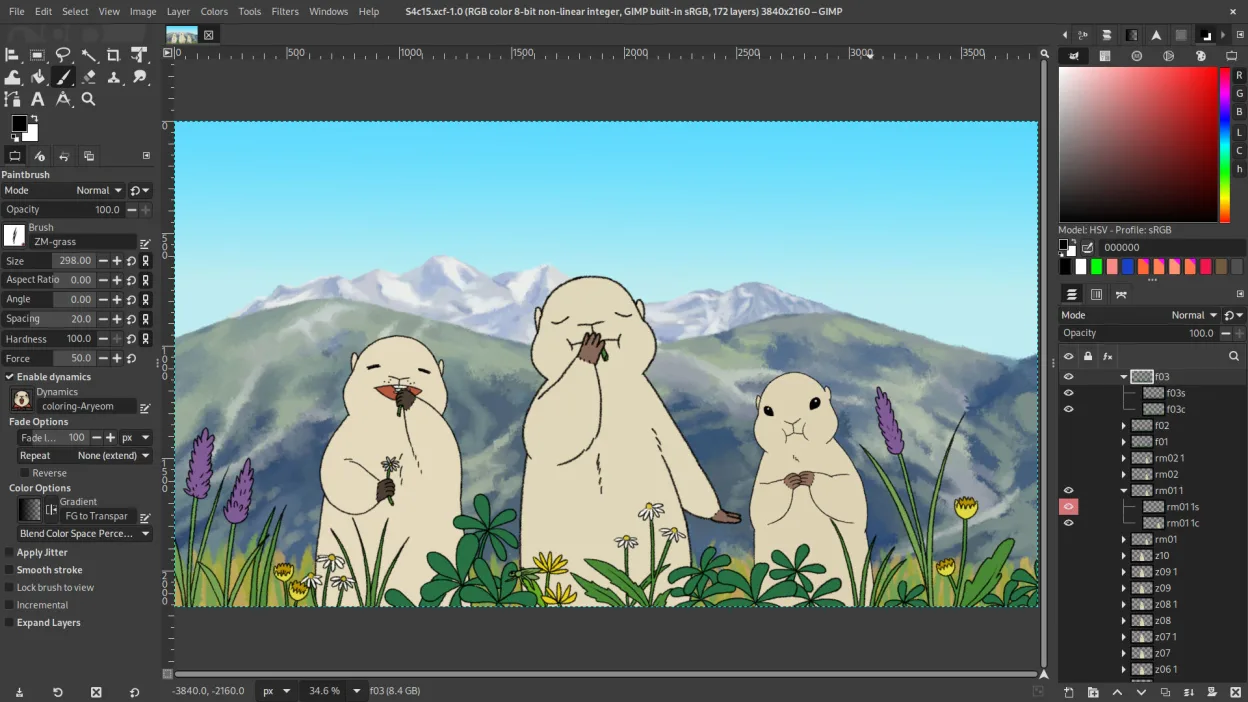
GIMP is a capable replacement for Paint, but overkill for users who only need basic drawing or quick cropping. If you're comfortable with slightly more complexity and want features like layers, undo history, or better brush control, GIMP is excellent. It’s ideal for users outgrowing Paint’s limits—like editing screenshots, making simple graphics, or retouching photos. However, for someone who only draws occasionally or edits minimally, the learning curve may feel unnecessary. Stick with Paint-like tools unless you need more.
- License
- GPL-3.0+ AND LGPL-3.0+
- Price
- Free
- Latest version
- 3.2.6 (September 10, 2026)
- Rating
- —
What works the same
- Both are raster graphics editors for drawing and image editing
- Support freehand drawing with brush-like tools
- Can open and save common formats like PNG and JPEG
- Include basic selection, crop, and fill tools
- Available on Linux and Windows
What is different
- GIMP supports layers, masks, and blending modes; Paint does not
- GIMP has advanced brush controls and custom brushes; Paint has only basic brushes
- GIMP allows non-destructive editing via plug-ins; Paint always modifies pixels directly
- Paint has a simpler, single-window interface; GIMP uses dockable panels
- GIMP supports scripting and automation; Paint has no scripting capability
Opening your Paint files
GIMP can open and edit .bmp and .png files created in Paint without issues. It also exports to these formats reliably. While Paint only handles basic raster types, GIMP supports a much wider range, including PSD, TIFF, and WebP. You can safely use GIMP to edit old Paint files, and save them in formats that remain compatible with Paint by choosing BMP or PNG. No conversion tools are needed.
Switching from Paint to GIMP, step by step
- Install GIMP via your package manager or Flathub
- Open a BMP or PNG file created with Paint to test compatibility
- Use the Pencil or Brush tool for simple drawing, like in Paint
- Explore layers in the Layers panel to separate elements
- Export to PNG or BMP to keep files usable in other basic editors
- Try G'MIC or Script-Fu for advanced effects when ready
Key features of GIMP
- Layer-based editing with masks, blending modes, and transparency
- Advanced brush engine for digital painting and retouching
- Support for Photoshop-compatible plug-ins (via compatibility layers)
- Batch processing and scripting with Script-Fu, Python, or GEGL
- Non-destructive editing possible through plug-ins like G'MIC
- Extensive format support: PNG, JPEG, TIFF, PSD, WebP, and more
- Customizable interface with dockable panels and themes
- Color management with ICC profile support
How to install GIMP on Linux
flatpak install flathub org.gimp.GIMPsudo apt install gimpsudo apt install gimpsudo dnf install gimpsudo pacman -S gimpsudo zypper install gimpFrequently asked questions
Can I use GIMP like Paint for quick drawings?
Yes, but you’ll need to disable the advanced features. Use a single layer and the Pencil tool for pixel-accurate work. It’s functional, though more complex than Paint by default.
Is GIMP harder to learn than Paint?
Yes, significantly. Paint is designed for instant use. GIMP has many tools and panels—expect a learning curve, especially with layers and selections.
Can I edit old Paint files (.bmp) with GIMP?
Yes. GIMP opens BMP files without issue and preserves content. You can edit and re-save them in BMP or other formats like PNG for wider compatibility.
4 other alternatives to Paint
 PintaPinta is a free, open‑source bitmap editor that mimics Paint.NET with a simple interface and layer support.Open sourceFreeFlatpakPinta vs Paint
 KolourPaintKolourPaint is a lightweight KDE raster graphics editor for quick drawing and simple image touch-ups.Open sourceFreeFlatpakKolourPaint vs Paint
 MyPaintMyPaint is a fast, free, open‑source raster painting program focused on brush dynamics and tablet use.Open sourceFreeFlatpakMyPaint vs Paint
 DrawpileDrawpile is a collaborative drawing application that lets multiple users paint together on the same canvas in…Open sourceFreeFlatpakDrawpile vs Paint