
 Git ColaLinux
vs
GitHub DesktopWindows
Git ColaLinux
vs
GitHub DesktopWindows
Git Cola as a Linux alternative to GitHub Desktop
Updated
Our verdict
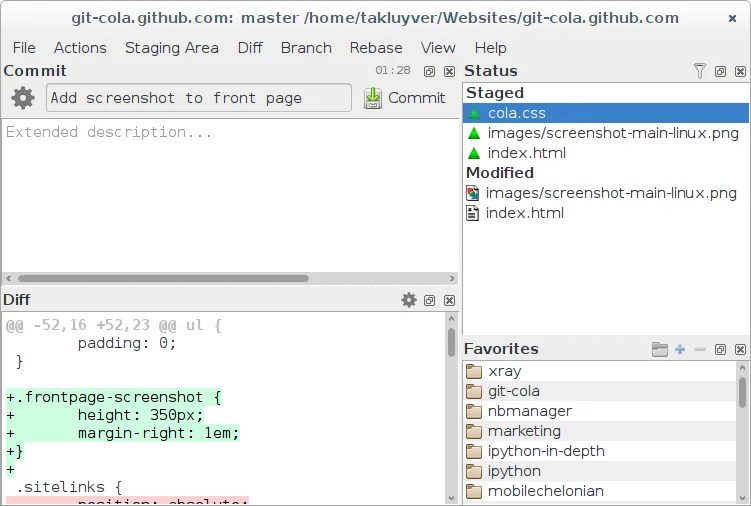
Git Cola can replace GitHub Desktop for users who are comfortable with a more traditional Git GUI and want a lightweight, highly configurable client. It covers cloning, branching, committing, pushing/pulling, viewing history, resolving conflicts, and even integrates with GitHub issues via the command line. It is best suited for developers who prefer a desktop tool that stays close to Git’s native workflow and for those who don’t need the built‑in GitHub‑specific features of GitHub Desktop.
- License
- GPL-2.0
- Price
- Free
- Latest version
- 4.19.0 (July 12, 2026)
- Rating
- —
What works the same
- Both allow cloning repositories from GitHub and managing branches (create, switch, delete).
- Both provide a graphical commit history and diff view for reviewing changes.
- Both support staging/unstaging changes, committing, and pushing/pulling to remotes.
- Both can resolve merge conflicts through a visual merge tool.
- Both integrate with GitHub issues and pull requests via external tools or command line.
What is different
- Git Cola lacks a built‑in GitHub issue and PR browser; users must use external tools or the command line.
- Git Cola does not offer a native “GitHub Desktop” style sync panel; all actions are accessed through menus or shortcuts.
- Git Cola’s UI is more traditional and may feel less modern than GitHub Desktop’s polished design.
- Git Cola does not bundle a GitHub authentication flow; users need to set up SSH or HTTPS credentials manually.
- Git Cola’s configuration is file‑based and can be more complex for beginners.
Opening your GitHub Desktop files
GitHub Desktop stores its settings in a proprietary JSON format inside the user’s home directory; Git Cola does not read or write these files. Exporting a repository from GitHub Desktop simply means cloning the repo, which Git Cola can handle without issue. Importing a GitHub Desktop project is not supported directly, but cloning the same repo in Git Cola achieves the same result.
Switching from GitHub Desktop to Git Cola, step by step
- Open GitHub Desktop and note the repository URLs you use.
- Launch Git Cola and choose File → Clone Repository.
- Paste the GitHub URL and select a local folder.
- Use Git Cola’s Branch menu to create or switch branches.
- Commit changes via the staging pane and push to the remote.
- If you use GitHub issues, open them in your browser or use the command line.
Key features of Git Cola
- Visual commit graph and history browsing
- Integrated diff and merge tool
- Branch, tag, and stash management
- Support for custom Git commands
- Searchable file tree and change list
- Undo/redo for staging actions
- Configurable shortcuts and themes
- Export patches and apply them
How to install Git Cola on Linux
flatpak install flathub com.github.git_cola.git-colasudo apt install git-colasudo apt install git-colasudo dnf install git-colasudo zypper install git-colaFrequently asked questions
Does Git Cola support SSH authentication for GitHub?
Yes, Git Cola uses the system’s Git configuration, so any SSH keys set up for GitHub work automatically.
Can I use Git Cola to create pull requests?
Not directly; you’ll need to open GitHub in a browser or use the GitHub CLI to create PRs after pushing branches.
Is Git Cola suitable for beginners?
It is more feature‑rich and configurable than GitHub Desktop, so beginners may find it a bit overwhelming, but it offers a powerful workflow for users who want more control.
4 other alternatives to GitHub Desktop
 GitKrakenGitKraken is a cross‑platform Git client with integrated issue tracking and code editing.FlatpakGitKraken vs GitHub DesktopLazygitA fast and user-friendly terminal UI for Git that simplifies complex workflows without leaving your command…Open sourceFreeLazygit vs GitHub Desktop
 gitgGitg is a lightweight graphical interface for Git that visualizes commit history and manages repositories.Open sourceFreeFlatpakgitg vs GitHub Desktop
 GitKrakenGitKraken is a cross‑platform Git client with visual history, built‑in editor and integrated issue board.FlatpakGitKraken vs GitHub Desktop