
 GNOME System MonitorLinux
vs
Process HackerWindows
GNOME System Monitor as a Linux alternative to Process Hacker
Updated
Our verdict
GNOME System Monitor is a solid, lightweight replacement for basic Process Hacker needs, especially if you prefer a clean, integrated desktop experience. It handles standard process listing, CPU/memory monitoring, and killing tasks effectively. However, it lacks the deep forensic capabilities of Process Hacker, such as detailed thread inspection, open file handles, and advanced network connection mapping. If you only need to check resource usage and end unresponsive apps, this is sufficient. If you rely on Process Hacker for debugging, security analysis, or detailed system introspection, you will find GNOME System Monitor too limited and should look at heavier tools like htop or specialized system utilities instead.
- License
- GPL-2.0
- Price
- Free
- Latest version
- 51.1
- Rating
- 5/5 (1)
What works the same
- Lists running processes with real-time CPU and memory usage
- Allows users to sort processes by resource consumption or name
- Provides functionality to kill or end running processes
- Displays system-wide performance metrics like load average and uptime
What is different
- Lacks detailed thread-level inspection and per-thread CPU usage
- Does not show open file handles or detailed network connection mappings
- Missing advanced process management features like priority adjustment or suspension
- Interface is simpler and less customizable than Process Hacker's multi-pane layout
Opening your Process Hacker files
GNOME System Monitor does not import or export Process Hacker configuration files or saved process lists. It uses standard GNOME settings for its own configuration. If you have saved Process Hacker views or scripts, they will not transfer directly; you will need to manually recreate any custom monitoring setups within the Linux tool.
Switching from Process Hacker to GNOME System Monitor, step by step
- Install GNOME System Monitor via your package manager (e.g., apt, dnf, pacman)
- Open the application to verify it launches correctly
- Familiarize yourself with the process list and sorting options
- Test the 'End Process' function on a non-critical task
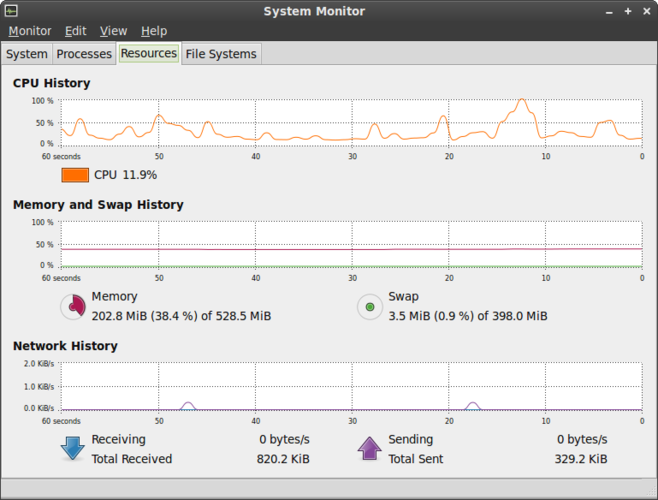
- Check the 'Resources' tab for CPU and memory graphs
- Note that advanced features like file handles are not available
Key features of GNOME System Monitor
- List all running processes with CPU and memory usage
- Sort processes by name, PID, user, or resource consumption
- View detailed information for a specific process
- End or kill running processes
- Monitor system-wide CPU and memory load
- Display system uptime and load average
- Show network activity overview
- Integrate with GNOME desktop environment
How to install GNOME System Monitor on Linux
sudo apt install gnome-system-monitorsudo apt install gnome-system-monitorsudo dnf install gnome-system-monitorsudo pacman -S gnome-system-monitorsudo zypper install gnome-system-monitorFrequently asked questions
Can I see which files a process has open?
No, GNOME System Monitor does not display open file handles. For that, you need to use command-line tools like lsof or specialized system utilities.
Is it as feature-rich as Process Hacker?
No, it is much simpler. It covers basic monitoring and process management but lacks the deep system introspection and advanced debugging features found in Process Hacker.
Does it work on all Linux distributions?
Yes, it is available in major repositories including Debian, Ubuntu, Fedora, Arch, and openSUSE, making it a standard choice for GNOME-based systems.
4 other alternatives to Process Hacker
 System Monitoring CenterSystem Monitoring Center is a low‑resource, multi‑feature monitor for CPU, RAM, disk, network, and GPU, with…Open sourceFreeFlatpakSystem Monitoring Center vs Process Hackerhtophtop is an interactive process viewer for Unix-like systems, replacing the older top command with a more…Open sourceFreehtop vs Process Hackerbtopbtop is a terminal-based system monitor that visualises CPU, memory, disk, and network usage in real time.Open sourceFreebtop vs Process HackerlsofA command-line utility that lists open files and associated processes, providing detailed system resource…Open sourceFreelsof vs Process Hacker