

Linux · Games
Protontricks
Protontricks runs Winetricks commands for Steam Play/Proton games to fix compatibility issues.
- License
- GPL-3.0
- Latest version
- 1.15.0 (October 4, 2026)
- Developer
- Janne Pulkkinen
- Installs
- 42,542 (Flathub, 30 days)
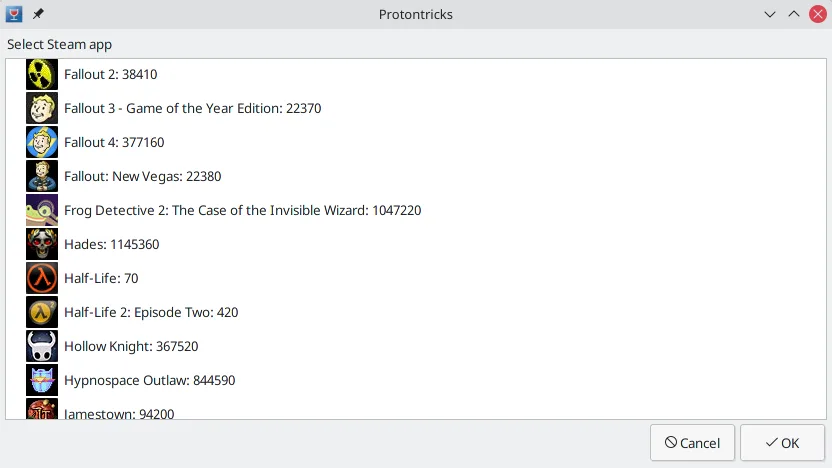
What is Protontricks?
Protontricks is a lightweight command-line tool that simplifies running Winetricks inside Proton prefixes. It lets you install missing Windows libraries or tweak Wine settings without manually handling Wine prefixes. Developed by Janne Pulkkinen, it's been actively maintained since 2019 and integrates well with Steam's Proton.
It's best for Linux gamers who run Windows-only titles through Steam Play and hit roadblocks like missing VC++ runtimes or DirectX components. If a Proton game fails to launch or crashes due to missing dependencies, Protontricks helps apply common fixes without deep Wine knowledge. It’s not for casual users unfamiliar with terminal commands.
Compared to using Battle.net on Windows, Protontricks doesn’t replace a game launcher—it’s a troubleshooting tool. You still use Steam for game management. It feels more technical than Windows installers, but it’s faster than setting up a full Wine environment manually. Think of it as a precision tool, not a full platform.
Best for: Linux gamers who need to fix Proton game compatibility issues using Winetricks.
Key features of Protontricks
- Run Winetricks commands inside Proton game prefixes
- Install missing DLLs, fonts, and runtime libraries
- Supports external Windows executables via Proton
- Integrates with Steam Play automatically
- Flatpak version available with proper permissions
- Cross-distro packaging (Arch, Fedora, openSUSE, Ubuntu)
- Handles multiple Steam libraries on different drives
Pros
- Solves common Proton game launch issues quickly
- No need to manage Wine prefixes manually
- Lightweight and focused on one job
- Well-documented and widely used in the community
- Available in major distro repos and Flathub
Cons
- Requires basic terminal knowledge
- Flatpak version needs manual permission for external drives
- Not useful outside Steam Play/Proton games
- No GUI—entirely command-line driven
How to install Protontricks on Linux
flatpak install flathub com.github.Matoking.protontrickssudo apt install protontrickssudo dnf install protontrickssudo pacman -S protontrickssudo zypper install protontricksTips for Windows users
Coming from Battle.net on Windows, understand that Protontricks isn’t a launcher—it’s a fix tool. Game files stay in your Steam library; you don’t manage them manually. Instead of installing runtimes through Windows, you run commands like 'protontricks <game_id> vcrun2019'. Shortcuts remain in Steam, but you’ll use the terminal to apply fixes before launching. Workflow shifts from GUI installers to targeted command-line interventions.
Recent releases
- 1.15.0 —
- 1.14.1 —
- 1.14.0 —
- 1.13.1 —
Protontricks: frequently asked questions
What is Protontricks used for?
It applies Winetricks fixes to Steam Play/Proton games. Use it to install missing Windows libraries like .NET or Visual C++ runtimes that some games need to run.
Do I need Wine installed to use Protontricks?
No. Protontricks uses the Wine version bundled with Proton. It operates inside the game’s Proton prefix, so no separate Wine setup is required.
Can Protontricks install games?
No. It only modifies the Proton environment for existing Steam games. You still install and manage games through Steam.
Why doesn’t Protontricks find my game?
Ensure the game is installed and appears in Steam. If it’s on a non-default library, grant Flatpak access to that drive using the override command in the description.
Updated