
 MyPaintLinux
vs
AsepriteWindows
MyPaintLinux
vs
AsepriteWindows
MyPaint as a Linux alternative to Aseprite
Updated
Our verdict
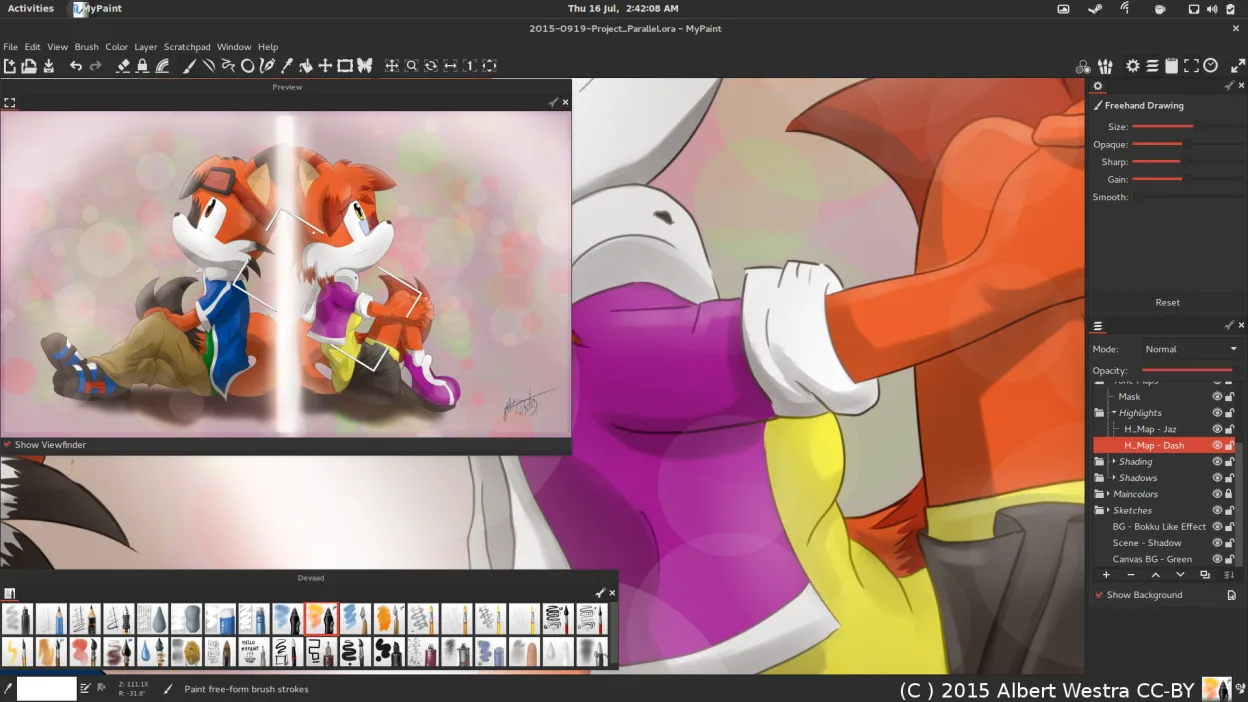
MyPaint is not a suitable replacement for Aseprite. While both are raster editors, MyPaint is designed for freehand digital painting with complex brush dynamics, whereas Aseprite is built for pixel art and frame-based animation. If you need to create sprites, tilemaps, or animated GIFs with an onion-skinning timeline, MyPaint will frustrate you. It lacks the specific animation tools and pixel-perfect constraints that define Aseprite’s workflow. Use MyPaint if you are transitioning from general-purpose painting software like Krita or Photoshop for artistic illustration, but stick with Aseprite (or Piskel) for game asset creation.
- License
- GPL-2.0+
- Price
- Free
- Latest version
- 2.0.1 (May 29, 2020)
- Rating
- —
What works the same
- Both support layer-based editing for compositing images.
- Both allow export to standard formats like PNG and JPEG.
- Both are raster graphics editors rather than vector tools.
- Both support pressure sensitivity via graphics tablets.
What is different
- MyPaint lacks a frame-based animation timeline and onion skinning.
- MyPaint has no tilemap editing capabilities.
- MyPaint does not have dedicated pixel-art tools like pixel snapping or limited palettes.
- MyPaint focuses on brush dynamics for painting, not sprite sheet generation.
Opening your Aseprite files
MyPaint cannot open Aseprite’s native .aseprite files. You must export your work from Aseprite as PNG, JPEG, or OpenRaster before importing it into MyPaint. MyPaint natively supports OpenRaster (.ora), PNG, and JPEG. If you need to preserve layers, exporting to OpenRaster from Aseprite is the best option, though support for this format in Aseprite may require specific export settings or plugins depending on the version.
Switching from Aseprite to MyPaint, step by step
- Install MyPaint via your package manager or Flathub.
- Export your Aseprite projects as OpenRaster (.ora) or PNG files.
- Open the exported files in MyPaint to continue working on static assets.
- Configure brush settings to match your desired stroke width and opacity.
- Use Python plugins if you need custom export workflows.
- Keep Aseprite installed for any animation or pixel-specific tasks.
Key features of MyPaint
- Brush engine with hundreds of configurable parameters
- Supports pressure sensitivity and tilt on graphics tablets
- Simple, distraction‑free canvas‑only interface
- Layer support with basic blending modes
- Export to PNG, JPEG, OpenRaster and other common formats
- Extensible via Python plugins
- Pre‑installed brush packs from professional artists
- Undo/redo history with unlimited steps
How to install MyPaint on Linux
flatpak install flathub org.mypaint.MyPaintsudo apt install mypaintsudo apt install mypaintsudo dnf install mypaintsudo pacman -S mypaintsudo zypper install mypaintFrequently asked questions
Can I animate sprites in MyPaint?
No, MyPaint does not have a built-in animation timeline or frame editor. It is a single-canvas painting tool. For animation, you need a dedicated tool like Aseprite, Piskel, or Krita.
Does MyPaint support pixel-perfect drawing?
MyPaint is optimized for smooth, freehand strokes and brush dynamics. It lacks specific pixel-art features like grid snapping, limited color palettes, or pixel-level editing tools that Aseprite provides.
Is MyPaint better for tablets than Aseprite?
MyPaint’s brush engine is highly responsive to pressure and tilt, making it excellent for natural media simulation. Aseprite also supports tablets but is designed for precise pixel placement rather than fluid brush strokes.
3 other alternatives to Aseprite
 KritaKrita is a full‑featured open‑source digital painting and illustration program.Open sourceFreeFlatpakKrita vs Aseprite
 PintaPinta is a free, open‑source bitmap editor that mimics Paint.NET with a simple interface and layer support.Open sourceFreeFlatpakPinta vs Aseprite
 GIMPGIMP is a free, open-source raster graphics editor for photo editing, digital painting, and image composition.Open sourceFreeFlatpakGIMP vs Aseprite