
 MyPaintLinux
vs
MS PaintWindows
MyPaintLinux
vs
MS PaintWindows
MyPaint as a Linux alternative to MS Paint
Updated
Our verdict
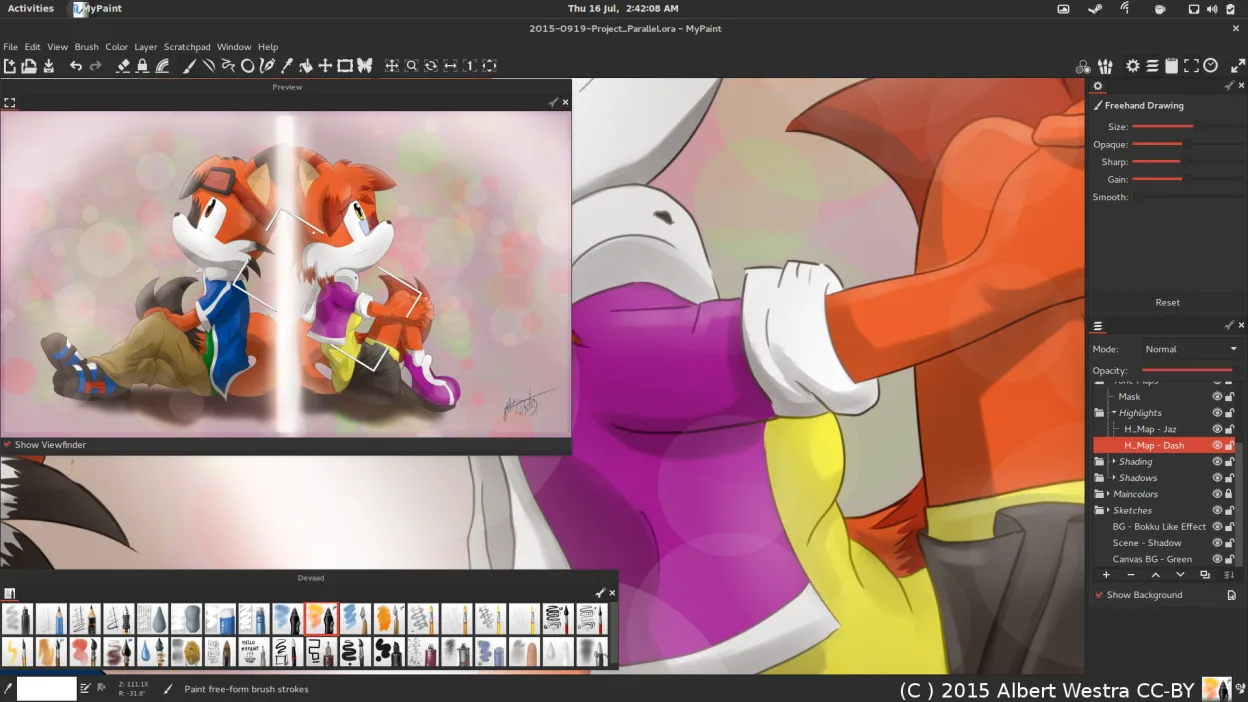
MyPaint can replace MS Paint for users who want a free, open‑source painting tool that supports tablets and brush dynamics, but it is not a drop‑in replacement for casual users who only need basic drawing and file compatibility. It is suitable for digital artists, hobbyists who use graphics tablets, or anyone who wants more control over brushes and layers. For simple sketching, text, or quick edits, MS Paint remains more convenient.
- License
- GPL-2.0+
- Price
- Free
- Latest version
- 2.0.1 (May 29, 2020)
- Rating
- —
What works the same
- Both are raster editors that allow drawing with a brush or pencil
- Both support basic shapes and text insertion
- Both can open and save common image formats like BMP, JPEG, PNG, GIF, and TIFF
- Both provide simple cropping and resizing tools
- Both run natively on Linux
What is different
- MyPaint lacks a built‑in shape tool and advanced selection options; shapes must be drawn manually
- MyPaint does not support a two‑color mode or a simple color picker like MS Paint
- MyPaint’s interface is canvas‑only; it has no toolbar for quick access to tools, which can slow casual workflows
- MyPaint does not provide a built‑in image editor for simple pixel manipulation (e.g., pixel‑by‑pixel editing)
- MyPaint’s export options are limited to PNG, JPEG, OpenRaster, and a few others; it does not natively export to BMP or TIFF
Opening your MS Paint files
MyPaint can open BMP, JPEG, GIF, PNG, and TIFF files via the standard image loader. Exporting to BMP or TIFF is not supported directly; you would need to export to PNG or JPEG and then convert with another tool. If you need to preserve MS Paint’s proprietary .BMP format, you can use GIMP or ImageMagick as an intermediate step.
Switching from MS Paint to MyPaint, step by step
- 1. Install MyPaint from your distro’s package manager or Flathub.
- 2. Open your existing image with MyPaint by selecting File → Open and choosing the BMP, JPEG, GIF, PNG, or TIFF file.
- 3. If you need a two‑color mode, use the color picker to select two colors and manually paint; MyPaint does not have a dedicated mode.
- 4. Edit your image using the brush, pencil, or shape tools (draw shapes manually).
- 5. Add text with the Text tool and adjust font/size as needed.
- 6. Save or export the finished image via File → Export as PNG or JPEG; convert to other formats if required.
Key features of MyPaint
- Brush engine with hundreds of configurable parameters
- Supports pressure sensitivity and tilt on graphics tablets
- Simple, distraction‑free canvas‑only interface
- Layer support with basic blending modes
- Export to PNG, JPEG, OpenRaster and other common formats
- Extensible via Python plugins
- Pre‑installed brush packs from professional artists
- Undo/redo history with unlimited steps
How to install MyPaint on Linux
flatpak install flathub org.mypaint.MyPaintsudo apt install mypaintsudo apt install mypaintsudo dnf install mypaintsudo pacman -S mypaintsudo zypper install mypaintFrequently asked questions
Does MyPaint support graphics tablets?
Yes, MyPaint is designed for tablet use and supports pressure sensitivity and tilt on most devices.
Can I use MyPaint to edit existing photos?
While you can open photos, MyPaint is primarily a painting program; it lacks advanced photo‑editing tools like layers, masks, or filters.
Is MyPaint suitable for beginners who only need basic drawing?
It can be used for basic drawing, but its canvas‑only interface and lack of quick‑access tools make it less convenient than MS Paint for casual users.
4 other alternatives to MS Paint
 GIMPGIMP is a free, open-source raster graphics editor for photo editing, digital painting, and image composition.Open sourceFreeFlatpakGIMP vs MS Paint
 PintaPinta is a free, open‑source bitmap editor that mimics Paint.NET with a simple interface and layer support.Open sourceFreeFlatpakPinta vs MS Paint
 KolourPaintKolourPaint is a lightweight KDE raster graphics editor for quick drawing and simple image touch-ups.Open sourceFreeFlatpakKolourPaint vs MS Paint
 KritaKrita is a full‑featured open‑source digital painting and illustration program.Open sourceFreeFlatpakKrita vs MS Paint