
 NetBeansLinux
vs
Microsoft Visual Studio 2022Windows
NetBeansLinux
vs
Microsoft Visual Studio 2022Windows
NetBeans as a Linux alternative to Microsoft Visual Studio 2022
Updated
Our verdict
NetBeans is a solid replacement for developers focused on Java, C/C++, or web technologies, offering a robust, modular IDE with strong debugging and version control support. However, it is not a direct substitute for .NET or C# developers, as it lacks native C# and .NET Framework support. If your workflow relies heavily on Visual Studio's deep .NET integration, C# IntelliSense, or Windows-specific debugging, NetBeans will feel limiting. For cross-platform Java or C++ projects, it is a capable, free alternative, but expect a different project structure and build system configuration than what you are used to in Visual Studio.
- License
- Apache-2.0
- Price
- Free
- Latest version
- 31 (August 12, 2026)
- Rating
- —
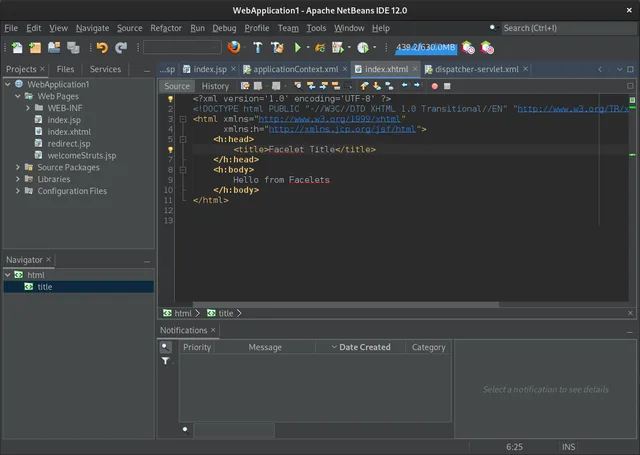
What works the same
- Integrated debugging and profiling tools for supported languages
- Extensible architecture via a modular plugin system
- Built-in version control integration for Git, SVN, and Mercurial
- Project management and build system integration (Maven, Ant, Gradle)
- Code completion, refactoring, and static analysis features
What is different
- Lacks native C# and .NET Framework/SDK support, a core pillar of Visual Studio
- No integrated Windows-specific debugging tools like WinDbg or Visual Studio's .NET debugger
- Different project file formats and build system defaults (Maven/Ant vs MSBuild)
- UI and workflow are distinct, requiring a learning curve for Visual Studio users
- Limited support for Windows-only libraries and APIs compared to Visual Studio
Opening your Microsoft Visual Studio 2022 files
NetBeans cannot directly open or edit Visual Studio solution (.sln) or project (.csproj, .vcxproj) files. You must manually recreate the project structure in NetBeans, linking source files and configuring build settings. While source code files (.java, .cpp, .js, etc.) are compatible, the project metadata and build configurations are not interchangeable. There is no built-in importer for Visual Studio projects, so migration involves manual setup.
Switching from Microsoft Visual Studio 2022 to NetBeans, step by step
- Install NetBeans via your package manager or Flathub
- Create a new project in NetBeans matching your language and build system
- Import your source code files into the new project directory
- Configure build settings (compiler, libraries, dependencies) in NetBeans
- Set up version control integration and point to your existing repository
- Test your build and debug workflow to ensure everything functions correctly
Key features of NetBeans
- Modular plug‑in system for Java, JavaScript, PHP, C/C++
- Built‑in profiler and debugger
- Maven, Gradle and Ant project support
- JavaFX and Swing GUI builders
- Version control integration (Git, SVN, Mercurial)
- Code completion, refactoring and static analysis
- Cross‑platform UI
- Rich community documentation
How to install NetBeans on Linux
flatpak install flathub org.apache.netbeanssudo apt install netbeanssudo apt install netbeanssudo pacman -S netbeansFrequently asked questions
Can I develop C# applications in NetBeans?
No, NetBeans does not support C# or the .NET framework. If you need C# development, consider MonoDevelop (now part of Visual Studio for Mac) or use Visual Studio Code with C# extensions on Linux.
Does NetBeans support the same build systems as Visual Studio?
NetBeans supports Maven, Ant, and Gradle, but not MSBuild. You will need to convert your build configurations to one of these supported systems if you are moving from a .NET project.
Is NetBeans suitable for web development?
Yes, NetBeans has strong support for JavaScript, HTML5, and PHP, making it a viable option for web development. However, for modern JavaScript frameworks, many developers prefer VS Code or IntelliJ IDEA with appropriate plugins.
4 other alternatives to Microsoft Visual Studio 2022
 Visual Studio CodeA lightweight, extensible code editor that supports debugging, Git, and many languages.FreeFlatpakVisual Studio Code vs Microsoft Visual Studio 2022
 KDevelopKDevelop is a free, plugin-based IDE for KDE supporting C++, Python, PHP, and other languages with strong…Open sourceFreeFlatpakKDevelop vs Microsoft Visual Studio 2022Eclipse CDTEclipse CDT is a mature, open-source IDE for C and C++ development, offering project management, debugging…Open sourceFreeEclipse CDT vs Microsoft Visual Studio 2022
 Qt CreatorQt Creator is a cross‑platform IDE for developing Qt applications on Linux, Windows, and macOS.Open sourceFreeFlatpakQt Creator vs Microsoft Visual Studio 2022