
 Nextcloud Desktop ClientLinux
vs
Microsoft OneDriveWindows
Nextcloud Desktop ClientLinux
vs
Microsoft OneDriveWindows
Nextcloud Desktop Client as a Linux alternative to Microsoft OneDrive
Updated
Our verdict
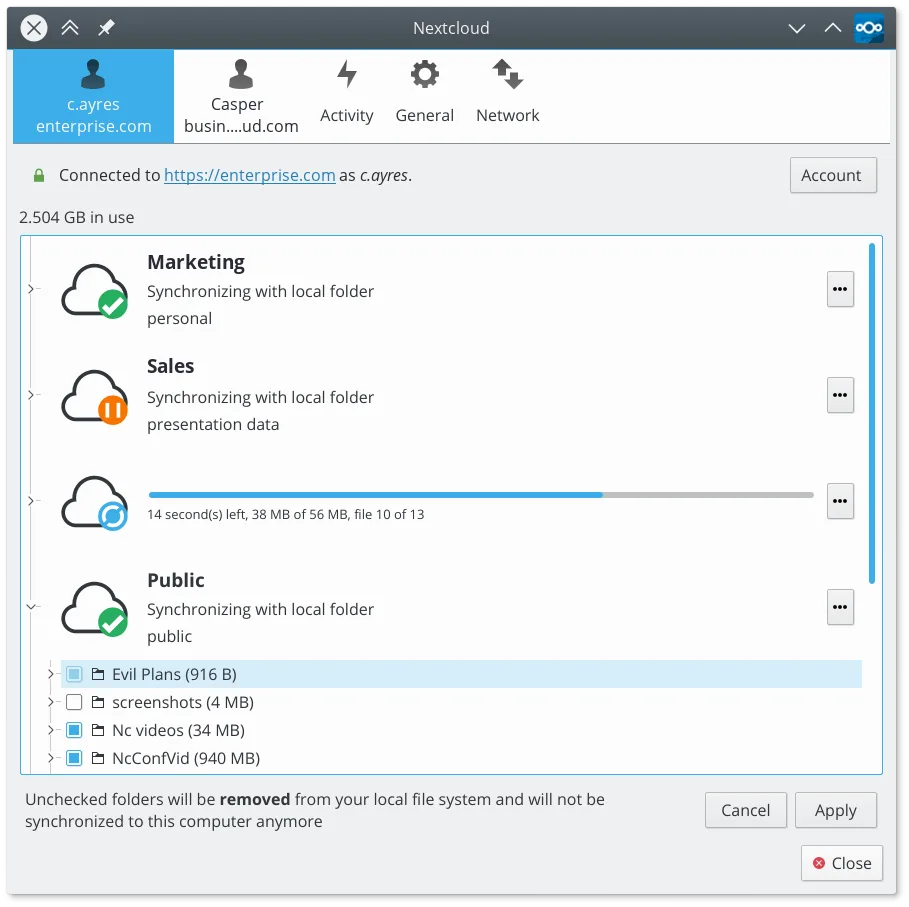
Nextcloud Desktop Client is a solid replacement for Microsoft OneDrive if you are willing to self-host or use a third-party provider. It handles two-way sync, versioning, and sharing effectively. The main hurdle is that it does not connect to Microsoft's servers, so you lose direct compatibility with Microsoft 365 users unless they also use Nextcloud. For users who value data sovereignty and control, this is a superior choice. For those needing deep integration with Office 365, it is not a drop-in replacement.
- License
- GPL-2.0+
- Price
- Free
- Latest version
- 35.0.0 (October 12, 2026)
- Rating
- —
What works the same
- Automatic two-way synchronization of local folders to the cloud
- File versioning and history recovery for deleted or modified files
- Ability to create secure sharing links for external users
- Background operation with low resource consumption
- Cross-platform availability for sharing with Windows and macOS users
What is different
- Requires a Nextcloud server (self-hosted or paid service) instead of using Microsoft's infrastructure
- No direct integration with Microsoft Office or Teams ecosystems
- Selective sync is managed via the client interface rather than right-clicking in Windows Explorer
- Sharing permissions are configured on the server side, not via Microsoft account settings
Opening your Microsoft OneDrive files
Nextcloud Desktop Client syncs files as standard local files. You can open any document, image, or video synced from OneDrive directly with your native Linux applications. There is no proprietary format lock-in; the files remain in their original formats (e.g., .docx, .pdf, .jpg). If you were using OneDrive for Business with specific Office 365 online editing features, you will need to use local applications like LibreOffice or OnlyOffice for editing, which handle standard Microsoft Office formats well.
Switching from Microsoft OneDrive to Nextcloud Desktop Client, step by step
- Set up a Nextcloud server instance or subscribe to a Nextcloud hosting provider
- Install Nextcloud Desktop Client via your package manager or Flatpak
- Log in to the client with your Nextcloud credentials
- Select the local folders you want to sync and map them to your Nextcloud directory
- Copy existing files from your old OneDrive folder to the new Nextcloud sync folder
- Wait for the initial upload to complete and verify file integrity
Key features of Nextcloud Desktop Client
- Two-way file synchronization between local folders and the server
- Support for file versioning and recovery of deleted files
- Integration with Nextcloud server for sharing and collaboration
- Available as a Flatpak and native packages for major distros
- Works with any Nextcloud-compatible backend, including self-hosted instances
- Background operation with minimal resource usage
- Support for large files and high-volume sync operations
How to install Nextcloud Desktop Client on Linux
flatpak install flathub com.nextcloud.desktopclient.nextcloudsudo apt install nextcloud-desktopsudo apt install nextcloud-desktopsudo dnf install nextcloud-clientsudo pacman -S nextcloud-clientsudo zypper install nextcloud-desktopFrequently asked questions
Can I sync with my existing Microsoft OneDrive account?
No. Nextcloud Desktop Client only connects to Nextcloud servers. You cannot use it to sync directly with Microsoft OneDrive, Dropbox, or other third-party cloud providers.
Does it work with Windows users?
Yes. The Nextcloud Desktop Client is available for Windows, macOS, and Linux. Your Windows-using friends or colleagues can install the same client to sync with your Nextcloud server, allowing for seamless cross-platform sharing.
Is there a free tier for hosting?
You can self-host Nextcloud for free on your own hardware or a cheap VPS. Alternatively, many hosting providers offer paid Nextcloud plans. Microsoft OneDrive offers a small free tier, but Nextcloud's value comes from full control and no vendor lock-in.
2 other alternatives to Microsoft OneDrive
 RClone ManagerA graphical interface for rclone that lets you manage cloud storage accounts without using the command line.Open sourceFreeFlatpakRClone Manager vs Microsoft OneDrive
 Seafile ClientSeafile is a cross‑platform file‑sync client that keeps local folders in sync with a Seafile server, similar…Open sourceFreeFlatpakSeafile Client vs Microsoft OneDrive