
 Nextcloud Desktop ClientLinux
vs
Microsoft OneDrive (personal)Windows
Nextcloud Desktop Client as a Linux alternative to Microsoft OneDrive (personal)
Updated
Our verdict
Nextcloud Desktop Client is a strong replacement for OneDrive if you are willing to self-host or pay for a Nextcloud server. It handles two-way sync, versioning, and sharing effectively on Linux. However, it is not a drop-in replacement for the free, managed personal cloud experience. You need to set up the server side yourself or subscribe to a provider. For users who value data sovereignty and control over their infrastructure, it is an excellent choice. For those who just want simple, free, managed storage without server administration, the transition effort may be too high.
- License
- GPL-2.0+
- Price
- Free
- Latest version
- 35.0.3 (November 5, 2026)
- Rating
- —
What works the same
- Two-way automatic synchronization between local folders and cloud storage
- Web interface for accessing and managing files from any device
- File versioning and recovery of deleted items
- Desktop client integration with system tray and background operation
- Support for sharing files and folders with others
What is different
- Requires a separate Nextcloud server (self-hosted or paid service) whereas OneDrive is fully managed by Microsoft
- No built-in free personal storage tier; you must provide the backend infrastructure
- Different ecosystem integrations; lacks direct Office 365 integration like OneDrive has with Microsoft apps
- Setup complexity is higher due to server configuration and domain management
Opening your Microsoft OneDrive (personal) files
Nextcloud Desktop Client does not store files in a proprietary format. It syncs standard file types (documents, photos, videos, archives) exactly as they are on your disk. You can open these files with any compatible Linux application. If you have files currently stored in OneDrive, you can download them to your local machine and then sync them to your Nextcloud server. There is no special conversion needed for standard file formats.
Switching from Microsoft OneDrive (personal) to Nextcloud Desktop Client, step by step
- Set up a Nextcloud server instance (self-hosted or via a provider)
- Install the Nextcloud Desktop Client on your Linux machine
- Log in to the client using your Nextcloud server credentials
- Download existing files from OneDrive to a local folder
- Move or copy these files into the Nextcloud sync folder
- Verify that files are syncing correctly to the server
Key features of Nextcloud Desktop Client
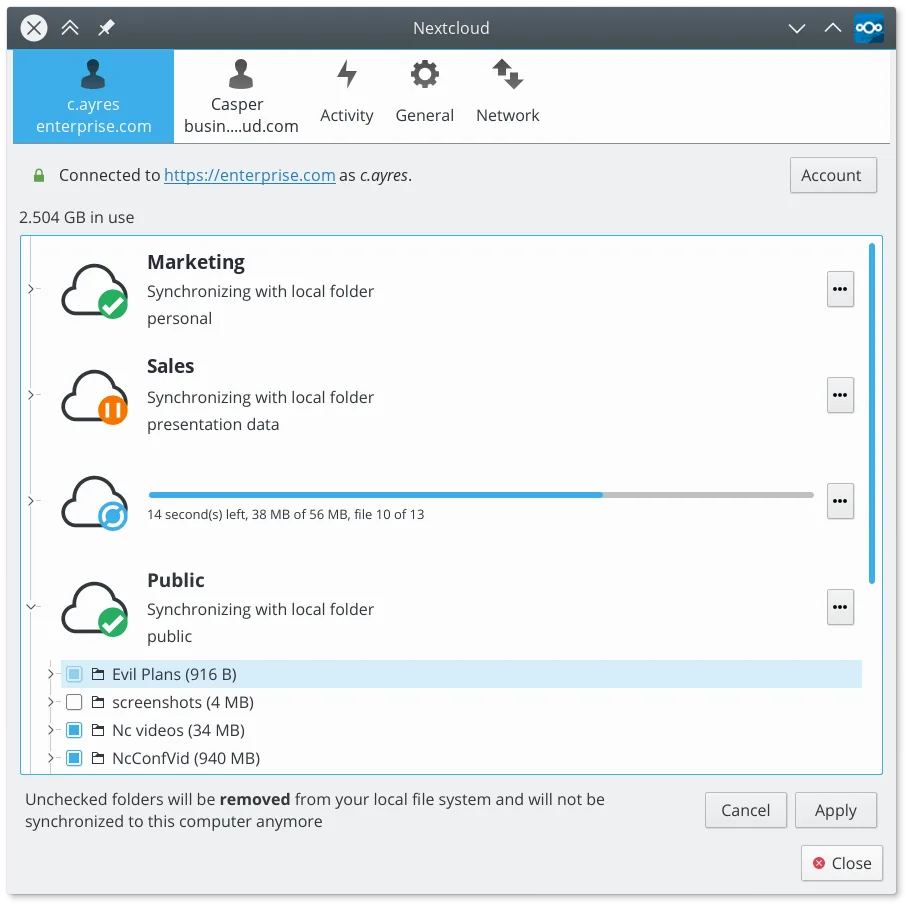
- Two-way file synchronization between local folders and the server
- Support for file versioning and recovery of deleted files
- Integration with Nextcloud server for sharing and collaboration
- Available as a Flatpak and native packages for major distros
- Works with any Nextcloud-compatible backend, including self-hosted instances
- Background operation with minimal resource usage
- Support for large files and high-volume sync operations
How to install Nextcloud Desktop Client on Linux
flatpak install flathub com.nextcloud.desktopclient.nextcloudsudo apt install nextcloud-desktopsudo apt install nextcloud-desktopsudo dnf install nextcloud-clientsudo pacman -S nextcloud-clientsudo zypper install nextcloud-desktopFrequently asked questions
Do I need to pay for Nextcloud?
The client is free and open source. However, you need a server. You can self-host it for free on your own hardware, or pay a provider for managed Nextcloud service.
Can I sync with my phone?
Yes, Nextcloud has official mobile apps for Android and iOS that connect to the same server, allowing cross-device synchronization similar to OneDrive.
Is my data encrypted?
Data is encrypted in transit (HTTPS) and at rest depending on your server configuration. Nextcloud supports end-to-end encryption for files and folders if enabled on the server side.