
 OpenRGBLinux
vs
Alienware Command CenterWindows
OpenRGB as a Linux alternative to Alienware Command Center
Updated
Our verdict
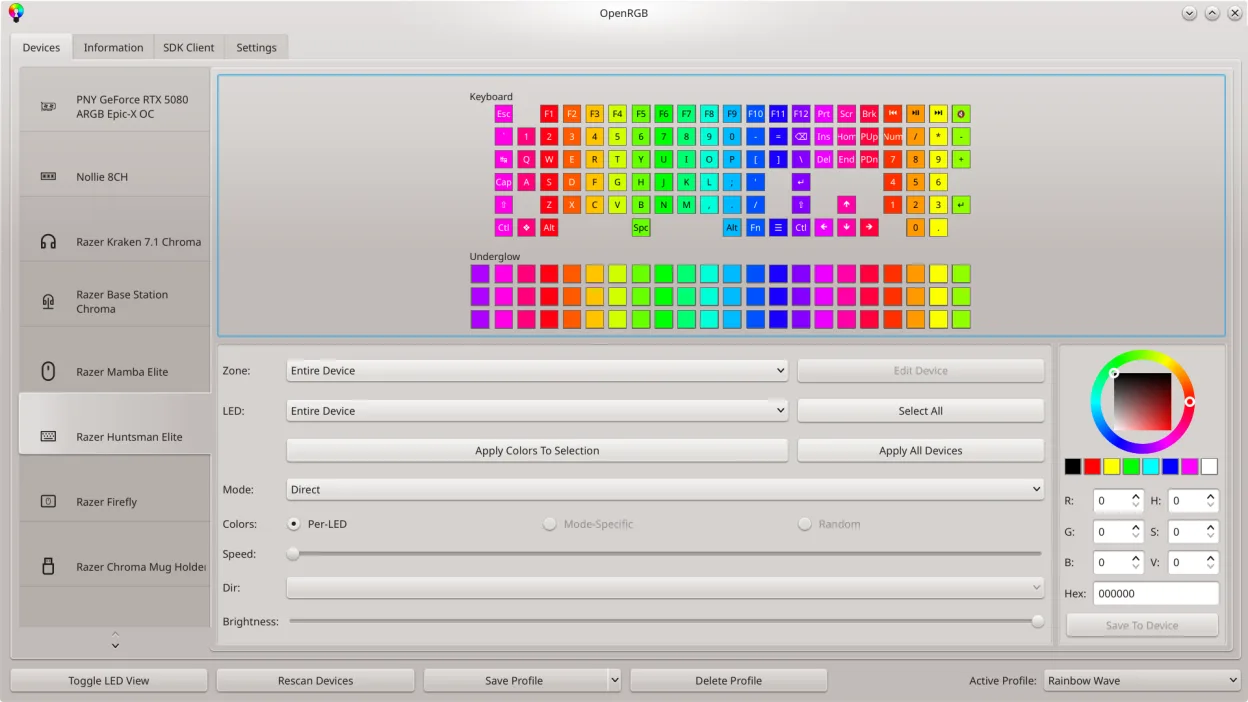
OpenRGB can replace Alienware Command Center for most users who need RGB lighting control on a Linux system. It covers color and effect settings, profile saving, and basic fan‑speed monitoring through its device‑info viewer, but it lacks the integrated performance‑profile selection and the deep hardware‑sensor integration that Alienware Command Center offers on Windows. If you’re mainly concerned with lighting and simple fan control, OpenRGB is a solid choice. If you rely on the performance‑boosting profiles or detailed thermal monitoring that Alienware’s proprietary tools provide, you’ll find OpenRGB lacking.
- License
- GPL-2.0-or-later
- Price
- Free
- Latest version
- 1.1 (October 16, 2026)
- Rating
- —
What works the same
- Both allow setting colors and selecting effect modes for RGB hardware
- Both support saving and loading custom profiles
- Both provide a graphical interface for device LED mapping
- Both can be controlled via command line or SDK for automation
What is different
- OpenRGB does not expose performance‑profile selection or CPU/GPU over‑clocking options
- It lacks the proprietary sensor data and detailed temperature graphs that Alienware Command Center offers
- OpenRGB does not integrate with Alienware’s hardware‑specific fan‑control curves
- It cannot manage system performance states or power limits like the Windows app
- OpenRGB’s fan control is limited to basic speed adjustments, not advanced profiles
Opening your Alienware Command Center files
Alienware Command Center uses proprietary configuration files that are not readable by OpenRGB. OpenRGB cannot import or export these files, so any existing profiles or settings must be recreated manually within OpenRGB.
Switching from Alienware Command Center to OpenRGB, step by step
- Identify which RGB devices are attached to your Alienware laptop (e.g., keyboard, chassis, fans).
- Install OpenRGB from your distribution’s package manager or Flathub.
- Launch OpenRGB and let it detect the devices; verify each is listed in the device viewer.
- Recreate your desired lighting profiles in OpenRGB, saving them for future use.
- If fan control is needed, adjust the speed sliders in OpenRGB’s device panel; note that advanced profiles are unavailable.
Key features of OpenRGB
- Control colors and effects for many RGB devices
- Save and load custom profiles
- SDK for third‑party integration
- Command‑line interface for scripting
- Multi‑instance sync across PCs
- Standalone or client/server mode
- Graphical LED map for pattern design
- Device info viewer
How to install OpenRGB on Linux
flatpak install flathub org.openrgb.OpenRGBsudo dnf install openrgbsudo pacman -S openrgbsudo zypper install OpenRGBFrequently asked questions
Does OpenRGB support my Alienware laptop’s RGB keyboard?
Yes, OpenRGB detects most Alienware keyboards and allows you to set colors, effects, and custom patterns via its LED map.
Can I use OpenRGB to control fan speeds on my Alienware laptop?
OpenRGB provides basic fan‑speed adjustments for supported devices, but it does not offer the detailed fan curves or temperature‑based control that Alienware Command Center provides.
Is OpenRGB free and open source?
OpenRGB is released under the GPL‑2.0‑or‑later license and is available free of charge on Flathub, Arch, Fedora, and openSUSE.
2 other alternatives to Alienware Command Center
 fancontrolfancontrol is a Linux utility for automatically adjusting fan speeds based on system temperature sensors.Open sourceFreeFlatpakfancontrol vs Alienware Command Center