
 VLC media playerLinux
vs
KMPlayerWindows
VLC media player as a Linux alternative to KMPlayer
Updated
Our verdict
VLC media player is a solid replacement for KMPlayer on Linux. It supports the same core playback functions—wide codec coverage, DVD/VCD playback, subtitles, multiple audio tracks, and a lightweight interface. Users who need a free, open‑source solution without ads will find VLC sufficient. If you rely on advanced configuration options or specific Windows‑only codecs, you may need additional plugins, but for most everyday media consumption VLC works well.
- License
- GPL-2.0+
- Price
- Free
- Latest version
- 3.0.24 (September 17, 2026)
- Rating
- —
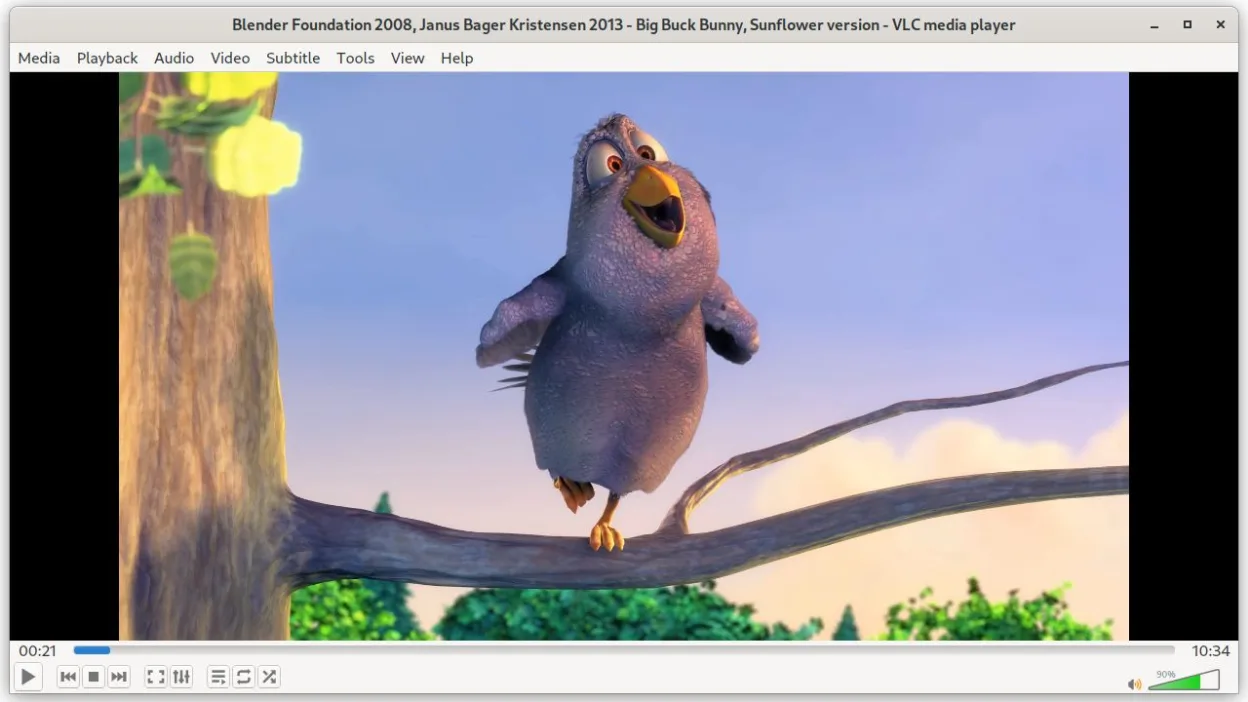
What works the same
- Both play a broad range of audio/video formats including AVI, MKV, MP4, FLV
- Both support DVD, Audio CD, and VCD playback
- Both allow subtitle display and synchronization
- Both provide basic playback controls (play, pause, stop, seek)
- Both are lightweight and start quickly
What is different
- VLC is open‑source and free, KMPlayer is proprietary and may contain ads
- VLC offers built‑in media conversion and streaming server features, KMPlayer focuses on playback
- VLC has a command‑line interface (cvlc) for scripting, KMPlayer lacks this
- VLC’s UI is more minimalistic; KMPlayer offers more advanced playback settings out of the box
- VLC does not natively support some niche Windows‑only codecs that KMPlayer might
Opening your KMPlayer files
VLC can open most KMPlayer‑compatible files directly, as it supports the same common codecs. If a file is encoded with a very rare or proprietary codec that KMPlayer handles but VLC does not, you may need to install additional codec packs or convert the file first. Exporting from KMPlayer to a format like MP4 or MKV will work smoothly in VLC.
Switching from KMPlayer to VLC media player, step by step
- Install VLC from your distribution’s package manager or Flathub (v3.0.23).
- Open the KMPlayer‑handled file in VLC via File → Open.
- Adjust subtitle sync or audio track in VLC’s Subtitle/Audio menus if needed.
- Save any custom playlist or configuration as a .xspf or .m3u file for future use.
- If you need advanced playback options, explore VLC’s Preferences under Input/Codecs.
- Close KMPlayer and set VLC as the default media player for the file types you use.
Key features of VLC media player
- Plays most audio and video formats out of the box
- Supports DVDs, Audio CDs, VCDs and network streams
- Built‑in subtitle support with synchronization
- Media conversion and basic editing
- Streaming server capabilities
- Extensible via plugins and skins
- Command‑line interface for scripting
How to install VLC media player on Linux
flatpak install flathub org.videolan.VLCFrequently asked questions
Does VLC support the same codecs as KMPlayer?
VLC supports the vast majority of codecs that KMPlayer does, including AVI, MKV, MP4, FLV, and many others. Rare or proprietary codecs may require additional plugins.
Will VLC play my DVDs without extra steps?
Yes, VLC can play DVDs directly, but you may need to install the libdvdcss2 package on some distributions to decrypt encrypted discs.
Can I use VLC to convert a file that KMPlayer opened?
VLC’s Convert/Save feature allows you to transcode almost any supported format to common containers like MP4 or MKV. Open the file, choose Media → Convert/Save, and select the desired output format.
5 other alternatives to KMPlayer
 mpvmpv is a free, open‑source, cross‑platform media player that plays almost any video or audio format.Open sourceFreeFlatpakmpv vs KMPlayer
 CelluloidCelluloid is a lightweight media player for Linux that uses the mpv engine and GTK for a clean GNOME‑style…Open sourceFreeFlatpakCelluloid vs KMPlayer
 TotemTotem (GNOME Videos) is the default GNOME video player built on GStreamer.Open sourceFreeTotem vs KMPlayer
 HarunaHaruna is a GPL‑licensed, open‑source media player that supports local and online playback with extensive…Open sourceFreeFlatpakHaruna vs KMPlayer
 SMPlayerSMPlayer is a free, open-source media player with built-in codecs that handles nearly all video and audio…Open sourceFreeFlatpakSMPlayer vs KMPlayer