
 GIMPLinux
vs
Creative CloudWindows
GIMP as a Linux alternative to Creative Cloud
Updated
Our verdict
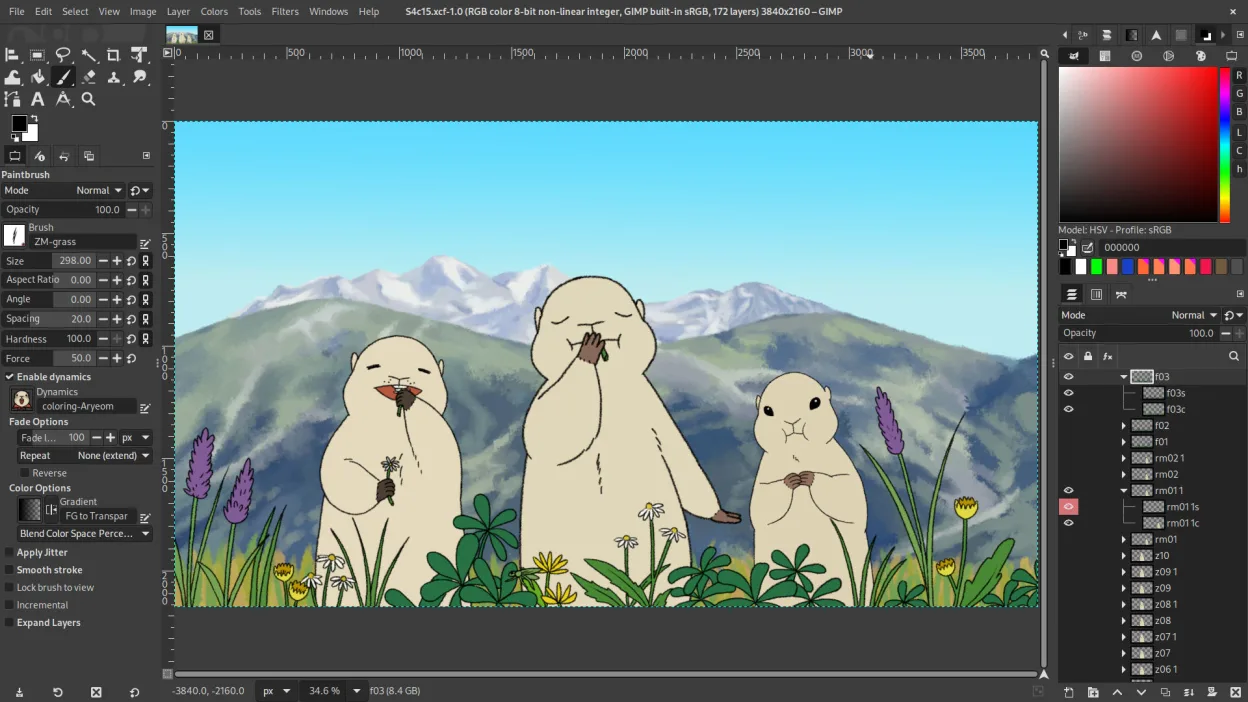
GIMP is a solid replacement for Adobe Creative Cloud if you rely mainly on Photoshop for photo editing, retouching, and raster graphics work. It handles layers, masks, blending modes, and scripting well, and supports PSD files. Artists and hobbyists will find it capable and free. However, professionals needing precise color workflows, advanced typography, or integration with other Adobe tools (like Lightroom or Illustrator) will face gaps. GIMP lacks non-destructive editing by default and has a steeper learning curve. It’s best for those willing to adapt workflows.
- License
- GPL-3.0+ AND LGPL-3.0+
- Price
- Free
- Latest version
- 3.2.8 (November 2, 2026)
- Rating
- —
What works the same
- Layer-based editing with masks, transparency, and blending modes
- Support for Photoshop-compatible plugins via compatibility layers
- Advanced brush engine for digital painting and retouching
- Batch processing and scripting with Python, Script-Fu, and GEGL
- Extensive file format support including PSD, PNG, JPEG, and TIFF
What is different
- No built-in non-destructive editing (requires G'MIC or other plug-ins)
- Weaker typography and vector tools compared to Photoshop
- No native integration with Adobe ecosystem (e.g., Lightroom, Illustrator)
- Interface customization is limited compared to Photoshop’s workspace flexibility
- Color management support exists but is less refined for print workflows
Opening your Creative Cloud files
GIMP can open and edit Photoshop (PSD) files, preserving layers, masks, and basic blending modes. However, complex PSDs with advanced features like smart objects, layer effects, or nested groups may not translate perfectly. Text layers with special formatting can lose fidelity. Exporting to PSD is possible but not always reliable for round-tripping into Photoshop. For basic to intermediate use, compatibility is acceptable, but heavy PSD users should test workflows carefully.
Switching from Creative Cloud to GIMP, step by step
- Install GIMP via your distribution’s package manager or Flathub
- Import brushes, gradients, and custom scripts from old setup if available
- Install G'MIC for enhanced filters and non-destructive editing options
- Use the PSD import feature to open existing Creative Cloud projects
- Customize the interface with dockable panels and keyboard shortcuts to match your workflow
Key features of GIMP
- Layer-based editing with masks, blending modes, and transparency
- Advanced brush engine for digital painting and retouching
- Support for Photoshop-compatible plug-ins (via compatibility layers)
- Batch processing and scripting with Script-Fu, Python, or GEGL
- Non-destructive editing possible through plug-ins like G'MIC
- Extensive format support: PNG, JPEG, TIFF, PSD, WebP, and more
- Customizable interface with dockable panels and themes
- Color management with ICC profile support
How to install GIMP on Linux
flatpak install flathub org.gimp.GIMPsudo apt install gimpsudo apt install gimpsudo dnf install gimpsudo pacman -S gimpsudo zypper install gimpFrequently asked questions
Can GIMP replace Photoshop completely?
For most photo editing, retouching, and raster work, yes. But it lacks smart objects, advanced typography, and some non-destructive tools. Professionals relying on those will need workarounds.
Is GIMP really free?
Yes. GIMP is free and open-source under GPL-3.0+ and LGPL-3.0+. No subscription, no ads, no paywalls.
How well does GIMP handle tablets and digital painting?
GIMP supports pressure-sensitive tablets via Wacom and others. The brush engine is capable, though less refined than Photoshop’s. Artists find it usable but may miss advanced brush dynamics.
3 other alternatives to Creative Cloud
 InkscapeInkscape is a free, open‑source vector graphics editor that rivals Adobe Illustrator and CorelDRAW.Open sourceFreeFlatpakInkscape vs Creative Cloud
 KritaKrita is a full‑featured open‑source digital painting and illustration program.Open sourceFreeFlatpakKrita vs Creative Cloud
 darktabledarktable is a free, open‑source photo editor that manages raw files and offers a full non‑destructive…Open sourceFreeFlatpakdarktable vs Creative Cloud