
 GIMPLinux
vs
Luminar NeoWindows
GIMPLinux
vs
Luminar NeoWindows
GIMP as a Linux alternative to Luminar Neo
Updated
Our verdict
GIMP can replace Luminar Neo for users who need a free, open‑source tool and are willing to learn a steeper learning curve. It covers layer‑based editing, RAW support via the GEGL engine, and non‑destructive workflows through plug‑ins. However, it lacks the ready‑made AI sky‑replacement, portrait retouching, and noise‑reduction presets that Luminar Neo offers out of the box. Photographers who prefer a quick, AI‑driven workflow will find GIMP slower, but it is powerful enough for advanced manual editing.
- License
- GPL-3.0+ AND LGPL-3.0+
- Price
- Free
- Latest version
- 3.2.6 (September 10, 2026)
- Rating
- —
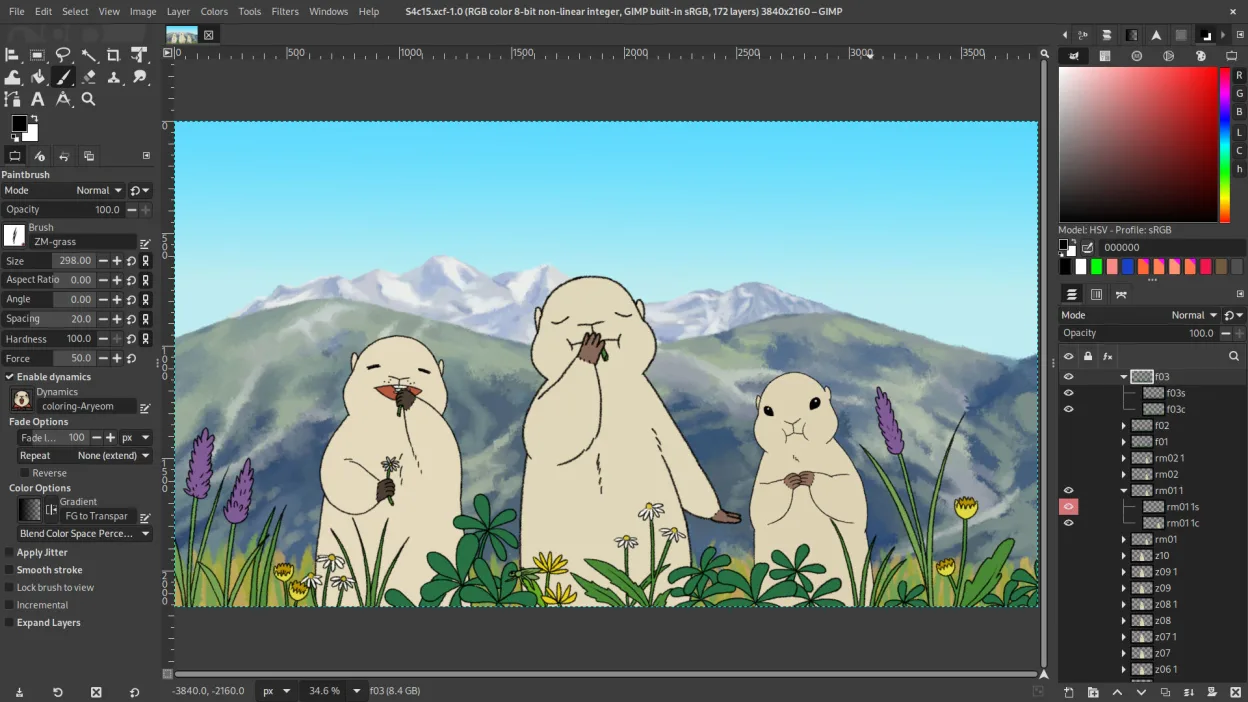
What works the same
- Both support RAW and non‑RAW formats
- Both use layer‑based editing with masks
- Both allow non‑destructive workflow via plug‑ins
- Both provide advanced brush tools for retouching
- Both are available on Linux
What is different
- GIMP has no built‑in AI sky replacement or portrait enhancement tools
- Luminar Neo offers automated noise reduction and sharpening presets
- GIMP requires plug‑ins (e.g., G'MIC) for advanced AI effects
- Luminar Neo’s UI is more streamlined for photo editing
- GIMP’s batch processing relies on scripting, not a GUI panel
Opening your Luminar Neo files
GIMP can open standard image files such as JPEG, PNG, TIFF, and PSD. It does not natively read Luminar Neo’s proprietary project files, so users must export from Luminar Neo to a common format (e.g., TIFF or JPEG) before opening in GIMP. Exporting from GIMP to Luminar Neo is also not supported; the workflow is one‑way.
Switching from Luminar Neo to GIMP, step by step
- Export your Luminar Neo projects to TIFF or JPEG with all layers flattened if needed.
- Open the exported files in GIMP via File → Open.
- Re‑create layers in GIMP if you need non‑destructive editing; use Layer → New from Visible or duplicate layers.
- Apply RAW processing with the GEGL‑based RAW editor (File → Open as Layers).
- Use G'MIC or other plug‑ins for AI‑style sky replacement or portrait retouching.
- Save the final image as JPEG, TIFF, or any other desired format.”
- faq
Key features of GIMP
- Layer-based editing with masks, blending modes, and transparency
- Advanced brush engine for digital painting and retouching
- Support for Photoshop-compatible plug-ins (via compatibility layers)
- Batch processing and scripting with Script-Fu, Python, or GEGL
- Non-destructive editing possible through plug-ins like G'MIC
- Extensive format support: PNG, JPEG, TIFF, PSD, WebP, and more
- Customizable interface with dockable panels and themes
- Color management with ICC profile support
How to install GIMP on Linux
flatpak install flathub org.gimp.GIMPsudo apt install gimpsudo apt install gimpsudo dnf install gimpsudo pacman -S gimpsudo zypper install gimp3 other alternatives to Luminar Neo
 darktabledarktable is a free, open‑source photo editor that manages raw files and offers a full non‑destructive…Open sourceFreeFlatpakdarktable vs Luminar Neo
 KritaKrita is a full‑featured open‑source digital painting and illustration program.Open sourceFreeFlatpakKrita vs Luminar Neo
 RawTherapeeRawTherapee is an open‑source, cross‑platform raw photo development program.Open sourceFreeFlatpakRawTherapee vs Luminar Neo