
 MyPaintLinux
vs
Corel PainterWindows
MyPaintLinux
vs
Corel PainterWindows
MyPaint as a Linux alternative to Corel Painter
Updated
Our verdict
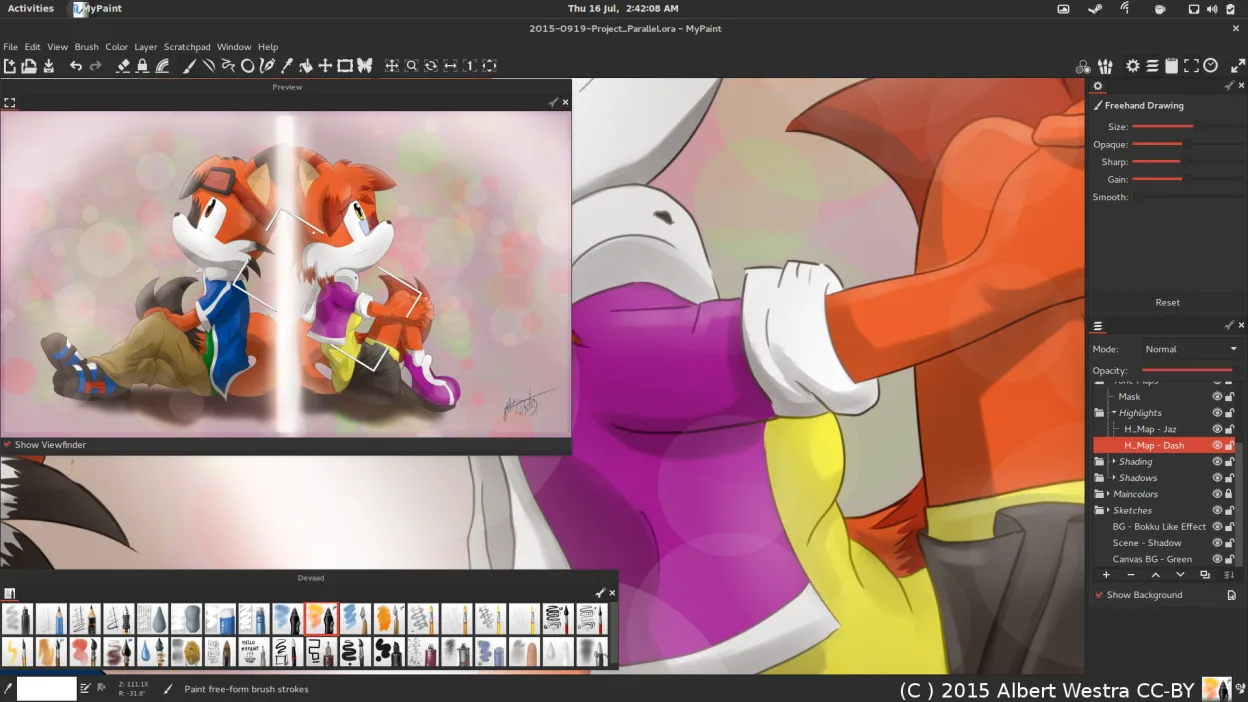
MyPaint is a strong free alternative for digital painters who prioritize realistic brush dynamics and tablet interaction. It handles oil, watercolor, and ink simulations well through its extensive brush engine. However, it lacks the depth of Corel Painter’s professional workflow tools. If you rely on complex non-destructive editing, advanced layer management, or specific print-ready color profiles, you will find MyPaint limiting. It suits hobbyists and illustrators who value a distraction-free canvas and open-source flexibility over enterprise-grade feature sets. For heavy commercial print work, consider keeping Corel or using GIMP for post-processing.
- License
- GPL-2.0+
- Price
- Free
- Latest version
- 2.0.1 (May 29, 2020)
- Rating
- —
What works the same
- Simulates traditional media like oil, watercolor, and ink with realistic dynamics
- Supports pressure and tilt sensitivity on graphics tablets
- Offers a large library of pre-installed, customizable brushes
- Provides layer support for non-destructive editing workflows
- Allows export to common formats like PNG and JPEG
What is different
- Lacks advanced color management and print-specific features found in Corel Painter
- Interface is minimal and canvas-focused, lacking Corel’s comprehensive tool panels
- No built-in vector tools or advanced text manipulation capabilities
- Fewer specialized artistic effects and texture libraries compared to Corel’s extensive assets
- Open-source GPL license versus Corel’s proprietary commercial licensing
Opening your Corel Painter files
MyPaint does not natively open Corel Painter’s proprietary .PSB or .PSD files directly as editable projects. You can import raster images (PNG, JPEG, TIFF) from Corel Painter, but layer structure and specific brush settings will not transfer. For best results, export your work from Corel Painter as a high-resolution PNG or TIFF with flattened layers before opening it in MyPaint for further raster editing.
Switching from Corel Painter to MyPaint, step by step
- Install MyPaint via your distribution’s package manager or Flathub
- Connect your graphics tablet and configure pressure sensitivity in system settings
- Export your current Corel Painter projects as high-resolution PNG or TIFF files
- Open the exported images in MyPaint to continue working on the raster layers
- Explore the pre-installed brush packs to find equivalents for your favorite Corel brushes
- Save your work in OpenRaster format to preserve layer information within MyPaint
Key features of MyPaint
- Brush engine with hundreds of configurable parameters
- Supports pressure sensitivity and tilt on graphics tablets
- Simple, distraction‑free canvas‑only interface
- Layer support with basic blending modes
- Export to PNG, JPEG, OpenRaster and other common formats
- Extensible via Python plugins
- Pre‑installed brush packs from professional artists
- Undo/redo history with unlimited steps
How to install MyPaint on Linux
flatpak install flathub org.mypaint.MyPaintsudo apt install mypaintsudo apt install mypaintsudo dnf install mypaintsudo pacman -S mypaintsudo zypper install mypaintFrequently asked questions
Can I use MyPaint for professional print work?
Yes, but you must manage color profiles and resolution carefully. MyPaint exports standard raster formats, so you should verify color accuracy and DPI settings before sending files to a printer. It is less robust than Corel Painter for complex print workflows.
Does MyPaint support 64-bit color depth?
MyPaint primarily works with 32-bit color depth. If your workflow requires 64-bit color for high-end print or scientific applications, MyPaint may not be sufficient. Check specific requirements for your output medium.
How do I customize brushes in MyPaint?
You can adjust hundreds of parameters for each brush, including dynamics, texture, and size. The interface allows real-time tweaking, and you can save your configurations as new brushes for reuse in future projects.
4 other alternatives to Corel Painter
 KritaKrita is a full‑featured open‑source digital painting and illustration program.Open sourceFreeFlatpakKrita vs Corel Painter
 GIMPGIMP is a free, open-source raster graphics editor for photo editing, digital painting, and image composition.Open sourceFreeFlatpakGIMP vs Corel Painter
 InkscapeInkscape is a free, open‑source vector graphics editor that rivals Adobe Illustrator and CorelDRAW.Open sourceFreeFlatpakInkscape vs Corel Painter
 PintaPinta is a free, open‑source bitmap editor that mimics Paint.NET with a simple interface and layer support.Open sourceFreeFlatpakPinta vs Corel Painter