 OpenRGBLinux
vs
Corsair Utility Engine (CUE)Windows
OpenRGB as a Linux alternative to Corsair Utility Engine (CUE)
Updated
Our verdict
OpenRGB is a solid replacement for Corsair Utility Engine (CUE) on Linux, especially for users who want to control Corsair RGB devices without relying on Windows or vendor software. It supports most Corsair keyboards, mice, and lighting nodes, allowing full RGB customization, profile saving, and key remapping through community-driven drivers. While it lacks official Corsair support and some advanced macro features, it covers core lighting synchronization and per-device profiles well. It's ideal for Linux users prioritizing open source, local control, and cross-vendor RGB management without proprietary bloat.
- License
- GPL-2.0-or-later
- Price
- Free
- Latest version
- 1.1 (October 16, 2026)
- Rating
- —
What works the same
- Customize RGB lighting effects and colors on Corsair devices
- Save and load lighting profiles
- Support for Corsair keyboards and mice
- Synchronize lighting across multiple devices
- Persistent settings after reboot when configured
What is different
- No native support for complex CUE macros or advanced key remapping with conditions
- Lacks official Corsair firmware updates and low-level hardware diagnostics
- Does not require a Corsair account or online login
- Runs natively on Linux without Wine or virtualization
- Community-maintained, so new device support may lag behind CUE
Opening your Corsair Utility Engine (CUE) files
OpenRGB does not support importing or exporting Corsair Utility Engine (CUE) profile files directly. CUE uses proprietary formats not documented for third-party tools. However, you can recreate lighting profiles manually in OpenRGB using the same color schemes and effects. Some community scripts may help translate basic settings, but full fidelity transfer is not guaranteed.
Switching from Corsair Utility Engine (CUE) to OpenRGB, step by step
- Install OpenRGB from your distribution's package manager or Flathub
- Shut down CUE completely on Windows if dual-booting to avoid conflicts
- Launch OpenRGB and connect to your Corsair devices via USB
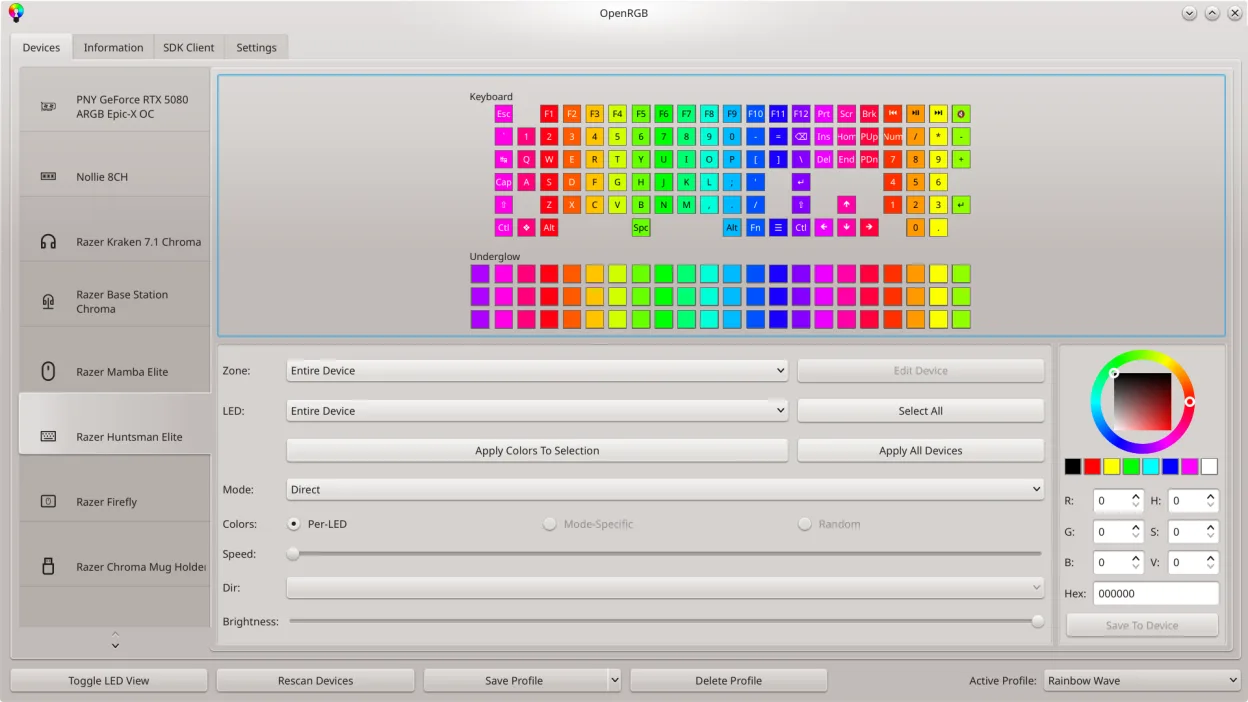
- Use the graphical LED map to customize lighting effects and save profiles
- Enable OpenRGB as a startup service to restore settings after reboot
Key features of OpenRGB
- Control colors and effects for many RGB devices
- Save and load custom profiles
- SDK for third‑party integration
- Command‑line interface for scripting
- Multi‑instance sync across PCs
- Standalone or client/server mode
- Graphical LED map for pattern design
- Device info viewer
How to install OpenRGB on Linux
flatpak install flathub org.openrgb.OpenRGBsudo dnf install openrgbsudo pacman -S openrgbsudo zypper install OpenRGBFrequently asked questions
Can OpenRGB control all Corsair devices?
Most Corsair RGB devices are supported, including keyboards, mice, and lighting nodes, but some newer or niche models may have limited functionality until drivers are updated by the community.
Does OpenRGB work without Windows?
Yes, OpenRGB runs natively on Linux and does not require Windows, Wine, or any Corsair software to function.
Can I sync lighting across multiple PCs with OpenRGB?
Yes, OpenRGB supports client/server mode over the network, allowing you to synchronize RGB lighting across multiple machines running OpenRGB.