
 TigerVNC ViewerLinux
vs
LogMeInWindows
TigerVNC Viewer as a Linux alternative to LogMeIn
Updated
Our verdict
TigerVNC Viewer can replace LogMeIn for users who are comfortable setting up a VNC server and managing network access themselves. It offers encrypted TLS sessions, multi‑monitor support, and cross‑platform clients, which satisfies the core remote‑desktop needs. However, it lacks LogMeIn’s cloud‑based relay, built‑in file‑transfer UI, and polished unattended‑access management, so it’s best for technical users or small teams that can handle the extra configuration rather than for non‑technical staff expecting a turnkey service.
- License
- GPL-2.0-or-later
- Price
- Free
- Latest version
- 1.16.2 (March 26, 2026)
- Rating
- —
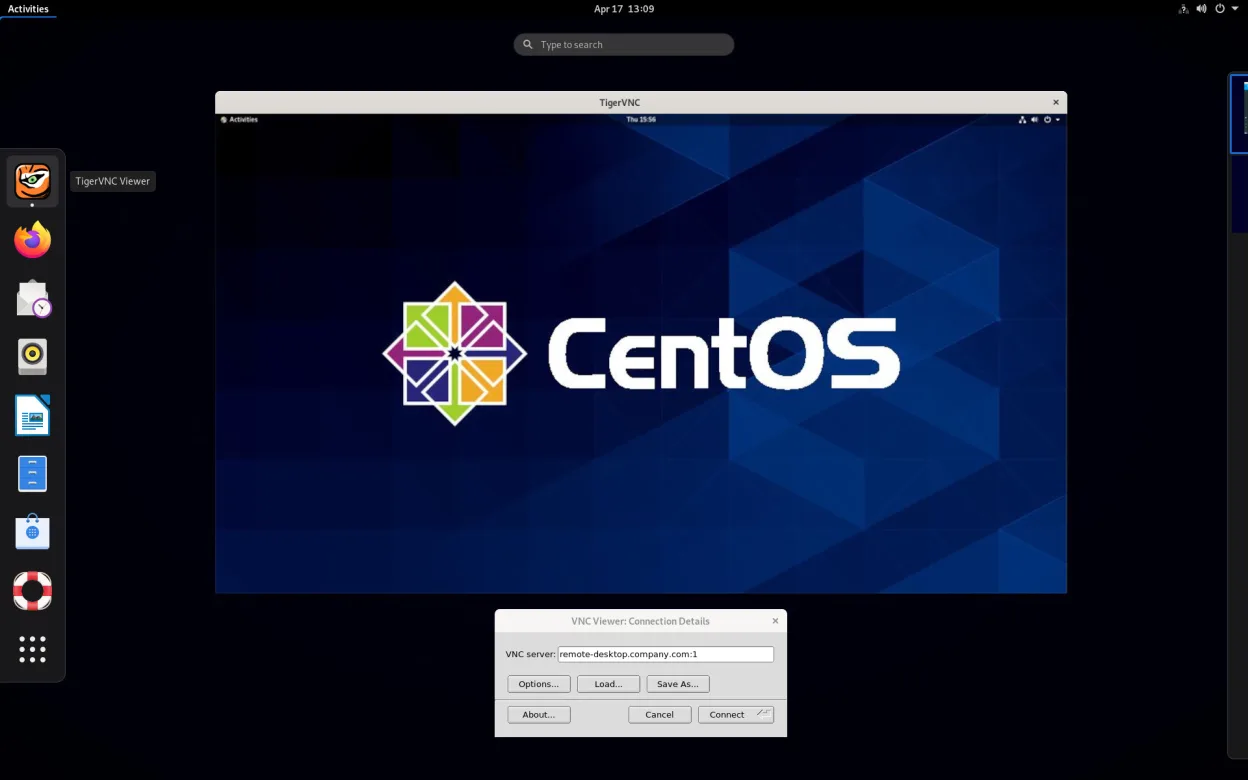
What works the same
- Encrypted remote desktop connection (TLS)
- Cross‑platform client (Linux, Windows, macOS)
- Multi‑monitor and high‑resolution support
- Clipboard sharing between local and remote
What is different
- No integrated cloud relay; requires direct network access or VPN
- File transfer is limited to clipboard, no dedicated transfer UI
- Unattended access needs manual VNC server setup and password management
- User authentication is basic VNC password/TLS, not the centralized account system LogMeIn provides
- No commercial support or SaaS management console
Opening your LogMeIn files
LogMeIn does not produce proprietary files that need to be opened in a viewer; it mainly stores session logs on its servers. TigerVNC Viewer does not have a feature to import or export such data, and there is no documented way to convert LogMeIn session records for use with TigerVNC.
Switching from LogMeIn to TigerVNC Viewer, step by step
- Install a VNC server on the remote Windows or Linux machine (e.g., TigerVNC Server or RealVNC)
- Configure the server for TLS encryption and set a strong password
- Open the required ports or set up a VPN to allow inbound VNC connections
- Install TigerVNC Viewer on the Linux client (via package manager or Flathub)
- Create a new connection profile in TigerVNC Viewer with the server’s address and credentials
- Test the connection, adjust scaling or color depth as needed
Key features of TigerVNC Viewer
- Supports Tight encoding accelerated by libjpeg‑turbo
- TLS encryption for secure sessions
- Clipboard sharing between local and remote
- Multi‑monitor handling
- Configurable scaling and color depth
- Keyboard layout translation
- Cross‑platform client (Linux, Windows, macOS)
- Command‑line options for scripting
How to install TigerVNC Viewer on Linux
flatpak install flathub org.tigervnc.vncviewersudo apt install tigervncsudo apt install tigervncsudo dnf install tigervncsudo pacman -S tigervncsudo zypper install tigervncFrequently asked questions
Does TigerVNC Viewer work behind NAT without extra setup?
Only if the VNC server is reachable through port forwarding, a VPN, or a reverse‑proxy; unlike LogMeIn, there is no cloud relay to traverse NAT automatically.
Can I transfer files with TigerVNC Viewer as I could with LogMeIn?
TigerVNC only shares the clipboard; it does not provide a built‑in file‑transfer dialog, so you’ll need to use separate tools (scp, rsync, or a shared folder) for larger transfers.
Is there a free, always‑available unattended access option?
Yes, but you must leave the VNC server running, configure a persistent password, and ensure the machine stays reachable; there is no managed service to wake or update the host automatically.
4 other alternatives to LogMeIn
 RemminaRemmina is a Linux remote desktop client supporting RDP, VNC, SSH, and X2Go for connecting to remote systems…Open sourceFreeFlatpakRemmina vs LogMeIn
 RustDeskRustDesk is an open-source remote desktop tool that lets you securely control computers over the internet…Open sourceFreeFlatpakRustDesk vs LogMeInFreeRDPFreeRDP is an open-source implementation of the Remote Desktop Protocol, allowing you to connect to Windows…Open sourceFreeFreeRDP vs LogMeInx11vncA VNC server for X11 that lets you control your Linux desktop remotely from any VNC client.Open sourceFreex11vnc vs LogMeIn