
 GIMPLinux
vs
Photoshop ElementsWindows
GIMP as a Linux alternative to Photoshop Elements
Updated
Our verdict
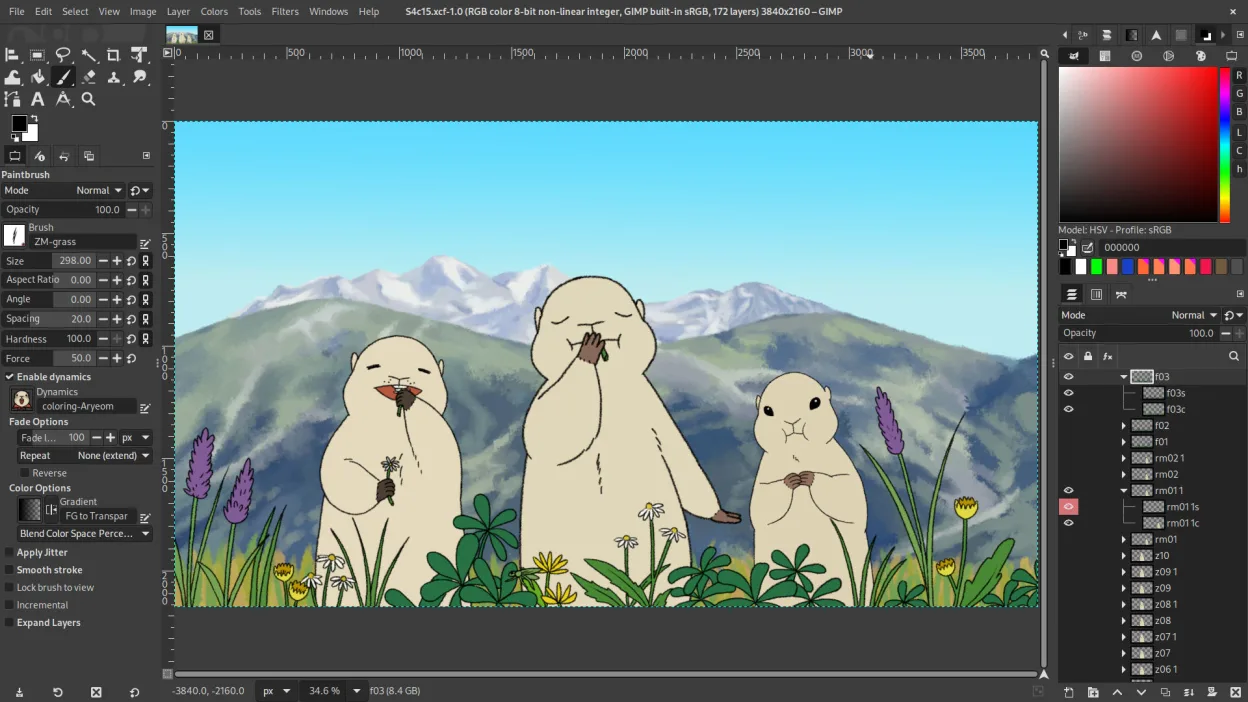
GIMP is a strong replacement for Photoshop Elements if you prioritize free, open-source tools and do not mind a steeper learning curve. It covers all core raster editing, retouching, and layer-based workflows. However, it lacks the guided, simplified interface and integrated photo cataloging features that make Elements accessible to beginners. If you need a straightforward, all-in-one organizer and editor without configuration, GIMP may feel overwhelming. It is best for users willing to invest time learning a professional-grade tool in exchange for zero licensing costs and full control.
- License
- GPL-3.0+ AND LGPL-3.0+
- Price
- Free
- Latest version
- 3.2.8 (November 2, 2026)
- Rating
- —
What works the same
- Layer-based editing with masks and blending modes
- Support for common formats like JPEG, PNG, and TIFF
- Basic retouching tools including healing, cloning, and color correction
- Export capabilities for web and print standards
What is different
- No built-in photo cataloging or organization system; requires external tools like Digikam or Gwenview
- Interface is more complex and less guided than Elements' step-by-step wizards
- Non-destructive editing is less native, often relying on plugins or specific workflow habits
- No integrated AI-powered selections or automated background removal tools
Opening your Photoshop Elements files
GIMP opens and saves PSD files, which are the native format for Photoshop Elements. While most layers, masks, and basic adjustments transfer correctly, complex smart objects, specific filters, or advanced metadata may not convert perfectly. It is always recommended to keep a backup of the original PSD before editing in GIMP to avoid losing data from unsupported features.
Switching from Photoshop Elements to GIMP, step by step
- Install GIMP from your Linux distribution's package manager or Flathub
- Install a photo management tool like Digikam for cataloging and organizing images
- Import your existing photo library into the new organizer
- Test opening a few PSD files from Elements to verify layer compatibility
- Learn GIMP's interface layout and customize panels to match your workflow
Key features of GIMP
- Layer-based editing with masks, blending modes, and transparency
- Advanced brush engine for digital painting and retouching
- Support for Photoshop-compatible plug-ins (via compatibility layers)
- Batch processing and scripting with Script-Fu, Python, or GEGL
- Non-destructive editing possible through plug-ins like G'MIC
- Extensive format support: PNG, JPEG, TIFF, PSD, WebP, and more
- Customizable interface with dockable panels and themes
- Color management with ICC profile support
How to install GIMP on Linux
flatpak install flathub org.gimp.GIMPsudo apt install gimpsudo apt install gimpsudo dnf install gimpsudo pacman -S gimpsudo zypper install gimpFrequently asked questions
Can GIMP replace the Elements Organizer?
No, GIMP is an editor, not a cataloger. You need a separate application like Digikam or Gwenview to manage and organize your photo library.
Is GIMP difficult for beginners?
It has a steeper learning curve than Elements. The interface is more complex, and there are fewer guided wizards, so it takes time to become efficient.
Does GIMP support non-destructive editing?
Yes, but it is less intuitive than in Elements. You can use layers, masks, and plugins like G'MIC to achieve non-destructive workflows, but it requires more manual setup.
3 other alternatives to Photoshop Elements
 KritaKrita is a full‑featured open‑source digital painting and illustration program.Open sourceFreeFlatpakKrita vs Photoshop Elements
 darktabledarktable is a free, open‑source photo editor that manages raw files and offers a full non‑destructive…Open sourceFreeFlatpakdarktable vs Photoshop Elements
 RawTherapeeRawTherapee is an open‑source, cross‑platform raw photo development program.Open sourceFreeFlatpakRawTherapee vs Photoshop Elements