
Windows · System Tools
Best Linux alternatives to Proton
Proton is Valve's compatibility layer that runs Windows games on Linux via Steam, using patched Wine and DXVK.
Updated
2 Linux alternatives to Proton
-

Bottles runs Windows applications on Linux, managing them in isolated environments.
Bottles is a strong replacement for Proton if you need to run non-Steam Windows games or applications. It acts as a frontend that can actually use Proton as its underlying runner, so it does not replace the compatibility layer itself but manages it. For Steam users, it adds complexity without…
Feature parity85% -
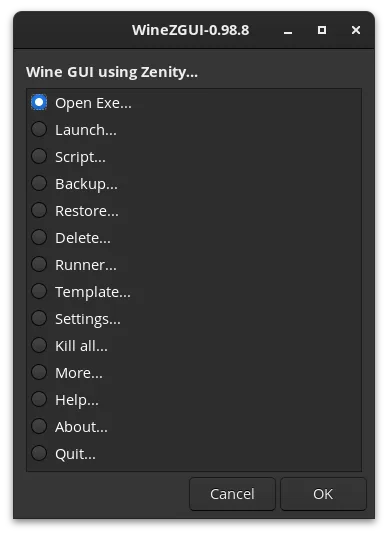
WineZGUI is a Bash-based frontend for Wine that simplifies running Windows games on Linux with Zenity-driven menus and prefix management.
WineZGUI is not a direct replacement for Proton, but a complementary tool. Proton is a compatibility layer that translates DirectX to Vulkan, while WineZGUI is a management frontend that organizes how you run games using various backends, including Proton-GE. If you need the underlying translation…
Feature parity40%


What is Proton?
Proton serves as a bridge for gamers who want to play Windows-only titles on Linux. It is primarily used by Steam users who enable "Steam Play" to launch their existing Windows game libraries without dual-booting or installing Windows. It handles the translation of DirectX calls to Vulkan, making it essential for anyone trying to run modern PC games on a Linux desktop.
The software is free and open-source, developed by Valve in collaboration with CodeWeavers. It is distributed directly through the Steam client, meaning there is no separate download or license key required. Because it is integrated into the platform, users do not pay extra for the compatibility layer itself; they only pay for the games they wish to play.
People look for alternatives or related tools when they need to run non-Steam games, use specific older versions of Wine, or manage multiple isolated environments. While Proton is excellent for Steam, it is tightly coupled to that ecosystem. Users seeking more granular control over Wine prefixes or support for other storefronts often turn to standalone compatibility layers or launchers that offer similar functionality outside of Steam's constraints.
What a replacement for Proton must do
- Translate Windows DirectX calls to Vulkan
- Run Windows executables on Linux
- Manage isolated Wine prefixes
- Integrate with game launchers or Steam
- Handle driver and library dependencies
- Support for non-Steam game libraries
Can you run Proton on Linux?
Proton is a native Linux application designed specifically to run on Linux. It is not a Windows program that needs emulation; rather, it is the tool that performs the emulation. You do not run Proton under Wine; you use Proton to run Windows games. It is distributed via Steam, which is a native Linux client. If you are looking for a way to run Proton itself, it is already native. If you are looking for what Proton runs, it runs Windows games. There is no need to run Proton under another compatibility layer.
Which alternative should you choose?
If you primarily play Steam games, stick with Proton via Steam, as it is the most integrated and maintained option. For non-Steam games or if you need specific Wine versions, Lutris is a powerful choice that allows manual configuration of Wine prefixes. Bottles is a good middle ground, offering a user-friendly interface for managing isolated Wine environments with pre-configured profiles for common games and apps. Heroic Games Launcher is best if you use Epic Games or GOG, as it can utilize Proton or Wine to run those specific storefronts' games. WineZGUI is a simpler, more basic option for users who just need to run a single Windows executable without complex launcher features.
Moving your Proton files and habits
Migrating from Proton to another tool like Lutris or Bottles involves creating new Wine prefixes. Your Steam library itself does not need to be moved, as Steam libraries are standard file directories. However, game saves and configurations stored within the Proton prefix (usually in ~/.steam/steam/steamapps/compatdata) will not automatically transfer to a new Wine prefix. You may need to manually copy save files from the old prefix to the new one. If you switch to a different launcher, you are essentially starting a fresh environment, so ensure you back up any critical game data before deleting old prefixes.
Side-by-side comparison
Proton: frequently asked questions
Is Proton free to use?
Yes, Proton is free and open-source. It is included with the Steam client on Linux. You do not pay for the compatibility layer, only for the games you purchase.
Can I use Proton for non-Steam games?
Proton is designed for Steam, but it can be used for non-Steam games through tools like Lutris or Heroic. You can point these launchers to the Proton binary to run executables from other stores.
Do I need to install Windows to use Proton?
No. Proton is a compatibility layer that runs on Linux. It does not require a Windows installation or license. It translates Windows API calls to Linux system calls.
What is the difference between Proton and Wine?
Wine is the base compatibility layer. Proton is a modified version of Wine that includes additional libraries and patches, specifically optimized for running games with high performance and compatibility.
How important is Proton to you?
Know a better alternative? Suggest an alternative