
 MyPaintLinux
vs
Procreate (iPad/Tablet)Windows
MyPaint as a Linux alternative to Procreate (iPad/Tablet)
Updated
Our verdict
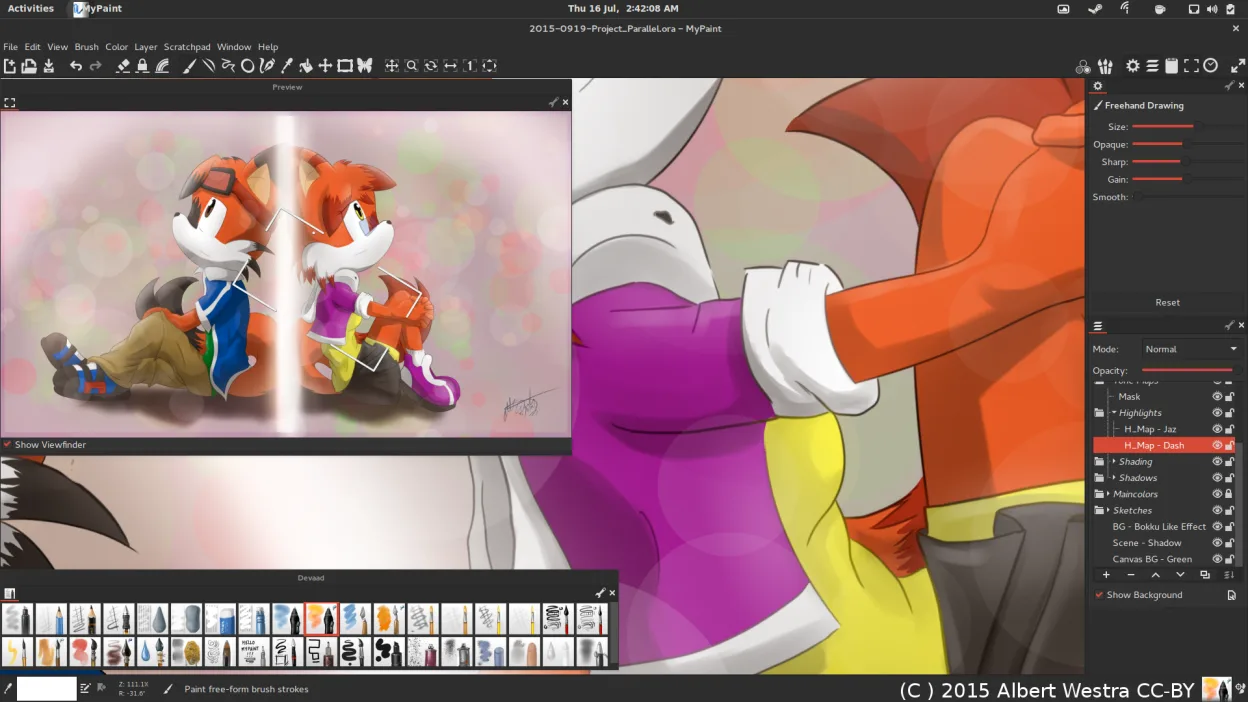
MyPaint is a strong, free alternative for Linux users who prioritize brush dynamics and tablet integration over a full-featured UI. It handles pressure and tilt well, offering a distraction-free canvas similar to Procreate’s focus. However, it lacks Procreate’s polished layer management and extensive blending modes. If you need professional-grade compositing or specific Apple ecosystem features, MyPaint may feel limiting. For pure painting with a Wacom tablet, it is a capable, honest tool that avoids subscription costs, though you will miss some advanced workflow conveniences found in the iPad app.
- License
- GPL-2.0+
- Price
- Free
- Latest version
- 2.0.1 (May 29, 2020)
- Rating
- —
What works the same
- Pressure and tilt sensitivity support for graphics tablets
- Highly configurable brush engine with natural media simulations
- Undo/redo history with multiple steps
- Canvas-focused interface that minimizes UI clutter
- Export to common raster formats like PNG and JPEG
What is different
- MyPaint lacks PSD export, which Procreate supports for cross-platform editing
- Layer blending modes in MyPaint are more basic than Procreate’s extensive set
- No native support for Procreate’s specific file format (.procreate)
- MyPaint interface is less polished and lacks Procreate’s gesture-based controls
- Custom brush creation is possible but less intuitive than Procreate’s brush studio
Opening your Procreate (iPad/Tablet) files
MyPaint cannot natively open Procreate (.procreate) files. You must export your work from Procreate as a flattened PNG or TIFF, or as a PSD if you have access to a compatible viewer, though MyPaint’s PSD import support is limited. For best results, export layers individually or as a high-resolution PNG before importing into MyPaint. Note that complex layer effects may not translate perfectly.
Switching from Procreate (iPad/Tablet) to MyPaint, step by step
- Export your Procreate artwork as a high-resolution PNG or TIFF file.
- Install MyPaint via your Linux package manager or Flathub.
- Connect your Wacom or other graphics tablet and configure pressure settings.
- Open the exported image in MyPaint and add new layers for further work.
- Adjust brush settings to match your preferred Procreate brush feel.
- Save your project in OpenRaster format to preserve layers for future editing.
Key features of MyPaint
- Brush engine with hundreds of configurable parameters
- Supports pressure sensitivity and tilt on graphics tablets
- Simple, distraction‑free canvas‑only interface
- Layer support with basic blending modes
- Export to PNG, JPEG, OpenRaster and other common formats
- Extensible via Python plugins
- Pre‑installed brush packs from professional artists
- Undo/redo history with unlimited steps
How to install MyPaint on Linux
flatpak install flathub org.mypaint.MyPaintsudo apt install mypaintsudo apt install mypaintsudo dnf install mypaintsudo pacman -S mypaintsudo zypper install mypaintFrequently asked questions
Can I use MyPaint with a Wacom tablet?
Yes, MyPaint is designed with tablet users in mind and supports pressure and tilt sensitivity out of the box.
Does MyPaint support layers?
Yes, it supports multiple layers with basic blending modes, but the layer management interface is simpler than Procreate’s.
Is MyPaint free?
Yes, MyPaint is free and open-source under the GPL-2.0+ license, with no subscription or one-time purchase required.
4 other alternatives to Procreate (iPad/Tablet)
 KritaKrita is a full‑featured open‑source digital painting and illustration program.Open sourceFreeFlatpakKrita vs Procreate (iPad/Tablet)
 GIMPGIMP is a free, open-source raster graphics editor for photo editing, digital painting, and image composition.Open sourceFreeFlatpakGIMP vs Procreate (iPad/Tablet)
 InkscapeInkscape is a free, open‑source vector graphics editor that rivals Adobe Illustrator and CorelDRAW.Open sourceFreeFlatpakInkscape vs Procreate (iPad/Tablet)
 BlenderBlender is a free, open-source 3D suite for modeling, animation, rendering, and video editing.Open sourceFreeFlatpakBlender vs Procreate (iPad/Tablet)