
 MyPaintLinux
vs
SketchBookWindows
MyPaint as a Linux alternative to SketchBook
Updated
Our verdict
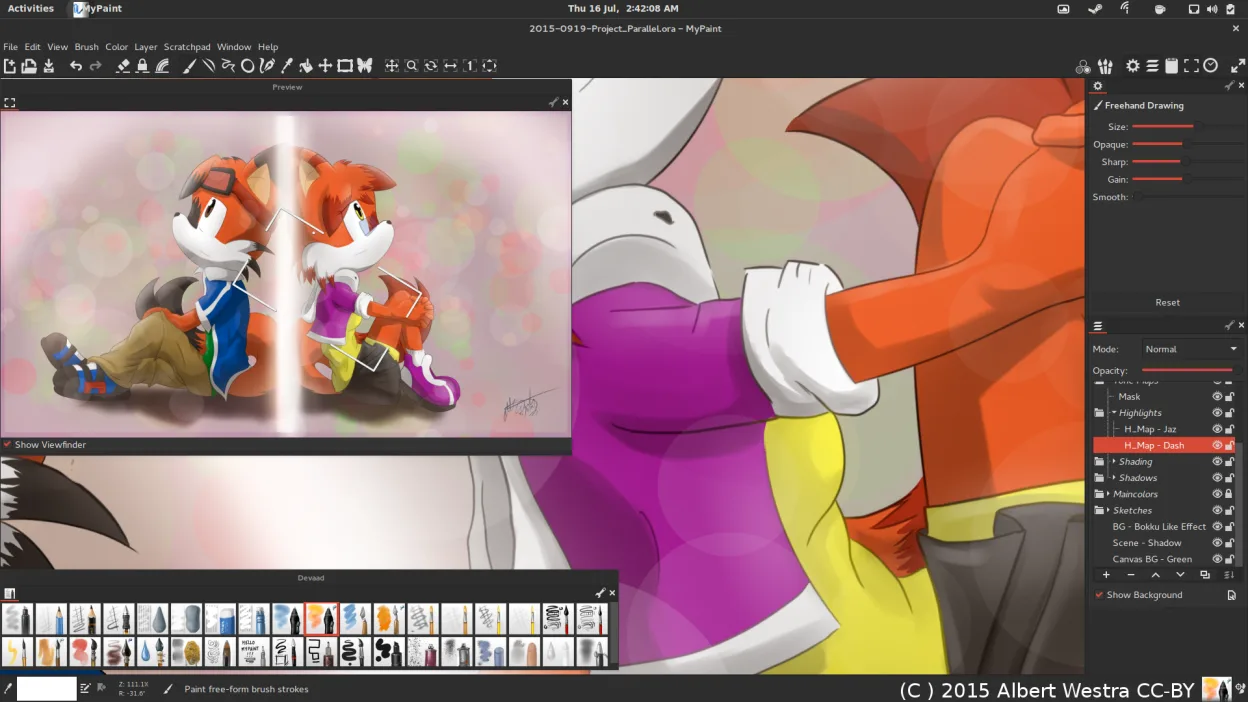
MyPaint is a solid replacement for SketchBook if you prioritize brush fidelity and tablet performance over polished UI. It matches SketchBook's core strength: pressure-sensitive raster drawing with a minimal interface. However, it is not a drop-in swap. MyPaint lacks the tight, modern workflow and specific toolset some SketchBook users rely on. It is ideal for concept artists and illustrators who value open-source flexibility and unlimited undo. Avoid it if you need advanced vector tools or a highly structured layer system with complex masking, as MyPaint keeps layers simple by design.
- License
- GPL-2.0+
- Price
- Free
- Latest version
- 2.0.1 (May 29, 2020)
- Rating
- —
What works the same
- Pressure-sensitive raster drawing engine
- Minimal, canvas-focused interface
- Support for graphics tablets and tilt
- Export to standard formats like PNG and JPEG
- Free to use on Linux
What is different
- MyPaint has simpler layer management without advanced masking
- SketchBook offers a more polished, modern UI with integrated tutorials
- MyPaint is open-source (GPL-2.0+) while SketchBook is proprietary
- MyPaint relies on Python plugins for extension, unlike SketchBook's closed ecosystem
Opening your SketchBook files
MyPaint does not natively open SketchBook's proprietary .skb files. You will need to export your SketchBook work as PNG or JPEG before importing it into MyPaint. MyPaint supports OpenRaster (.ora) for native saving, which preserves layers, but this format is not used by SketchBook. Always keep a backup of your original files before migrating.
Switching from SketchBook to MyPaint, step by step
- Install MyPaint via your package manager or Flathub
- Export all existing SketchBook projects as high-resolution PNGs
- Import the PNGs into MyPaint as new canvases
- Configure your tablet drivers to ensure pressure sensitivity works
- Test the default brush pack to match your SketchBook workflow
- Save new projects in OpenRaster format to preserve layers
Key features of MyPaint
- Brush engine with hundreds of configurable parameters
- Supports pressure sensitivity and tilt on graphics tablets
- Simple, distraction‑free canvas‑only interface
- Layer support with basic blending modes
- Export to PNG, JPEG, OpenRaster and other common formats
- Extensible via Python plugins
- Pre‑installed brush packs from professional artists
- Undo/redo history with unlimited steps
How to install MyPaint on Linux
flatpak install flathub org.mypaint.MyPaintsudo apt install mypaintsudo apt install mypaintsudo dnf install mypaintsudo pacman -S mypaintsudo zypper install mypaintFrequently asked questions
Does MyPaint support tilt sensitivity?
Yes, MyPaint supports both pressure and tilt sensitivity on compatible graphics tablets, allowing for more natural brush strokes.
Can I use custom brushes in MyPaint?
Yes, you can import custom brushes or configure existing ones using the extensive brush engine. You can also write Python plugins to create new brush behaviors.
Is MyPaint suitable for beginners?
It is very approachable due to its simple interface and pre-made professional brushes. However, the lack of a traditional menu bar might require a short learning curve for users coming from complex suites like Photoshop.
4 other alternatives to SketchBook
 KritaKrita is a full‑featured open‑source digital painting and illustration program.Open sourceFreeFlatpakKrita vs SketchBook
 GIMPGIMP is a free, open-source raster graphics editor for photo editing, digital painting, and image composition.Open sourceFreeFlatpakGIMP vs SketchBook
 PintaPinta is a free, open‑source bitmap editor that mimics Paint.NET with a simple interface and layer support.Open sourceFreeFlatpakPinta vs SketchBook
 Xournal++A cross-platform, open-source note-taking app for handwriting, PDF annotation, and whiteboarding with stylus…Open sourceFreeFlatpakXournal++ vs SketchBook